A touchscreen recognition display color calibration log is a dated, repeatable maintenance record that tracks each time your school’s digital hall of fame or athletic recognition display is checked and adjusted for brightness, white balance, and color accuracy. Schools that keep one catch drift before it distorts their team colors, protect their investment in recognition hardware, and give IT staff a documented audit trail when something looks wrong. This guide provides the workflow, log template, and schedule to make calibration a routine part of your display maintenance program.
Schools invest in touchscreen recognition displays to celebrate athletes, honor donors, and archive decades of achievement—but those displays only look their best when the on-screen colors faithfully match the school’s brand. A faded navy that drifts toward purple, a gold that slides into yellow, or a contrast ratio that drops below the threshold required for comfortable reading can quietly undermine the credibility of an entire recognition program. The fix is not expensive hardware; it is a consistent, documented calibration cadence.
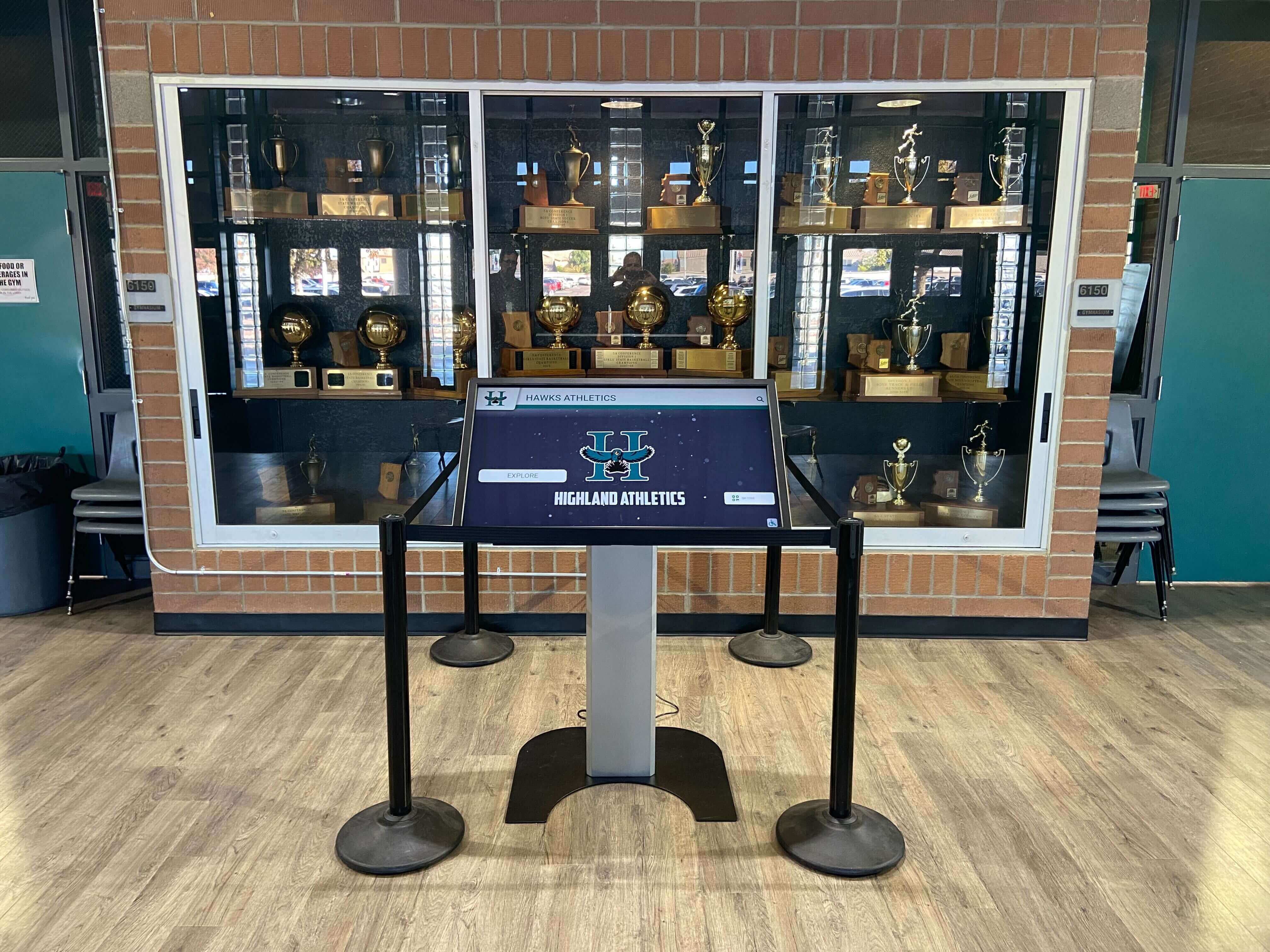
A touchscreen recognition display in a trophy case setting is visible to students, parents, and visitors daily—making color accuracy a matter of first impressions as much as hardware maintenance
Why Color Accuracy on a Recognition Display Is Different from a Standard Monitor
Recognition displays must reproduce specific school colors correctly. A general-purpose classroom monitor that drifts slightly is a nuisance; a hall of fame kiosk that renders your school’s navy as purple or your scarlet as orange misrepresents the visual identity your program has spent years building.
Three types of drift affect touchscreen recognition displays over time:
- Luminance decay — LCD and LED backlights lose brightness gradually. Most commercial-grade displays lose a measurable percentage of peak brightness within the first few thousand hours of operation, with the rate slowing but continuing throughout the panel’s lifetime. Display manufacturers publish specifications for backlight half-life, typically rated in hours; once a panel falls significantly below its original brightness, contrast and color saturation degrade together.
- Color temperature shift — White balance drifts as individual LED channels age at different rates, causing whites to appear warmer (more yellow) or cooler (more blue) than intended. For recognition programs with cream or white background layouts, this shift can make the entire display look outdated.
- Ambient light interaction — A display calibrated in summer will look different in winter when hallway lighting conditions change. Seasonal recalibration accounts for ambient light levels, particularly in lobbies with large windows where natural light angles shift substantially.
According to the Video Electronics Standards Association (VESA), display colorimetry standards specify that professional monitors should be calibrated to an sRGB color space with a white point of D65 (6500 K) for most general-purpose viewing, though school recognition systems in bright lobby environments often benefit from slightly higher brightness settings documented in the log.
The Web Content Accessibility Guidelines (WCAG), published by the World Wide Web Consortium (W3C), specify a contrast ratio of at least 4.5:1 for normal text and 3:1 for large text. Touchscreen recognition displays that show inductee names and biographical text against background colors must meet these thresholds—and luminance drift can silently push a display below compliance even when the design template itself was created correctly.
What to Record in a Touchscreen Recognition Display Color Calibration Log
A calibration log does not require specialized software. A shared spreadsheet or a printed form stored with your maintenance records captures everything you need.
Essential fields for each log entry:
| Field | Description | Example Value |
|---|---|---|
| Date | Full date of calibration check | 2026-08-15 |
| Technician | Name or initials of person performing check | M. Patterson |
| Display ID / Location | Unique identifier or physical location | GYM-LOBBY-01 / Main gym entrance |
| Panel age (months) | Months since installation or last panel replacement | 18 months |
| Brightness (pre-calibration) | Measured luminance or percentage before adjustment | 280 cd/m² |
| Brightness (post-calibration) | Measured luminance or percentage after adjustment | 300 cd/m² |
| Color temperature (pre) | White point reading before adjustment | 5,850 K |
| Color temperature (post) | White point reading after adjustment | 6,500 K |
| Gamma setting | Display gamma value confirmed or adjusted | 2.2 |
| School color check | Pass/fail for visual color-match against printed swatch | Pass |
| WCAG contrast check | Pass/fail for text contrast on primary layout | Pass |
| Notes | Any anomalies, error messages, or deferred service | None / “Top-right corner dimmer than center” |
| Next scheduled check | Date of next calibration | 2027-02-15 |
The “school color check” row is the most practical field in the log. Keep a printed color swatch of your official Pantone or hex color values laminated near each display. At each calibration, display a test screen that shows your school’s primary and secondary colors as solid blocks, then compare them visually against the swatch. If they do not match closely enough to be presented to visitors, adjust the display and log the change.
Step-by-Step Calibration Workflow for School Recognition Displays
This six-step workflow applies to commercial-grade touchscreen displays running hall of fame software, digital records boards, and interactive kiosk systems. The steps assume you have access to the display’s on-screen display (OSD) controls and, ideally, a basic colorimeter such as those commonly used for monitor calibration.
Step 1: Gather your materials before you start. You will need: a laptop or tablet with a calibration test image prepared, your school’s official color values (hex codes or Pantone equivalents), a printed color swatch or digital reference at a known-calibrated baseline, and a calibration log form (paper or digital). If you have a colorimeter, ensure its drivers and software are installed and the device has been stored at room temperature for at least 30 minutes.
Step 2: Set the display environment to normal operating conditions. Turn on the display and any ambient lighting that is typically on when students and visitors use the system. Calibrating in a darkened room will produce settings optimized for darkness, not for a brightly lit gym lobby or trophy case hallway. Wait at least 20–30 minutes after power-on for the panel to reach its operating temperature before taking readings.
Step 3: Record your pre-calibration baseline. Display a neutral gray test pattern at 50% brightness. If you have a colorimeter, place it against the screen at the center and read the luminance (in cd/m²) and white point (in Kelvin). If you do not have a colorimeter, note the display’s current OSD brightness and color temperature settings. Log both in the “pre-calibration” fields. This baseline tells you how much the display has drifted since the last session.
Step 4: Adjust brightness and color temperature using the OSD. Enter the display’s on-screen display menu (typically accessed by pressing a hardware button on the panel edge). Navigate to the “Picture,” “Color,” or “Calibration” section depending on the manufacturer. Set brightness to your target value—for a lobby installation, 300–400 cd/m² is a typical starting point; adjust based on ambient light measurement and the previous log entry. Set color temperature to 6500 K (D65) for most recognition content, or match the value your display vendor recommended at installation. If your display has individual RGB offset controls, align them so pure white matches the calibrated reference. Log the post-adjustment settings.
Step 5: Run a school color validation test. Display a full-screen test image that shows your school’s primary color, secondary color, and white as separate blocks. Compare each block against your printed swatch under the actual ambient lighting conditions in the hallway or lobby. If a color is visibly off, use the display’s color gamut or hue/saturation controls to correct it. Note: consumer-grade touchscreen panels may not support fine-grained color management; if the color cannot be corrected through the OSD, escalate to your display vendor. Log the result as Pass or Fail with notes on any adjustments made.
Step 6: Complete the log entry and schedule the next check. Record all post-calibration settings, the technician name, and the date. Note any anomalies, error messages, or hardware symptoms (flickering, uneven backlighting, dead pixels). Set a reminder for the next calibration date and store the log entry in your maintenance record system—a shared Google Sheet, a facility management platform, or a printed binder kept with the display hardware. Inform your display vendor of any persistent failures that could not be resolved through OSD adjustments.
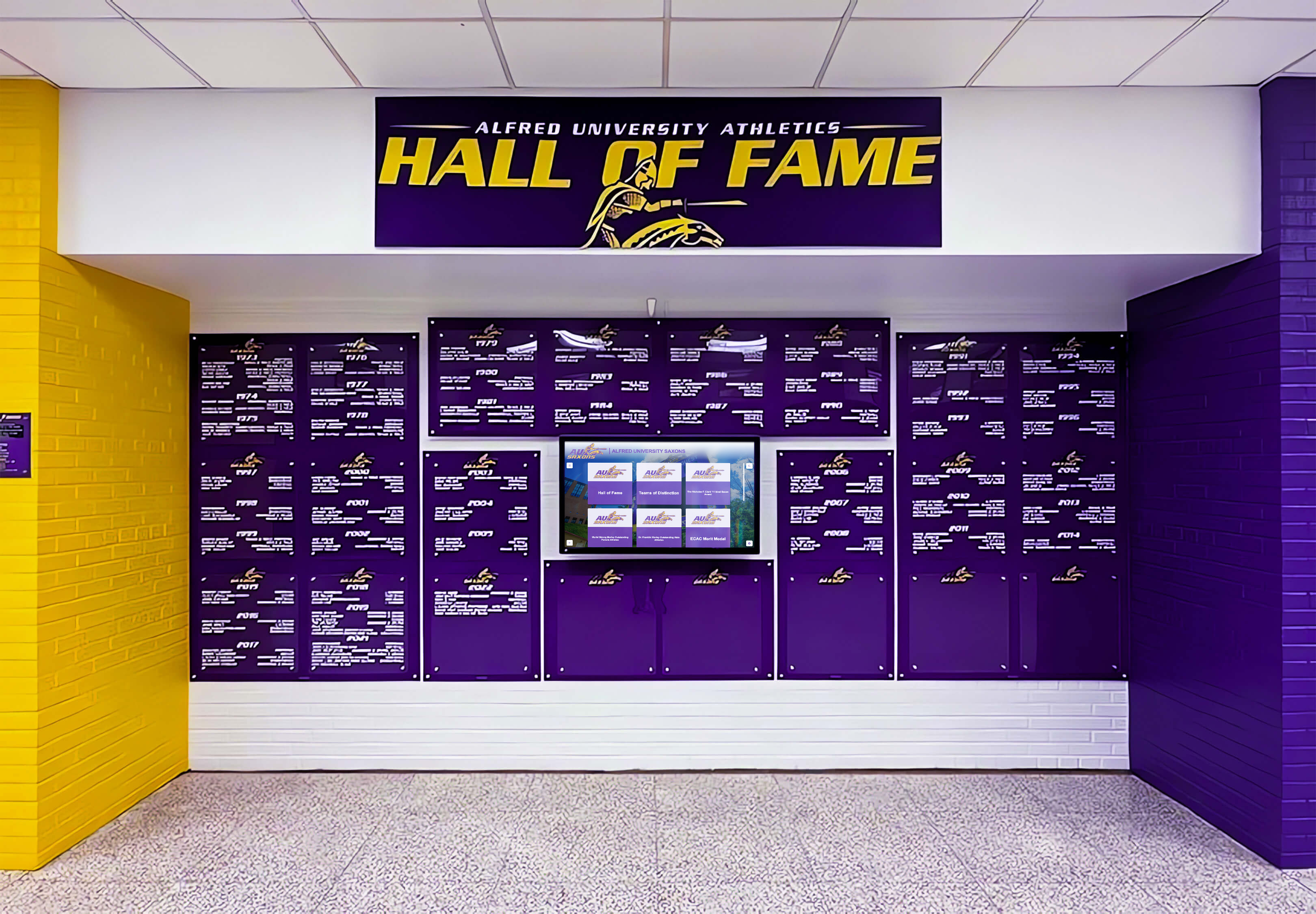
Vivid school colors on a recognition display—like this purple and yellow installation—depend on routine calibration to prevent color temperature drift from distorting brand-accurate hues
How Often to Run a Calibration Check
The right calibration interval depends on the display’s age, installation environment, and how prominently it is used.
Recommended schedule for school recognition displays:
- Monthly — Displays installed in high-traffic lobbies with variable natural light (near windows or glass walls). High-traffic displays are seen by more people, making visual drift more damaging to the program’s image.
- Quarterly — Interior hallway or trophy case installations with stable artificial lighting. A quarterly check catches seasonal drift without over-burdening IT staff.
- Semi-annually — Displays in low-traffic areas such as administrative offices or auxiliary gyms, or systems that are only powered on for events and enrollment periods.
- After any hardware service — Always run a full calibration workflow immediately after a panel replacement, firmware update, or hardware repair, regardless of where it falls on the scheduled calendar.
Some interactive school display software platforms include scheduled self-diagnostic routines that log error codes and brightness readings automatically. If your platform supports this, use the automated data as a supplement to, not a replacement for, manual calibration and a human visual check with a color swatch. Automated routines do not perform school color validation—they track signal output, not perceptual color accuracy.
Connecting Color Calibration to Your Broader Recognition Display Maintenance Program
A color calibration log is most useful when it sits inside a broader maintenance program that covers content, hardware, and software. The three components reinforce each other: accurate colors make good content look its best, well-maintained hardware sustains calibrated settings longer, and a documented software workflow catches display issues as part of routine content review.
Schools running content approval workflows for recognition displays—where new inductees, updated records, or award announcements go through a multi-step approval before going live—benefit from adding a “visual check on display” step at the end of the approval process. Content approval workflows for school touchscreen recognition displays typically already include a final review step; adding a color accuracy note to that step costs nothing and catches display drift between scheduled calibration cycles.
When a school installs a new touchscreen recognition display in a new building, the display installation timing matters for calibration planning: a display installed months before a building opens to the public has time to go through several calibration cycles before its first large-scale visitor audience. Use that lead time to establish your baseline settings and train the staff members who will own the log going forward.
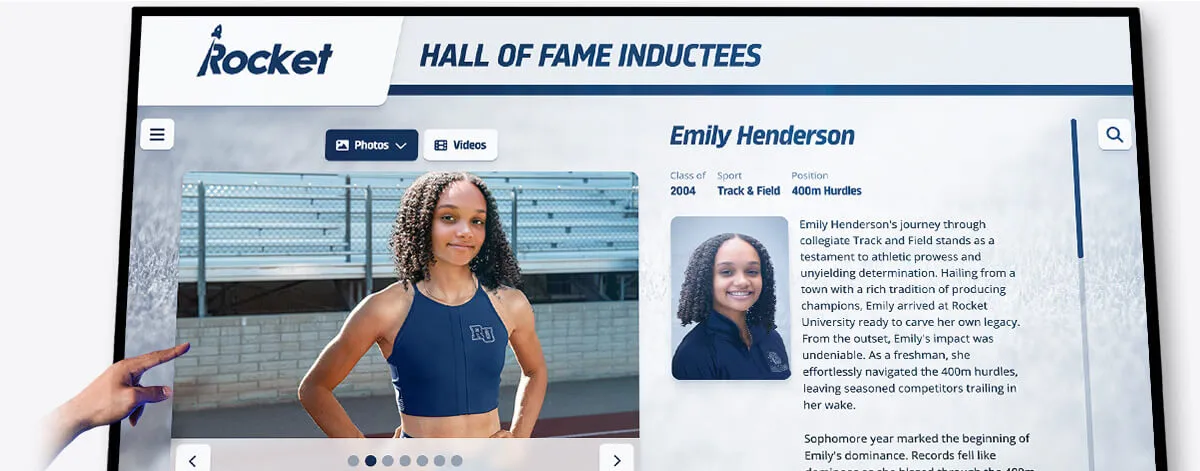
Individual athlete profiles on recognition displays rely on accurate color rendering to faithfully represent the athlete and the school's visual identity across inductees spanning different eras
When to Call Your Vendor vs. Adjust the Display Yourself
OSD calibration resolves most color and brightness drift. There are situations, however, where the correct response is a service call rather than a settings adjustment.
Call your vendor when:
- The display shows significant brightness variation across the panel surface (bright center, dark corners, or visible gradients)
- Colors cannot be corrected to match the school swatch even after OSD adjustments
- The display’s calibration settings revert to factory defaults after power cycling, which may indicate a firmware issue or failing NVRAM
- The touchscreen layer shows persistent dead zones that prevent users from interacting with inductee profiles
- You see color “banding”—discrete stripes of slightly different color—which indicates a panel hardware failure rather than a calibration issue
Document these symptoms in the calibration log with dates before contacting the vendor. A log showing when the symptom first appeared, what settings were attempted, and whether the issue is worsening gives the service technician faster diagnostic context than a verbal description.
When comparing recognition platforms and display quality, vendor service response times and warranty coverage for panel replacement are worth evaluating alongside software features. A recognition system that requires frequent panel replacement without a clear service path creates gaps in the calibration log—and gaps in the recognition program itself.
The Case for Consistent School Color Accuracy
Color is not a cosmetic concern for recognition programs—it is a fidelity concern. A hall of fame inductee’s profile should look the same in year five as it did in year one. A donor wall should render the institution’s colors with the same accuracy in its tenth year as at installation. Comparing traditional and modern school display cases highlights how digital displays offer advantages over static physical cases precisely because they can be updated, maintained, and corrected—but only programs with a documented maintenance workflow actually capture that advantage.
For recognition programs that extend into digital spaces—yearbook archives, graduation honors, or academic recognition—color consistency across platforms compounds the value of display-level calibration. When school recognition graphics use the same color values on touchscreen displays, printed collateral, and online platforms, the institutional identity reinforces itself at every point of contact.
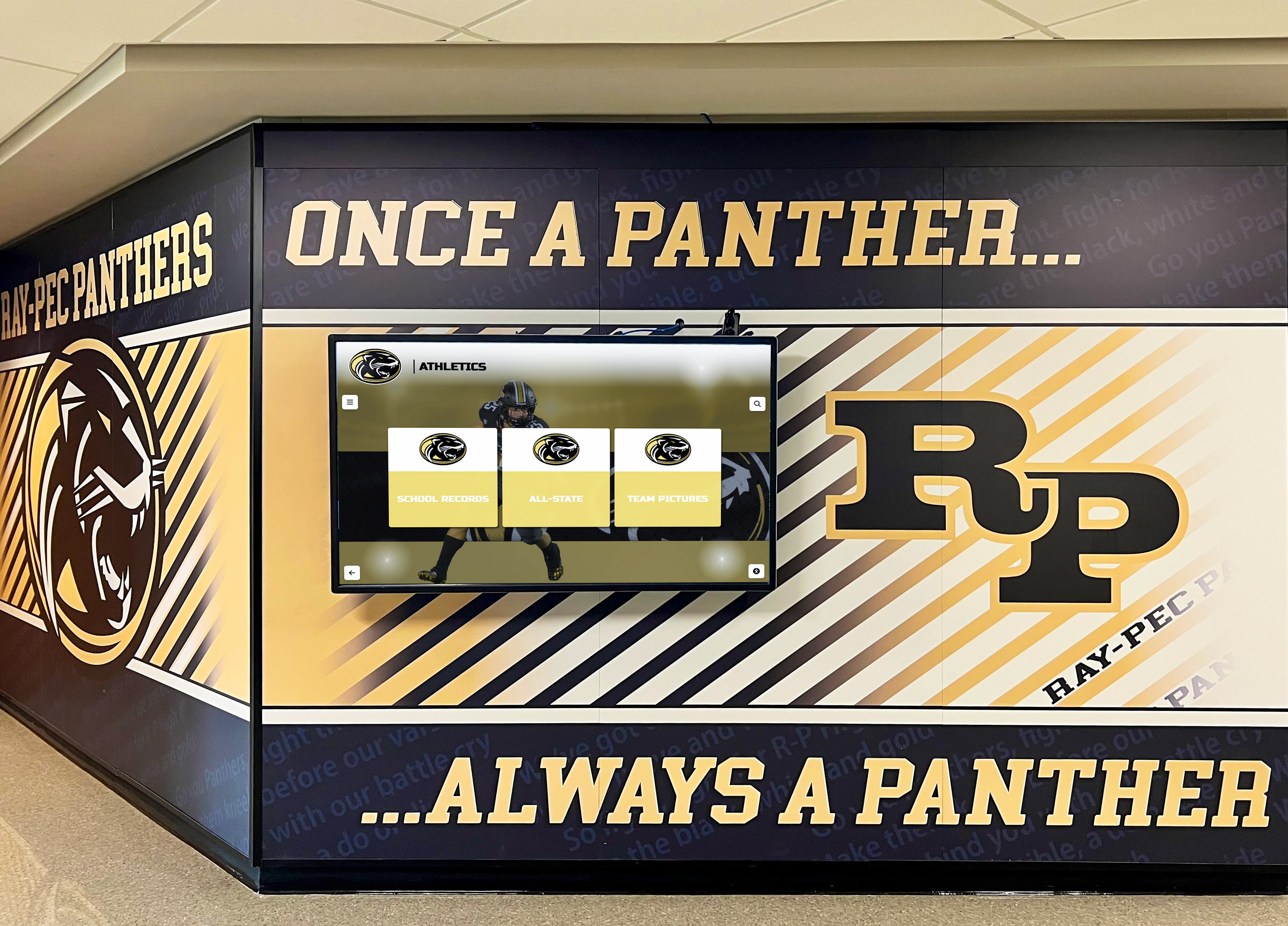
Hallway installations that combine physical murals with digital screens rely on color-accurate displays to align the electronic and physical elements of the recognition environment
Contextual CTA
If your school is evaluating or upgrading a touchscreen recognition display and wants to understand how platform vendors approach long-term display calibration, content management, and maintenance support, look for a vendor that handles both the recognition content and the ongoing display health workflow.
Frequently Asked Questions About Touchscreen Recognition Display Color Calibration Logs
What is the purpose of a color calibration log for a school recognition display?
A color calibration log records each maintenance session in which a school’s touchscreen display is checked and adjusted for brightness, white balance, and color accuracy. It creates an auditable history that helps IT staff catch drift early, proves to vendors that routine maintenance occurred when warranty service is needed, and ensures the display consistently represents the school’s brand colors accurately.
How often should a school calibrate its touchscreen recognition display?
A reasonable default schedule is quarterly for most interior installations and monthly for high-traffic lobby displays with variable natural light. Calibration should also be performed immediately after any hardware service, firmware update, or panel replacement, regardless of where those events fall on the regular schedule.
Can school IT staff perform display calibration without specialized equipment?
Yes. The most important calibration check—comparing displayed colors to a printed school color swatch under normal operating conditions—requires only a laminated swatch and the display’s on-screen display controls. A basic colorimeter, widely available from hardware and photography suppliers, adds objective luminance and white-point measurements that improve the log’s precision, but the visual swatch check is the most practical school-color-specific step and requires no additional hardware.
What color temperature should a school recognition display be calibrated to?
A white point of 6500 K (the D65 standard used in most professional display calibration) is appropriate for general recognition content. For displays in bright lobby environments with high ambient light, a slightly higher brightness target—typically 300–400 cd/m²—compensates for the ambient light level. Your display vendor’s installation documentation may specify a recommended color temperature for your specific installation environment.
Does color calibration affect the accessibility of text on a recognition display?
Yes. WCAG (Web Content Accessibility Guidelines) specifies a minimum contrast ratio of 4.5:1 for normal text and 3:1 for large text. Brightness drift reduces the contrast between text and background colors on a recognition display, potentially pushing the display below these thresholds even when the underlying design met them at installation. A full calibration workflow should include a contrast check against the most common text-over-background combinations in your recognition content layout.
A Documented Calibration Workflow Protects Every Recognition Program It Supports
A touchscreen recognition display color calibration log is one of the lowest-cost, highest-impact tools available to school facilities and IT staff. It costs nothing beyond a shared spreadsheet, a printed color swatch, and thirty minutes per scheduled session—and it protects the accuracy of every athlete portrait, donor name, and championship record the display has been trusted to show.
The workflow is straightforward: establish a baseline at installation, log every calibration session with pre- and post-adjustment readings, run a school color validation check against a physical swatch at each visit, and escalate to the vendor when OSD adjustments cannot resolve the issue. Carry that discipline through each scheduled cycle and the display will continue to represent your school’s recognition program faithfully through years of daily operation.
Rocket Alumni Solutions designs and installs touchscreen recognition systems with school color accuracy and long-term display health as core design requirements—not afterthoughts.
See a Recognition Display Built for Long-Term Performance
Rocket Alumni Solutions builds touchscreen hall of fame systems and athletic recognition displays designed with consistent color accuracy and structured maintenance support for K-12 schools and universities.
Get notified when Rocket Graphics opens