Walk into almost any modern school, university, or community center and you will find a large display on a wall or mounted on a stand. Touch it, and something happens — a hall of fame profile loads, a campus map zooms in, or a donor list appears. That response is what separates interactive touch screen digital signage from a standard display, and the difference matters more than most buyers realize when they start comparing hardware spec sheets.
Interactive touch screen digital signage is a commercial display system where a viewer directly manipulates on-screen content using physical touch. It combines three distinct layers — the display panel, the touch detection hardware, and the content management software — and each layer requires a different set of decisions. Focusing only on the display, which most buyers do, leads to setups that look impressive on day one but become difficult to maintain and update over time.
This guide covers all three layers in detail. You will learn how the technology works at a mechanical level, what each use case actually requires, how to plan an honest total-cost budget, and what to look for in a vendor who understands the specific demands of a school or educational institution.
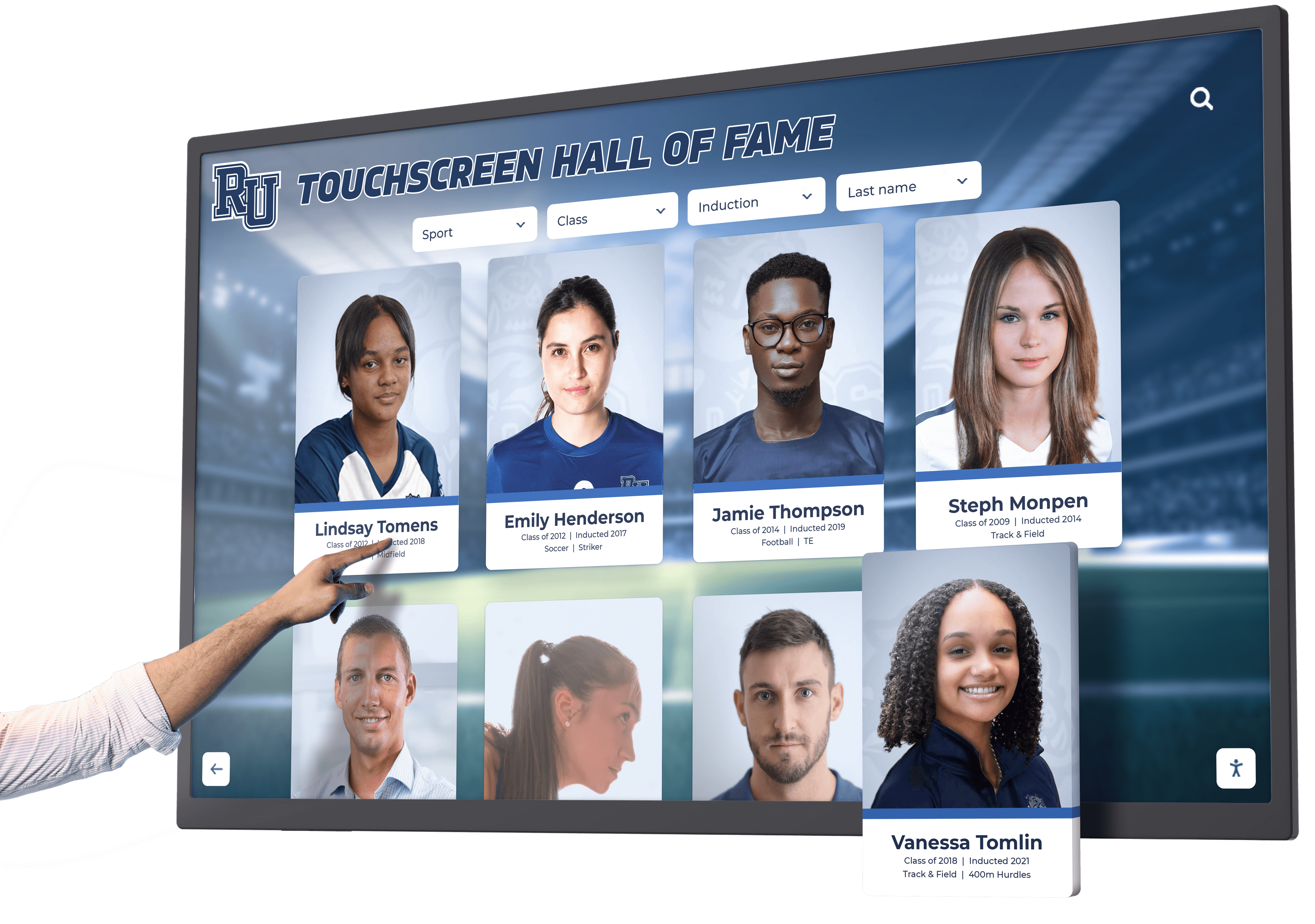
Interactive touchscreens let visitors explore recognition content at their own pace — the technology behind that experience involves three distinct layers, each requiring separate planning decisions
How Interactive Touch Screen Technology Actually Works
Every interactive touch screen display detects where a finger or stylus makes contact with the surface, then sends that coordinate data to the operating system or application layer, which decides what content to display next. What differs between display types is how that contact is detected.
Projected Capacitive (PCAP) Touch
PCAP is the technology inside every modern smartphone and tablet. A grid of thin, nearly invisible electrodes sits behind the display glass. When a finger approaches, it alters the electrical field at that grid location. The sensor controller reads the change and calculates the exact touch coordinate.
PCAP screens support multi-touch — multiple simultaneous contact points — and respond to bare fingers without requiring pressure. A light tap registers as precisely as a firm press. They also support gestures: pinch-to-zoom, swipe, and rotate. For most school and office applications, PCAP is the preferred choice.
The limitation is that PCAP requires skin contact or a conductive stylus. Gloved hands typically do not register, and hard objects like pen caps do not work. This rarely matters in a school lobby or gymnasium but is relevant in industrial or outdoor installations.
Infrared (IR) Touch Frames
IR touch systems use a grid of infrared LED emitters and receivers positioned along the frame edges of the display. The beams cross the screen surface invisibly. When a finger, stylus, or any opaque object breaks one of those beams, the controller calculates the contact point from which beams were interrupted.
IR frames work with any object — gloved hands, styluses, pens, and pointers all register. They are typically added as an overlay frame to an existing non-touch commercial display, making them useful when budgets require reusing existing hardware.
IR systems are generally less expensive than built-in PCAP panels but can be less precise at screen edges where beam angles are shallower. In high-ambient-light environments, strong sunlight can interfere with IR reception, making window proximity a consideration during installation planning.
Optical Touch
Optical touch systems use cameras mounted in the display bezel to track contact points using computer vision. They function similarly to IR in that any opaque object can trigger interaction, but they are used primarily in very large format displays — 85 inches and above — where other touch technologies become cost-prohibitive.
Resistive Touch (Legacy)
Resistive touchscreens sandwich two conductive layers that flex and make contact under physical pressure. They are inexpensive and register any object, but require noticeable force, do not support multi-touch, and show optical distortion from the double-layer construction. Resistive displays are effectively obsolete for new interactive signage installations. Any display offered today for a school or organizational setting should use PCAP or IR.
The Three-Layer Hardware and Software Stack
Understanding why interactive signage projects succeed or fail requires understanding how the hardware and software layers connect.
Layer 1 — The Display Panel The screen itself: size, resolution, brightness rating, anti-glare coating, commercial duty cycle rating. These specs determine whether the image is readable in the installation environment and whether the panel survives continuous operation over years.
Layer 2 — The Touch System Either built into the panel (PCAP interactive flat panel) or added as an IR overlay frame. This layer converts physical contact into coordinate data that the operating system can read.
Layer 3 — The Content Management Software The application that receives touch input and responds with content — profiles, maps, directories, schedules. This is where the ongoing maintenance burden lives. A display showing outdated information is actively harmful to a school’s credibility with visitors, prospective families, and returning alumni.
Most buying decisions focus almost entirely on Layer 1. Layer 3 is what determines whether the investment retains value over five or more years.
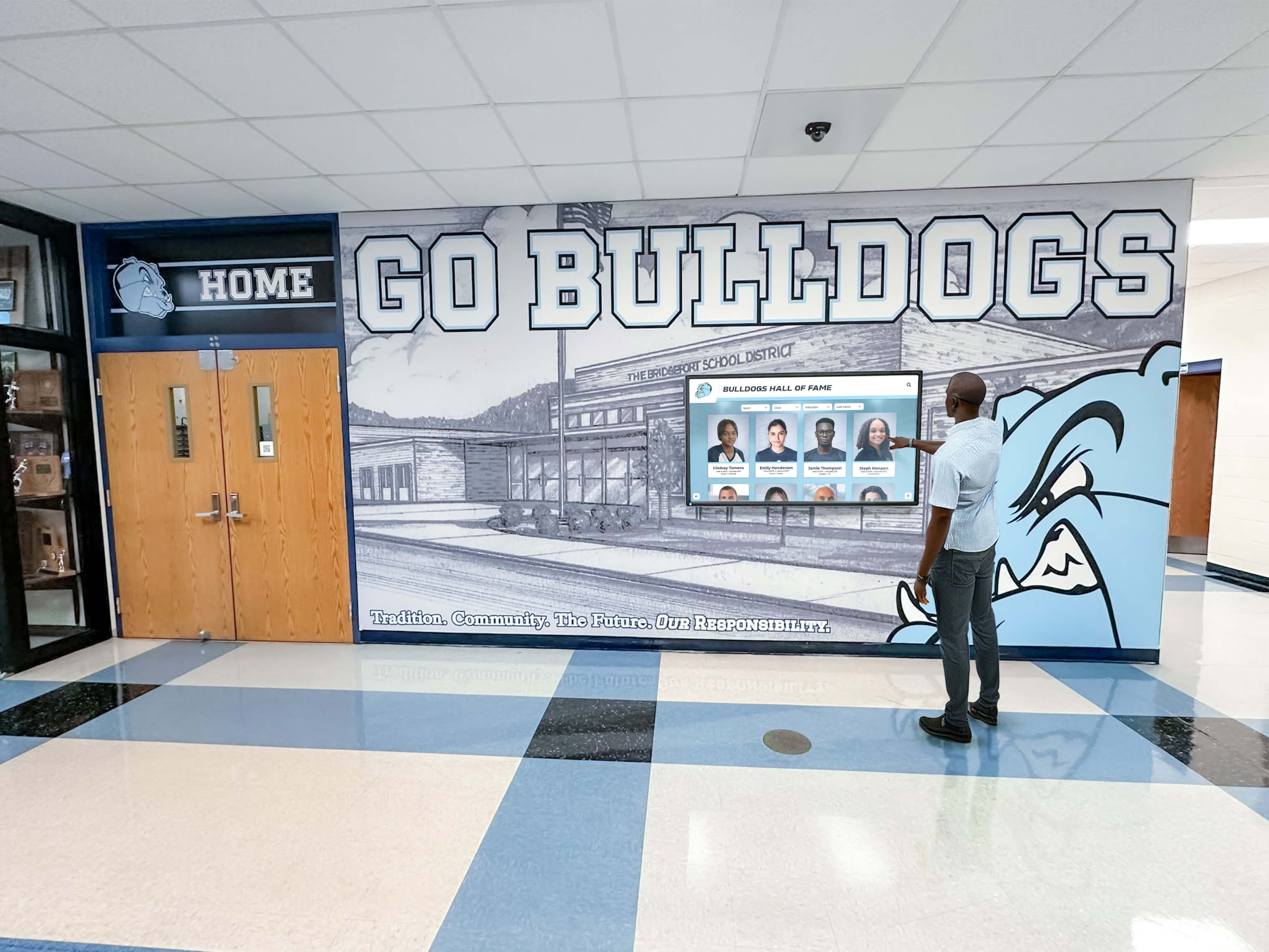
A hall of fame touchscreen is only as useful as the content behind it — the software layer that manages profiles, photos, and records determines long-term maintenance burden more than any hardware specification
Common Use Cases in Schools and Educational Institutions
Schools deploy interactive touch screen digital signage in several distinct roles, and each role has different content and hardware requirements.
Athletic Hall of Fame and Recognition Walls
A touchscreen display in a high school gym lobby replaces printed plaques and static banner lists with a searchable, browseable archive. Visitors can find a specific athlete by name, browse by sport or graduation year, or explore championship seasons from a timeline view.
The practical advantage is depth. A physical trophy case shows what fits in the available space. A touchscreen can hold every athlete who ever lettered, every championship year, every record holder — and surface that content through search without requiring a viewer to scroll through thousands of entries.
Athletic recognition displays benefit from direct connection to existing athletic database records so that new season results and record-breaking performances update the display without requiring manual data entry each time. Solutions like Rocket Alumni Solutions are built specifically for this use case, providing school-branded interfaces that run on commercial touch displays without custom development work.
Campus Wayfinding and Building Directories
For schools with large campuses or multiple buildings, an interactive touch screen kiosk in a school lobby gives visitors a self-service way to find rooms, departments, and staff members. A searchable directory with office numbers is significantly faster for a first-time visitor than consulting a posted paper list or waiting for a front desk staff member.
Wayfinding content requires regular updates as staff move offices and room assignments change. The content management system must make those updates straightforward enough that an administrative assistant can handle them without technical assistance.
Academic Achievement Recognition
Honor rolls, National Merit Scholars, scholarship recipients, academic all-state designations — these recognitions often receive less prominent display space than athletic achievements, partly because compiling the content is harder and partly because static displays cannot show more than a few names without becoming unreadable.
A touch screen solves both problems. The full honor roll from every semester can be searchable by name or year. Academic competition results, science fair winners, and student government officers can each occupy a dedicated section. The display can recognize far more students than a physical board allows, which matters: recognition has a documented positive effect on academic motivation and school engagement.
Donor Walls and Development Recognition
Touch walls for high schools and alumni recognition programs use interactive displays to present donor names, giving histories, and campaign progress in a format that updates without physical fabrication. Adding a new major donor to an engraved wall requires weeks and hundreds of dollars. Updating a digital donor display takes minutes.
Development offices also use interactive displays to show capital campaign progress — a real-time visualization of funds raised against campaign goals gives donors a clear view of collective impact that a static plaque cannot communicate.
Historical Archives and Institutional Storytelling
Yearbook archives, school history timelines, notable alumni spotlights, and historical photos are content types that schools possess in abundance but rarely surface for current students. An interactive display organized by decade or theme makes this content exploratory rather than passive, allowing students with family connections to the school to discover relatives in historical records.
Visitor Check-In and Self-Service Information
Reception areas benefit from touch kiosks that answer the questions staff field repeatedly — building hours, department locations, event schedules, parking information. This is most useful in schools with high visitor volume: large high schools during athletic events, university admissions offices during open house periods, or community education centers with public programming.
Choosing the Right Display Hardware
Size and Viewing Distance
Screen size should match the expected viewing distance in the installation location. A practical rule: the diagonal screen size in inches should be roughly equal to the viewing distance in inches divided by 2.5. For a 10-foot (120-inch) viewing distance, that suggests a minimum 48-inch display. For typical school lobby and gymnasium installations with 10–15 foot viewing distances, 75–86 inch displays are the most common specification.
Interactive displays require clearance in front of them — users must physically reach the screen. Minimum usable clearance is 4 feet; 6–8 feet is better for group use. Mounting height matters for accessibility: the ADA specifies maximum heights of 48 inches (forward approach) and 54 inches (side approach) for operable controls. Key navigation elements should fall within those ranges.
Commercial vs. Consumer Grade
Commercial displays are rated for continuous operation — typically 16–24 hours per day, seven days a week. Consumer televisions are rated for roughly 4–6 hours of daily use. Running a consumer TV as a continuous lobby display will significantly shorten its lifespan. Commercial panels also include features irrelevant to home use: anti-glare coatings, higher sustained brightness levels, remote management ports, and longer warranty periods.
For school environments specifically, look for:
- Anti-glare glass that holds up in mixed-light lobbies
- Brightness ratings of 400–500 nits minimum for ambient-light spaces
- Tempered glass panels that resist impact
- Sealed bezels that prevent liquid ingress
- Commercial-grade warranties of at least 3 years with on-site service options
Built-In vs. Overlay Touch Systems
Interactive flat panels (IFPs) have touch built into the display during manufacturing. This produces better optical clarity, more consistent touch response, and more uniform physical construction.
IR overlay frames can convert an existing non-touch commercial display into an interactive one. They are less expensive and allow reuse of existing hardware, but the added frame increases physical depth, and touch precision at screen edges is typically lower than a purpose-built IFP.
For new installations where budget allows, purpose-built PCAP IFPs are the better long-term choice. For projects that need to add interactivity to already-purchased displays, IR overlays are a practical option.

Testing a demo unit before purchase reveals touch response, navigation clarity, and content structure issues that specification sheets do not capture
What to Look for in Content Management Software
The software running on an interactive signage display determines whether it functions as a useful resource for five or more years, or becomes an outdated installation that staff stop maintaining. The comprehensive 2026 buyer’s guide to interactive touchscreen kiosk software provides a detailed comparison framework for schools evaluating platforms.
Key capabilities to evaluate:
Browser-Based Administration Staff should be able to update content from any computer without installing specialized software. Web-based content management systems allow updates from an office laptop, a home computer in the evening, or a tablet from anywhere with internet access.
Role-Based Permissions In schools, multiple departments contribute content. The athletic director controls sports content. The counselor updates academic recognition. Development staff maintain donor information. A permission system that gives each department control over its own content section — without access to others — keeps updates accurate and reduces coordination overhead.
Template-Based Content Entry School staff uploading a new athlete profile should fill in a form — name, sport, graduation year, photo — not edit code or design a layout. Template-based systems that produce consistent visual output from structured data entry are necessary for schools without dedicated design staff.
Remote Management Across Multiple Displays Schools operating more than one display need to manage them from a single interface. Carrying a USB drive to each screen for updates is not a sustainable workflow. Cloud-based content management allows updates to reach every display from one login.
Analytics and Usage Reporting Knowing which content sections receive the most interaction, and when usage peaks occur, helps administrators make decisions about what to update and expand. Schools planning to justify ongoing investment benefit from usage data they can present to administrators and school boards.
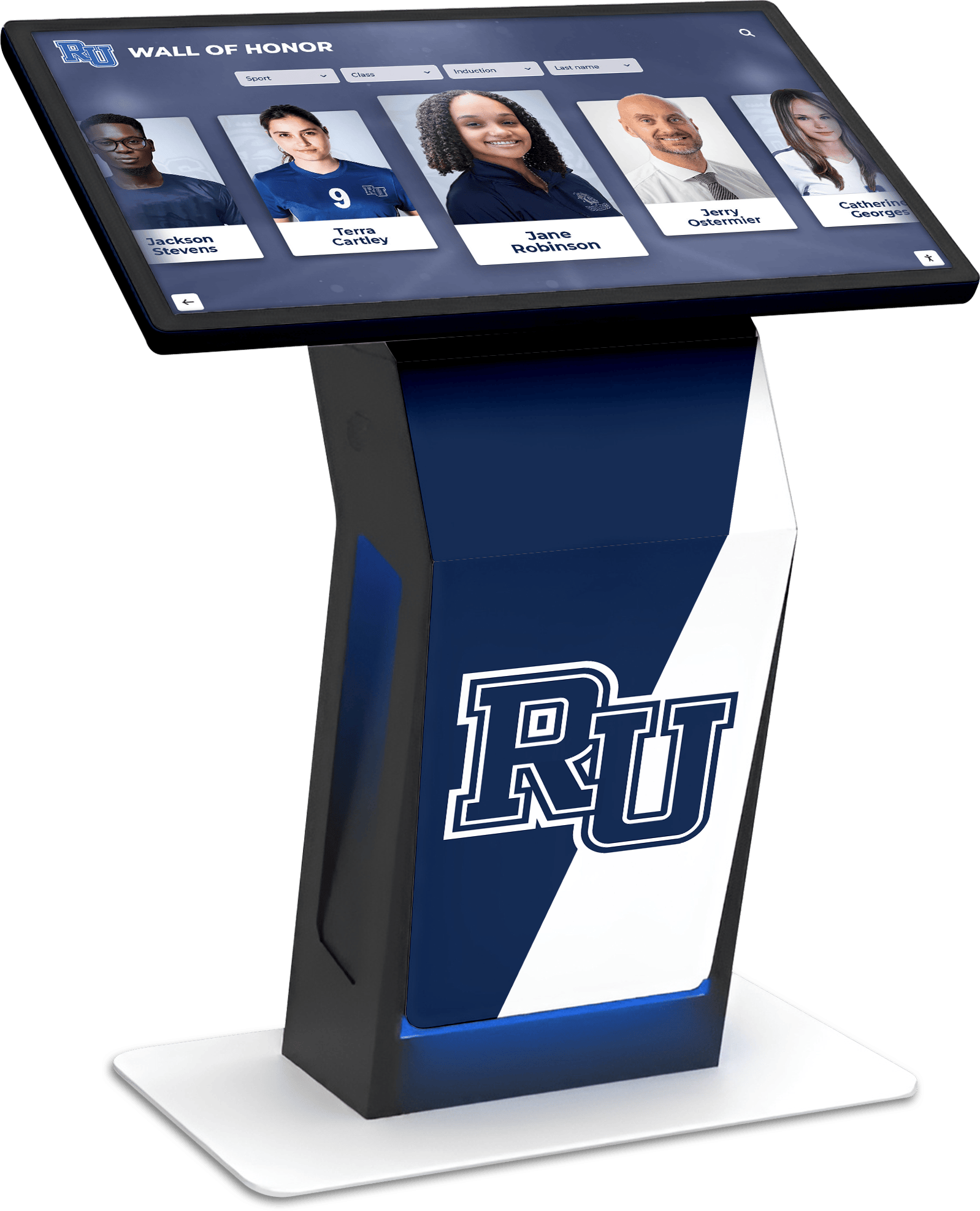
Recognition-focused software gives staff template-based content tools designed for school programs — no design experience required to maintain current, professional-looking profiles and records
Network, Infrastructure, and Installation Requirements
Network Connectivity
Most modern interactive signage systems require a persistent network connection for content management — receiving updates, syncing data from connected systems, and reporting analytics. Wired Ethernet connections are more consistent than Wi-Fi for permanent installations and should be specified during initial planning, not added as an afterthought.
For displays requiring real-time data connections — live athletic record updates from athletic department databases, for example — network consistency is more critical. Displays with cached content that updates periodically can tolerate occasional connectivity interruptions without showing errors to users.
Power Requirements
Commercial displays draw 200–500 watts depending on size and brightness settings. Most commercial panels run on standard 120V outlets, but the outlet should be dedicated — shared circuits with other high-draw equipment can cause voltage fluctuations that affect display lifespan. For enclosure-mounted kiosk installations, power should be specified with an electrician during the planning phase.
Mounting and Structural Considerations
Large commercial displays are heavy — an 86-inch commercial panel commonly weighs 100–130 pounds. Wall mounting requires verified wall stud locations or structural blocking installed between studs during construction or renovation. Drywall anchors alone are not sufficient for displays of this weight. Schools should engage a professional installer for any display above 65 inches and for any installation in a high-traffic corridor where accidental contact is possible.
Reviewing common installation mistakes for recognition boards before finalizing plans — including mounting height errors, insufficient cable management, and overlooked power requirements — avoids costly remediation after the display is installed.
Cable Management
All cabling — power, network, and any video signal cables — should be routed inside walls or in surface-mounted conduit during installation. Visible cables undermine the visual impact of a recognition display, create a trip or pull hazard, and are difficult to address after installation without significant disruption.
Budgeting for Total Cost of Ownership
Purchase price is one component of total cost of ownership. Schools planning multi-year budgets need to account for all components.
Hardware
- 55–65 inch commercial IFP: $2,500–$5,000
- 70–75 inch commercial IFP: $5,000–$8,000
- 86 inch commercial IFP: $8,000–$15,000
- Mounting hardware and professional installation: $800–$2,500
- Network drops and electrical work: $200–$800
Software Annual software licensing typically ranges from $500–$2,000 per display for cloud-managed platforms with dedicated school recognition features. For schools planning multiple display locations, pricing guidance specific to school districts provides a useful framework for multi-location budgeting.
Content Development Initial content development — digitizing athletic records, writing athlete profiles, gathering historical photos, organizing donor lists — is commonly the largest underestimated cost in an interactive signage project. Plan for 40–100 hours of initial content work for a comprehensive hall of fame or recognition display, plus ongoing maintenance of 2–4 hours per month as the program adds new content.
Ongoing Maintenance Extended warranties, cloud platform fees, and electricity add approximately 10–15% of initial hardware cost annually across a 5-year lifespan. Total five-year cost of ownership for a single 75-inch interactive display with software and content support commonly runs $18,000–$35,000.
Touch Responsiveness: Why It Matters More Than Buyers Expect
Touch latency — the delay between a user’s contact with the screen and the display’s visual response — directly affects whether users perceive the system as functional or broken. A display with a response time above 100 milliseconds will feel sluggish. A display above 200 milliseconds will cause users to tap repeatedly, assuming their input did not register, which compounds the perceived problem.
Touch sensitivity and responsiveness standards for recognition displays document that displays with touch latency below 50ms significantly outperform higher-latency alternatives in user retention — visitors explore more content and spend more time at the display. For school applications where the goal is genuine engagement with recognition content, touch response time should be part of the hardware evaluation criteria alongside screen size and resolution.
PCAP displays from commercial-grade manufacturers typically deliver touch latency of 20–50ms. Lower-quality PCAP implementations and IR overlays may run 80–150ms. Request measured touch latency specifications, or test a demo unit in person, before purchase.
Staff Training and Sustainable Update Workflows
A display that nobody knows how to update becomes a liability within 12–18 months. Staff training is not a one-time event — it is part of the implementation process, and it should be part of the vendor relationship from the start.
Effective training covers:
- Adding new content entries (athlete profiles, honor roll students, donor names)
- Updating existing records (changed photos, corrected statistics)
- Scheduling seasonal content rotations
- Troubleshooting common display issues (screen not responding, content not updating)
The staff training guide for digital recognition displays recommends assigning clear content ownership before launch — each section of the display should have a named staff member responsible for keeping it current. Distributed ownership is more sustainable than centralizing all updates in a single person who may eventually leave or change roles.
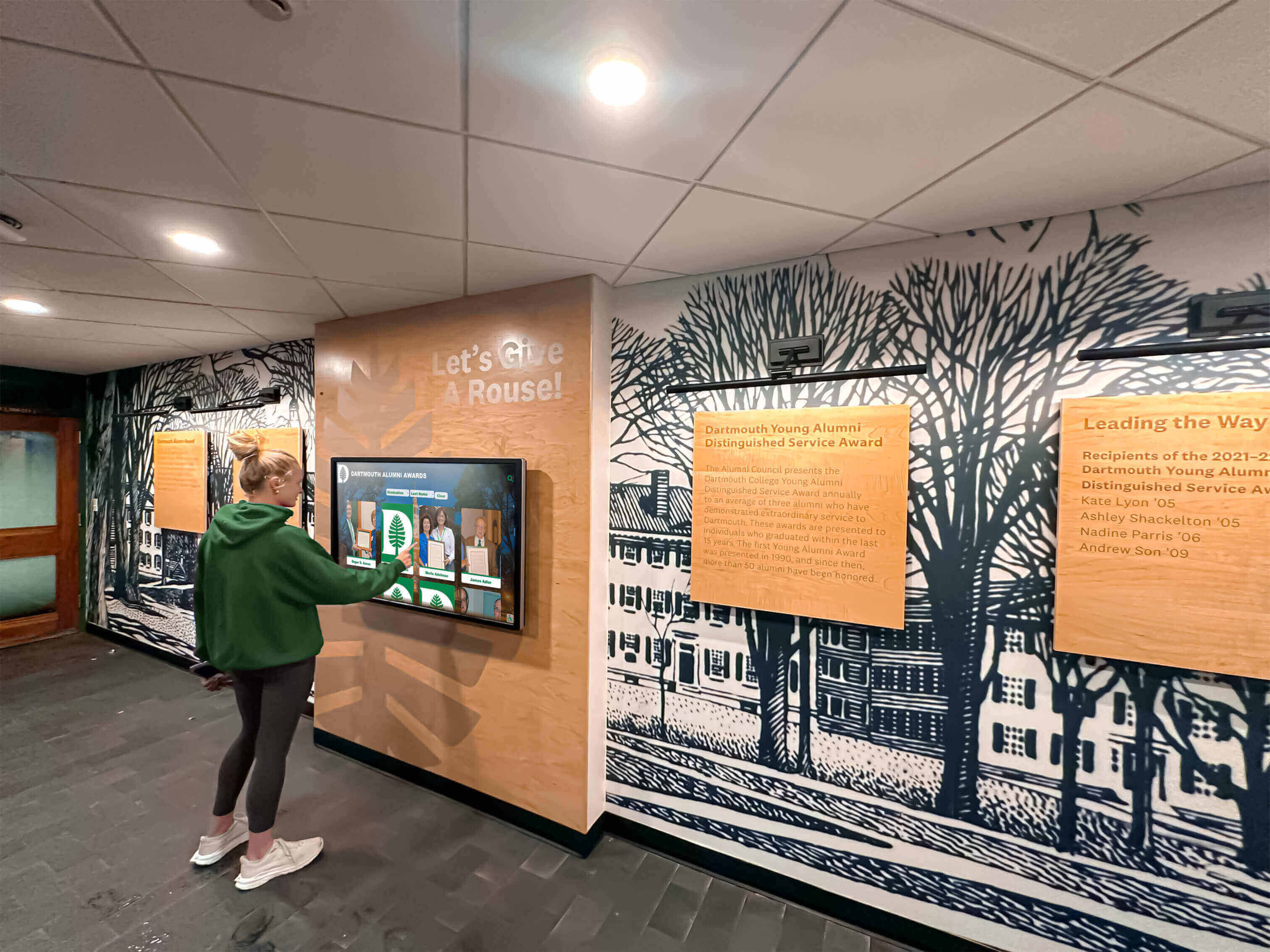
Students engage with recognition displays when content reflects current achievements — distributed staff ownership of content sections is the most sustainable update model for most schools
Privacy and FERPA Considerations for School Displays
Schools displaying student information — photos, names, grade levels, academic achievements — must navigate FERPA regulations that restrict disclosure of certain student records without appropriate consent.
Directory Information FERPA designates certain data — name, school, sport, grade level — as directory information that schools can generally disclose publicly unless a family has filed an opt-out. Displays limited to directory information do not typically require individual consent beyond the district’s existing notice process.
Student Photos Student photos in recognition contexts are commonly treated as directory information, but district policies vary. Confirm with your district’s privacy officer before displaying student photos without explicit consent forms.
Academic Records Honor roll status, GPA tiers, and scholarship amounts may or may not be classified as directory information under your district’s specific policy. Some districts allow recognition by name and honor level; others require opt-in consent for any academic recognition displayed publicly.
Opt-Out Processes Families who have filed FERPA opt-out requests for directory information disclosure should not appear on public recognition displays. The content management system should support individual exclusion flags — the ability to suppress a specific student’s record from any public-facing display regardless of category.
Establishing a privacy review process before content goes live — rather than after a complaint is filed — is the appropriate approach for any school deploying public-facing student recognition displays.
Athletic Signage Beyond the Lobby
Interactive digital signage in school athletic programs does not have to be limited to the main lobby. Athletic locker room and corridor signage serves different functions than a public-facing recognition wall.
Team-facing displays in locker rooms and training areas can show season records and opponent schedules, individual performance tracking for sport-specific metrics, record board standings updated from athletic data systems, and team messaging managed by coaching staff.
Digital touchscreen record boards in athletic buildings provide a practical alternative to painted or laminated record boards that go out of date when records are broken. A record board that updates from verified athletic statistics is more accurate and far easier to maintain than one requiring physical modification each time a school record changes.
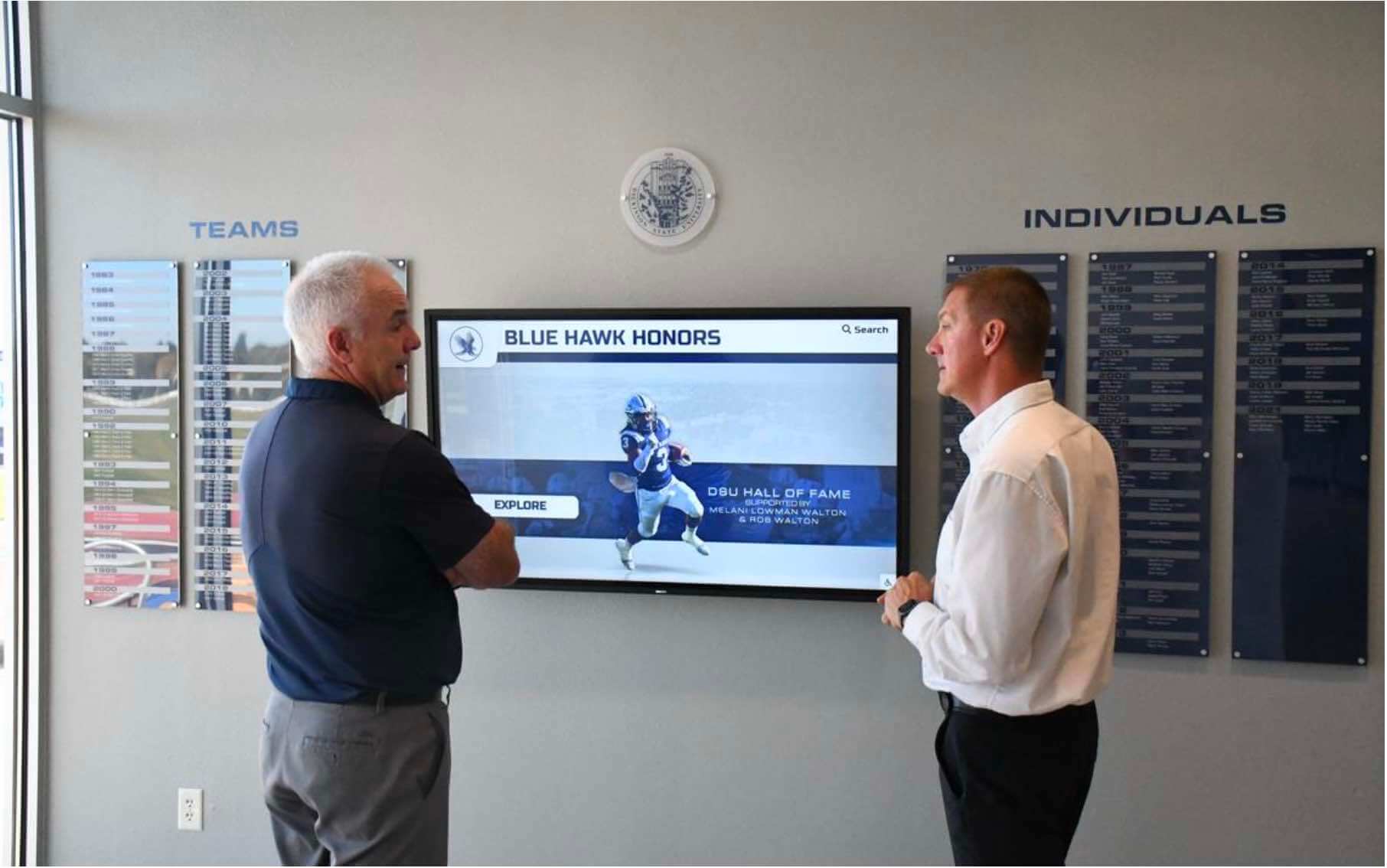
Hall of fame displays in athletic corridors serve multiple audiences — content organized for visitors, alumni, and current students requires flexible software with section-level controls
How to Evaluate a Vendor Before You Buy
Interactive signage is not a commodity purchase. The vendor relationship determines whether content management support is available, whether the system receives updates over time, and whether training and onboarding actually happen after the display is on the wall.
Questions to ask before committing:
- Who hosts the content and what happens if you change vendors? Can you export your data, and in what format?
- What is the typical setup timeline from signed contract to live display? Installations that stretch past 90 days indicate production or support bottlenecks.
- Is the software updated on a regular release schedule? A system without a software update in 18 months may also lack security patches.
- What are the actual training materials? Request to see training documentation before signing, not after installation.
- Who is the support contact? Clarify whether support is phone, email, or ticket-based, and what the typical response time is.
- What references are available from schools of similar size and program scope? References from similar institutions are more useful than general client lists.
Vendors with deep specialization in educational recognition programs — rather than general commercial signage vendors who also serve schools as one of many markets — typically offer more appropriate content tools, better familiarity with school-specific privacy considerations, and software that reflects how athletic and academic recognition programs actually work.
Solutions like Rocket Alumni Solutions are built specifically for this space, with content tools designed around athletic departments and alumni programs rather than adapted from retail or corporate signage platforms. That specialization reduces the configuration burden on school staff and produces interfaces that visitors recognize as purposeful recognition systems rather than generic digital directories.
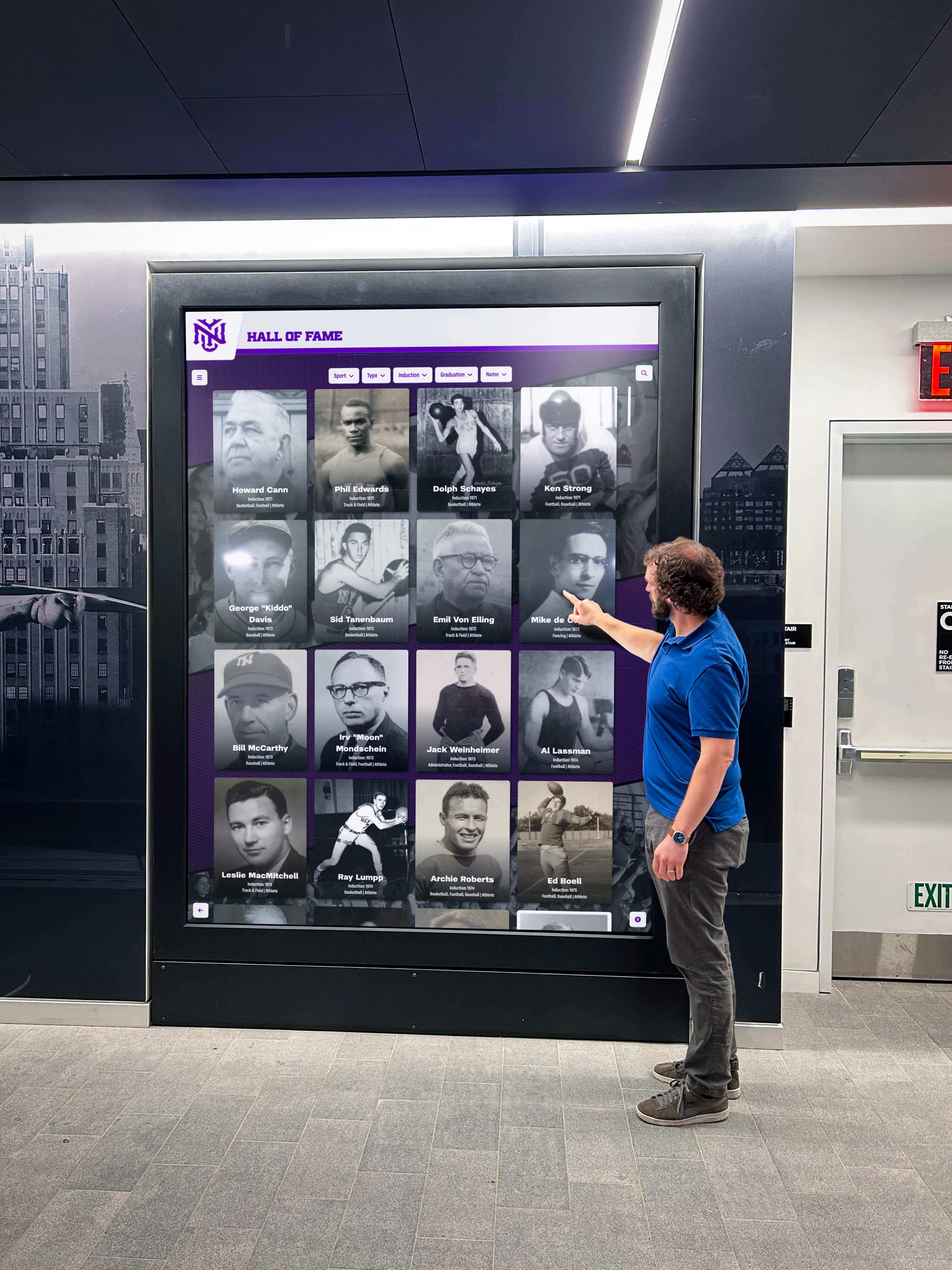
Visitors engaging with recognition displays expect current content and a clear interface — vendor selection determines whether that experience holds up across the full system lifespan
Frequently Asked Questions About Interactive Touch Screen Digital Signage
What is interactive touch screen digital signage?
Interactive touch screen digital signage is a commercial display system that responds to physical touch input from viewers. Unlike standard digital signage that runs a scheduled content loop, interactive displays let viewers tap through directories, maps, athlete profiles, donor lists, or other content based on their interests. The system requires three components: the display panel, the touch detection hardware (built-in PCAP or added IR overlay), and content management software that determines what appears in response to each touch.
What is the difference between PCAP and infrared touchscreens for digital signage?
PCAP (projected capacitive) touchscreens detect the electrical field change caused by a bare finger or conductive stylus. They support multi-touch gestures and respond to light contact. IR touchscreens use a grid of infrared beams across the screen — any opaque object that breaks a beam registers as a touch. IR systems are typically overlay frames added to existing displays. For school recognition displays, PCAP provides more precise touch response; IR overlays are practical when reusing existing hardware.
How much does interactive touch screen digital signage cost for a school?
A complete installation — 75-inch commercial panel, professional installation, first year of software, and initial content development — typically costs $12,000 to $25,000. Total five-year cost of ownership, including software, maintenance, and content updates, commonly runs $18,000 to $35,000 depending on hardware size and software platform.
Do school staff need technical skills to update content on an interactive display?
No — purpose-built school recognition platforms use web-based content management systems that work like form-filling. Adding a new athlete profile means uploading a photo and entering a name, sport, and graduation year. No coding or design skills are required. Staff comfortable with basic web browsing can maintain content with minimal training.
What FERPA considerations apply to student recognition displays in schools?
FERPA designates certain student data as directory information that schools can generally display publicly unless a family has filed an opt-out. Student photos in recognition contexts are commonly treated as directory information, but district policies vary. Confirm the classification of all displayed data with your district privacy officer before launch, and ensure the content management system supports individual exclusion flags for opt-out students.
Making the Right Decision for Your School
Interactive touch screen digital signage becomes a lasting institutional asset when the hardware, software, and content are planned together from the start. The display is not the end product — it is the surface through which institutional history, achievement, and community recognition become accessible to students, families, alumni, and visitors.
Schools that plan content before installation, assign clear ownership to each content section, and choose software built specifically for educational recognition programs consistently get better results than schools that focus only on hardware specifications. Displays that launch with well-organized content and a defined update process grow in value as more recognition is added over time.
Rocket Alumni Solutions builds recognition programs specifically for schools and athletic departments — from interactive hall of fame displays to searchable alumni and donor walls. The platform is designed around how school programs actually work, not adapted from retail or corporate signage tools.
An interactive touch screen recognition program should fit your school’s existing athletic and alumni programs, not replace them. If you also want the weekly graphics handled, get notified when Rocket Graphics opens.