A championship banner SVG viewBox checklist is the most reliable way to prevent proportion distortion and unexpected cropping before scalable banner artwork reaches a large-format print vendor or a digital recognition display. The core answer: every SVG file destined for championship banner production must declare a viewBox attribute on the root <svg> element that matches the intended artwork aspect ratio, and the width and height attributes must either be absent or set using consistent units. Without a correctly defined viewBox, an SVG that looks accurate in a browser or design tool can stretch horizontally, collapse vertically, or clip its content unpredictably when scaled to the 3-foot-by-6-foot or 4-foot-by-8-foot dimensions a commercial large-format printer actually produces.
This checklist is written for school administrators, athletic directors, archives staff, facilities teams, and recognition-program owners who receive SVG artwork from coaches, boosters, student designers, or outside vendors and need to verify that files are print-ready before placing an order or uploading to a display system.
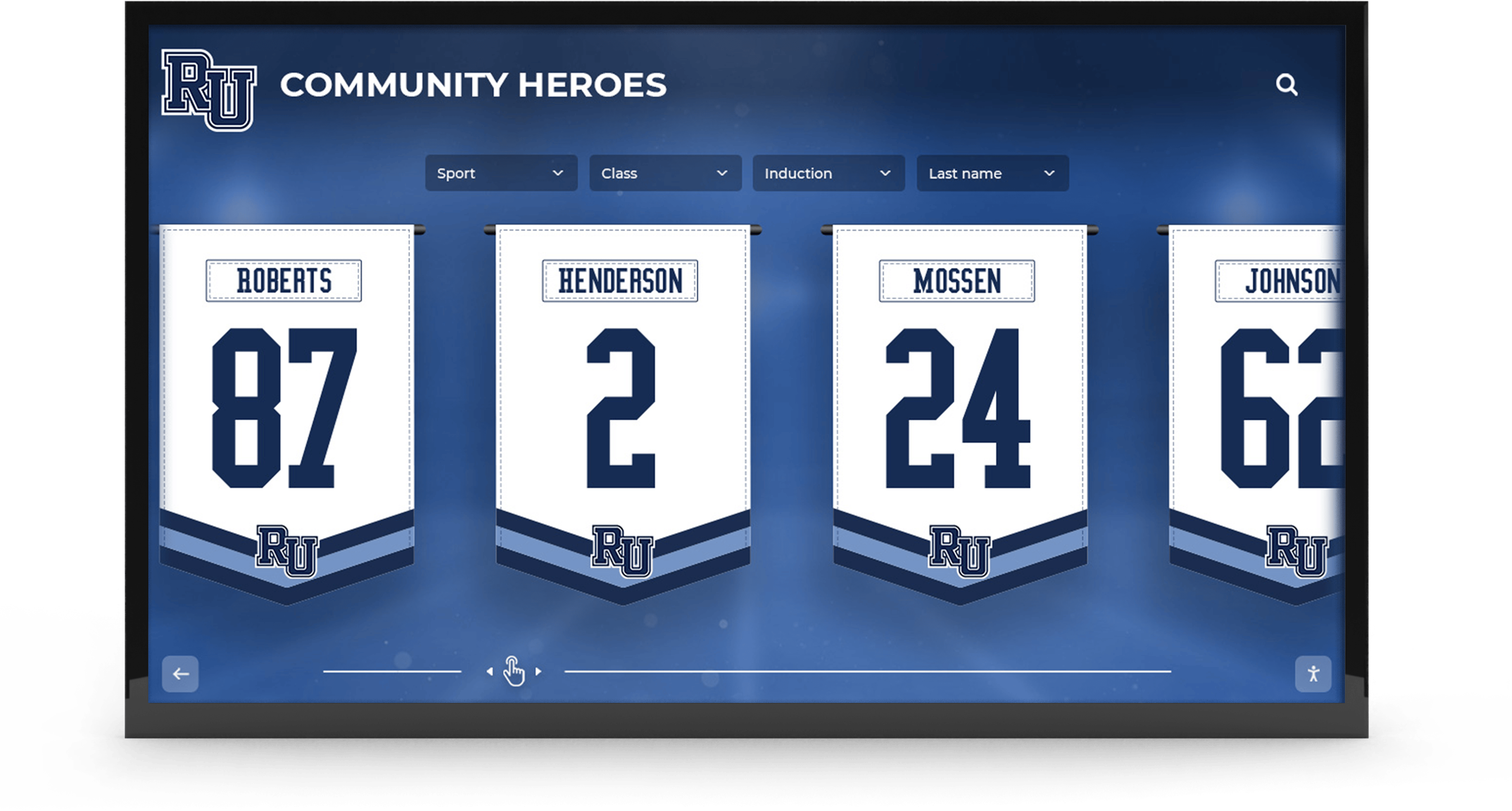
Championship and recognition banners in school lobbies depend on artwork that scales without distortion — a correct SVG viewBox setting is what makes that possible from design file to finished print
What Is an SVG ViewBox and Why Does It Govern Championship Banner Scaling?
The SVG viewBox attribute defines the coordinate system the artwork uses internally — the origin point, width, and height of the drawing canvas in user units. When an SVG file is displayed at a different physical size than the coordinate dimensions it was drawn in, the browser or renderer uses the viewBox to calculate the correct scale factor and maintain proportions.
For championship banner production, this matters because:
- Large-format printers receive SVG files at final output dimensions. A banner ordered at 48 inches wide by 96 inches tall must be provided in artwork that declares exactly that proportion — or the printer’s RIP scales the artwork to fit its canvas using whatever proportion the file implies, which may not match the banner.
- Recognition display software scales SVG artwork to fit display panels. A lobby screen showing a 16:9 banner preview will stretch any SVG that declares a 4:3 internal coordinate system unless the
viewBoxis set correctly. - Artwork that omits the
viewBoxattribute relies on fixed pixel dimensions, which may cause it to appear at an unrelated physical size or clip when the renderer applies its own viewport scaling.
The four values in a viewBox declaration — min-x, min-y, width, and height — describe a rectangle in the SVG’s internal coordinate space. For a championship banner intended to print at 48 inches by 96 inches, a viewBox of "0 0 4800 9600" (using 100 user units per inch) or "0 0 48 96" (using 1 user unit per inch) both declare the correct 1:2 aspect ratio. The specific unit scale does not matter; the ratio does.
Why the ViewBox Checklist Matters for School Athletic Programs
Championship banner artwork comes from many sources over an athletic program’s history: a graphic arts student who designed the football banner, a booster club parent who laid out the swimming banner, a freelance designer hired for a single project, and a staff member who adapted a template from a previous year. Each contributor may have used different SVG export settings, or no explicit viewBox declaration at all.
When that artwork reaches a large-format print vendor without a correct viewBox, three visible failures occur:
Aspect ratio distortion. The vendor’s production software stretches or squashes the artwork to fill the banner canvas, changing the proportions of the school mascot, the layout of the championship year text, and the width of any border or colored stripe.
Unexpected cropping. An SVG with a viewBox that declares a smaller canvas than the banner’s aspect ratio will be scaled up until its narrower dimension fills the banner — cropping content that extends beyond the scaling boundary. School name text or mascot elements positioned near the artwork edges are the most common casualties.
Inconsistent sizing across orders. A banner reordered in a subsequent year from the same SVG file may print at a different size if the vendor’s production platform changed or a different operator interpreted the file. The only reliable safeguard is an explicit, correct viewBox in the source file.
For schools managing end-of-season athletic award programs that include banners among their recognition deliverables, SVG file quality is a production detail that directly affects whether recognition materials arrive correctly before the ceremony they are intended for.
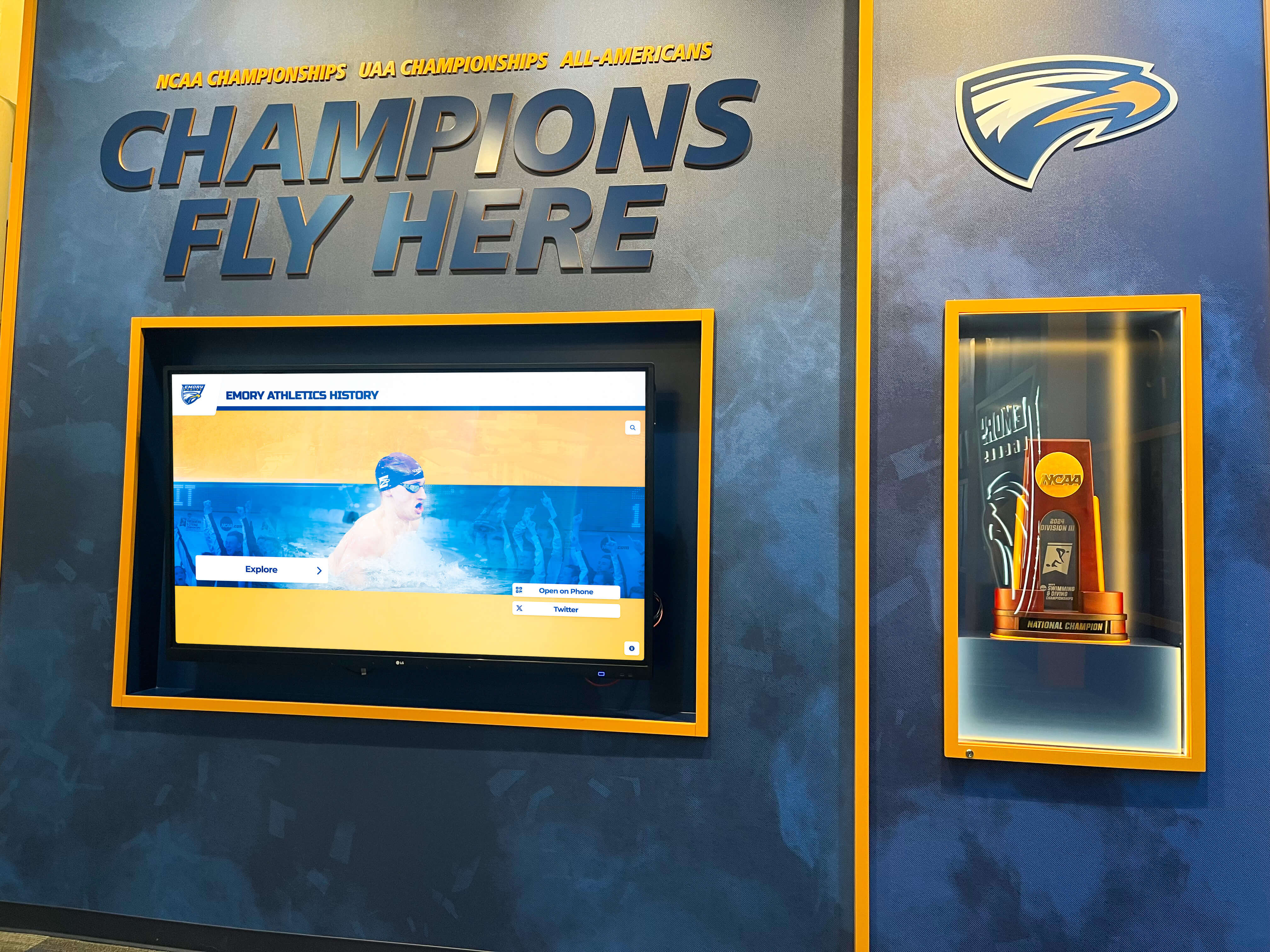
Championship walls accumulate banner artwork from multiple sports and years — a written SVG file delivery standard prevents proportion inconsistency from compounding across that history
The Championship Banner SVG ViewBox Checklist
Work through these steps before submitting any SVG artwork to a print vendor or uploading it to a digital recognition display system. Items marked (Required) will cause a visible error if skipped; items marked (Recommended) prevent less-common edge cases.
Step 1: Open the SVG File in a Text Editor and Locate the Root Element
- Open the SVG file in a plain text editor — Visual Studio Code, Notepad++, TextEdit (Mac plain text mode), or any application that shows raw code rather than the rendered graphic.
- Find the opening
<svgtag at the top of the file. It will look similar to:<svg xmlns="http://www.w3.org/2000/svg" ...>. (Required) - Confirm the file is a genuine SVG text file and not a rasterized SVG export (a PNG or JPEG embedded inside an SVG wrapper). A genuine SVG contains vector paths —
<path>,<rect>,<circle>,<text>,<g>elements — rather than a single<image>element pointing to a raster file. (Required)
Step 2: Check for a viewBox Attribute
- Look for the
viewBoxattribute inside the opening<svgtag. It appears in this form:viewBox="0 0 WIDTH HEIGHT". (Required) - If
viewBoxis absent, the file relies on explicitwidthandheightattributes for scaling. Note the values of those attributes and their units before proceeding to Step 3. (Required) - If
viewBoxis present, record the four values:min-x,min-y,width,height. Themin-xandmin-yvalues are almost always0 0for banner artwork; if they are not zero, note this as a potential crop issue and verify the artwork’s visible content in relation to those offset values. (Required)
Step 3: Verify the ViewBox Aspect Ratio Matches the Banner Dimensions
- Divide the
viewBoxheightvalue by theviewBoxwidthvalue to calculate the declared aspect ratio. (Required) - Divide the intended banner height (in inches) by the intended banner width to calculate the required aspect ratio. (Required)
- The two ratios must match exactly — or within a tolerance of less than 0.001 — to ensure the artwork scales without distortion. (Required)
| Common Championship Banner Size | Required Aspect Ratio (H÷W) | Correct viewBox Example |
|---|---|---|
| 2 ft × 3 ft (24″ × 36″) | 1.500 | "0 0 2400 3600" |
| 3 ft × 5 ft (36″ × 60″) | 1.667 | "0 0 3600 6000" |
| 4 ft × 6 ft (48″ × 72″) | 1.500 | "0 0 4800 7200" |
| 4 ft × 8 ft (48″ × 96″) | 2.000 | "0 0 4800 9600" |
| 6 ft × 8 ft (72″ × 96″) | 1.333 | "0 0 7200 9600" |
| Custom horizontal banner 8 ft × 3 ft | 0.375 | "0 0 9600 3600" |
- If the aspect ratio does not match, do not correct it by scaling the banner order dimensions to match the file. Correct the
viewBoxin the file, confirm the artwork fills the canvas correctly after the correction, and re-export. (Required)
Step 4: Check for Conflicting width and height Attributes
- Note whether the
<svg>element also declareswidthandheightattributes alongside theviewBox. (Required) - If
widthandheightare present with absolute pixel values (e.g.,width="800" height="600"), they set the SVG’s intrinsic display size and will override theviewBoxscaling in some rendering contexts. For print and display use, either:- Remove
widthandheightentirely and rely solely on theviewBoxfor aspect ratio, or - Set
widthandheightto percentage values (width="100%" height="100%") so the file scales responsively to any container. (Required)
- Remove
- If
widthandheightare absent and onlyviewBoxis present, the file will scale correctly to any container that preserves the aspect ratio — confirm the vendor’s or display platform’s settings do this. (Recommended) - The
preserveAspectRatioattribute controls how an SVG scales when the container does not match theviewBoxaspect ratio exactly. For championship banner artwork,preserveAspectRatio="xMidYMid meet"(the default if the attribute is absent) scales the artwork to fit within the container while preserving proportions.preserveAspectRatio="none"is dangerous for banner artwork — it allows the renderer to stretch the artwork to fill any container regardless of proportion distortion. If you seepreserveAspectRatio="none"in a banner SVG, change it toxMidYMid meetor remove the attribute. (Required)
Step 5: Verify Content Is Inside the ViewBox Bounds
- Confirm that all artwork content — text, mascot illustrations, border elements, year numerals, sport designations — falls within the coordinate area declared by the
viewBox. (Required) - Open the SVG in a browser (drag the file into Chrome, Firefox, or Safari). The browser renders the SVG at the
viewBoxaspect ratio. Any content clipped at the edges in the browser preview will also be clipped in print output. (Required) - Check the SVG source for any elements with coordinate values larger than the
viewBoxwidth or height, or with negative values smaller than themin-xandmin-yoffsets. Elements positioned outside theviewBoxbounds are invisible in output but may generate unexpected behavior in some RIP software. (Recommended) - Confirm bleed margins with the vendor. Most large-format banner vendors require a bleed of 0.25 to 0.5 inches beyond the trim mark on all sides. If bleed is required, the
viewBoxcoordinate system should extend to include bleed area, or the vendor should be provided with bleed dimensions separately. (Required)
Step 6: Check That Text Elements Are Outlined or Fonts Are Referenced Correctly
- SVG files may contain live
<text>elements that reference font families by name. If the font referenced in a<text>element is not installed on the vendor’s system or embedded in the SVG, the renderer substitutes a system default — the same class of problem that affects unembedded fonts in PDF exports. - Look for
<text>or<tspan>elements in the SVG source. If they are present, they contain live text. (Required) - For print-safe banner artwork, all
<text>elements should be converted to<path>elements (outlined) before sending to a vendor. In Adobe Illustrator, select all text and run Type > Create Outlines; in Inkscape, select all text and run Path > Object to Path. (Required) - If the SVG uses embedded fonts via a
<style>block with@font-facedeclarations pointing to a font URL, confirm the URL is accessible at time of rendering or replace it with a base64-encoded font embedded directly in the<style>block. For print vendor submission, outlined paths are more reliable than any font embedding method in SVG. (Required)
Step 7: Export and Verify the Final Delivery File
- If the SVG will be delivered directly to the vendor: save the corrected file and open it in two different browsers (Chrome and Firefox) to confirm it renders identically in both at any window width. SVGs that render differently across browsers contain a rendering dependency that may behave unexpectedly in vendor production software. (Required)
- If the vendor requires a rasterized format (PDF, TIFF, PNG) derived from the SVG: export at the final print dimensions and resolution. For large-format banner printing, export at the actual inch dimensions of the banner at 150 dpi minimum — a 4 ft × 8 ft banner at 150 dpi requires a 7,200 × 14,400 pixel raster. (Required)
- When exporting to PDF from an SVG, ensure all paths remain vector — do not rasterize the SVG during PDF export unless the vendor has specifically requested a rasterized PDF. Vector paths in PDF preserve quality at any scale; raster elements are locked to the export resolution. (Required)
- Submit the final file through the vendor’s preflight tool before order confirmation. Vendor preflight tools catch format, dimension, and color space issues in addition to the viewport problems covered in this checklist. (Recommended)
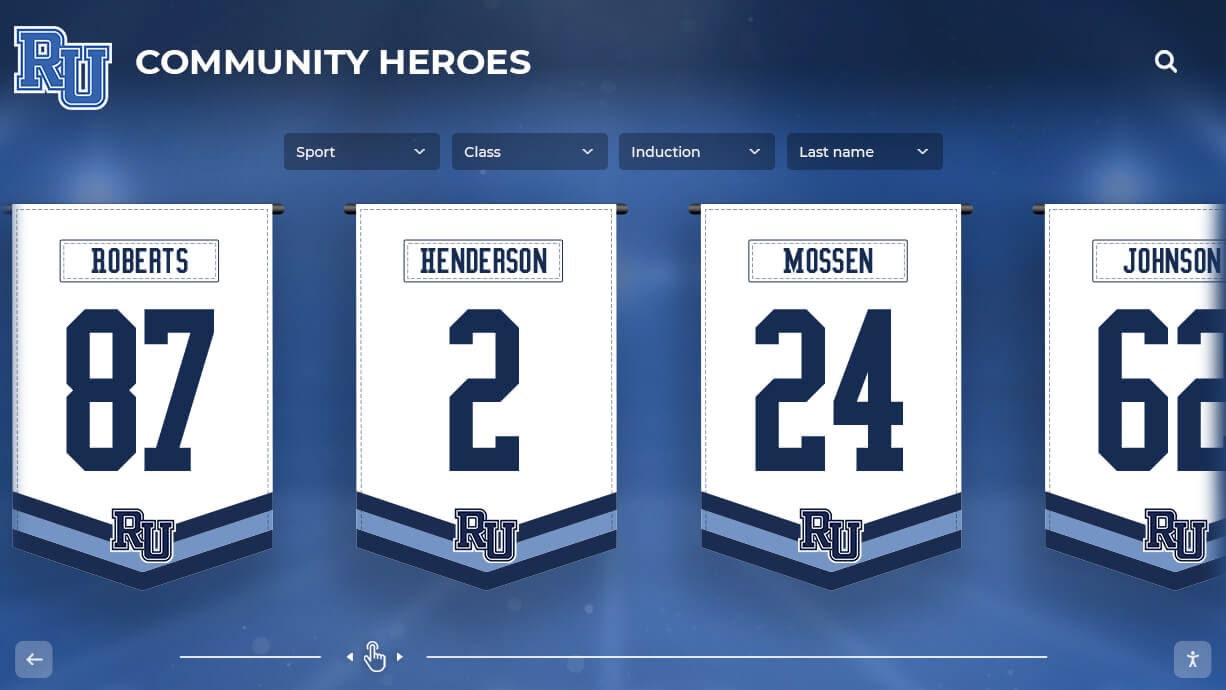
Physical championship banners hanging in school lobbies and gymnasiums may be reprinted across years — a correctly archived SVG source file with a verified viewBox makes every reprint consistent with the original without rebuilding the artwork
SVG ViewBox Attribute Quick-Reference
Use this table when inspecting or correcting a championship banner SVG file:
| Attribute | Where It Appears | What It Does | Banner Production Rule |
|---|---|---|---|
viewBox="min-x min-y w h" | <svg> opening tag | Sets the internal coordinate system and aspect ratio | Required; must match banner’s intended proportions |
width | <svg> opening tag | Sets intrinsic display width | Remove or set to 100% for print/display use |
height | <svg> opening tag | Sets intrinsic display height | Remove or set to 100% for print/display use |
preserveAspectRatio | <svg> opening tag | Controls scaling when container ratio differs from viewBox | Must not be none; use xMidYMid meet or omit |
xmlns | <svg> opening tag | Declares SVG namespace | Must be present: http://www.w3.org/2000/svg |
<text> / <tspan> | Inside <svg> body | Live text requiring font | Convert to <path> before vendor submission |
<image> | Inside <svg> body | Embedded raster image | Verify resolution is adequate for print; confirm embedded vs. linked |
Common SVG ViewBox Problems and How to Fix Them
The banner arrives distorted — text or the mascot is stretched horizontally or vertically. This is an aspect ratio mismatch between the viewBox and the banner canvas the vendor used. Open the SVG source, calculate the viewBox ratio, compare it to the banner’s ordered dimensions, and correct the viewBox to match the ordered aspect ratio before resubmitting.
Content is clipped on one or two sides of the printed banner. The artwork extends beyond the viewBox bounds in the source file, or the viewBox declares a smaller region than the artwork canvas occupies. Open the file in a browser at maximum window width and confirm all elements are visible. Any element clipped in the browser is clipped in print. Expand the viewBox to include the full artwork area, or reposition elements that extend outside the bounds.
The banner looks correct on screen but wrong at print scale. Rasterized elements inside the SVG — embedded team photos, mascot illustrations that were placed as PNG rather than vector paths — may be adequate for screen display but too low in resolution for large-format print. Check every <image> element in the SVG source; for a 4-foot banner, an embedded raster image must be at least 600 pixels wide at 150 dpi to avoid visible pixelation.
The vendor reports that text rendered in a different font. Live <text> elements in the SVG referenced a font that the vendor’s system substituted. Outline all text to paths before resubmitting.
preserveAspectRatio="none" is set in the file. This causes the artwork to stretch to fill any container without preserving proportions. Remove the attribute entirely or replace it with preserveAspectRatio="xMidYMid meet". This is the most common single cause of banner distortion when SVG artwork is scaled to fill a vendor’s canvas.
The SVG contains a single <image> element wrapping a raster file. This is not a true vector SVG but a raster image in an SVG container. It will not scale beyond the resolution of the embedded raster and is not suitable for large-format banner production. Request the original vector source file from the designer.
For school programs managing a broader portfolio of sports recognition — including academic honors, hall of fame inductees, and team histories — athletic hall of fame administration guides for school administrators often address file delivery standards alongside the recognition criteria and governance policies that govern who appears on the program’s banners and displays.
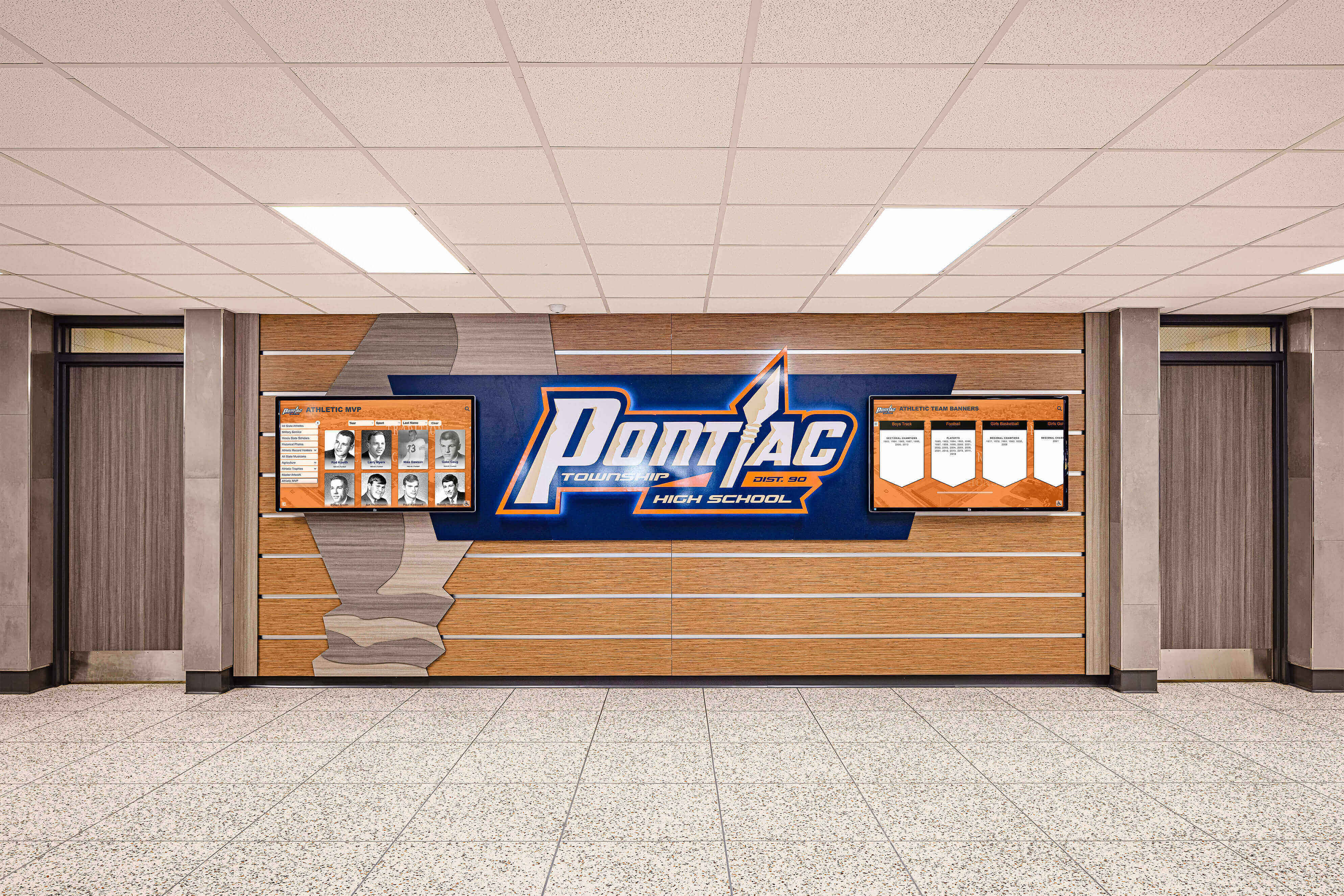
Athletic recognition programs span physical banners, honor boards, and hallway displays — a single file delivery standard covering SVG viewBox requirements keeps every printed element consistent across the program
Building a Written SVG File Delivery Standard
Most championship banner proportion problems trace to artwork produced without a delivery standard in place. When the athletic department has no written requirements for banner file submission, every contributor — student designers, volunteer parents, contracted vendors — makes their own decisions about viewBox settings, text handling, and export format.
A brief written SVG file delivery standard, distributed to every person who submits banner artwork, eliminates this problem at the source. The standard should specify:
- Required
viewBoxdeclaration. Every SVG file must include aviewBoxattribute on the root<svg>element. TheviewBoxmust declare an aspect ratio that matches the intended banner dimensions exactly. - Prohibited
preserveAspectRatiosetting. ThepreserveAspectRatio="none"setting is not permitted in any banner artwork file. - Text handling requirement. All
<text>elements must be converted to vector paths before vendor submission. - Required delivery format. Specify whether the vendor prefers SVG directly or a rasterized derivative (PDF/X-1a, TIFF at 150 dpi minimum at final size).
- Required verification step. Every file must be opened in a browser and confirmed visually before submission. Files that clip content in a browser preview are not ready for vendor submission.
For athletic programs that also recognize students in academic competitions — Mu Alpha Theta honor programs, academic contests, and recognition ceremonies — the same file delivery standards that govern championship banners apply equally to recognition graphics for academic achievement, ensuring consistent visual quality across every type of school recognition program.
Schools evaluating student awards and recognition approaches across creative, athletic, and academic categories find that consistent, documented graphic standards enable broader recognition programs without requiring graphic production expertise from the staff members who manage each individual program area.
Connecting SVG Banner Artwork to Digital Recognition Workflows
Championship banner artwork increasingly serves two destinations: a printed banner for the gymnasium and a digital graphic for lobby screens, touchscreen hall of fame displays, and social media. SVG’s native scalability makes it well-suited for this dual use — a single correctly configured SVG file can produce both a print-resolution export and a screen-optimized derivative without rebuilding the artwork for each format.
The viewBox setting that ensures a banner prints correctly at 4 feet by 8 feet also ensures the same SVG renders correctly on a 16:9 lobby display when the file’s aspect ratio matches the display slot. When they do not match, the preserveAspectRatio setting controls the fallback behavior — which is why xMidYMid meet (scale to fit with letterboxing) is safer for multi-use artwork than none (stretch to fill regardless of distortion).
For schools building donor recognition walls with interactive digital components alongside physical championship banners, maintaining a library of correctly configured SVG source files allows the same artwork to populate both the printed wall and the interactive digital layer without requiring the vendor to rebuild graphics for each format separately.
University athlete profile recognition programs that display championship history across both physical banners and digital athlete profiles benefit from SVG source files because profile components — mascot logos, year numerals, sport-specific design elements — can be resized for different profile card dimensions without loss of quality, as long as the source SVG has a correctly declared viewBox.
Schools using digital signage to communicate athletic schedules, championship recognition, and program updates benefit from digital signage workflows designed for schools that accept SVG content natively — enabling the same banner artwork to scale from gymnasium wall to lobby screen to social media graphic from a single source file.
Athletic programs ready to connect printed championship recognition with interactive touchscreen displays and digital recognition can use properly archived SVG files as the artwork foundation for both physical and digital components of the program — eliminating the rebuilding step that adds weeks to a recognition program launch.
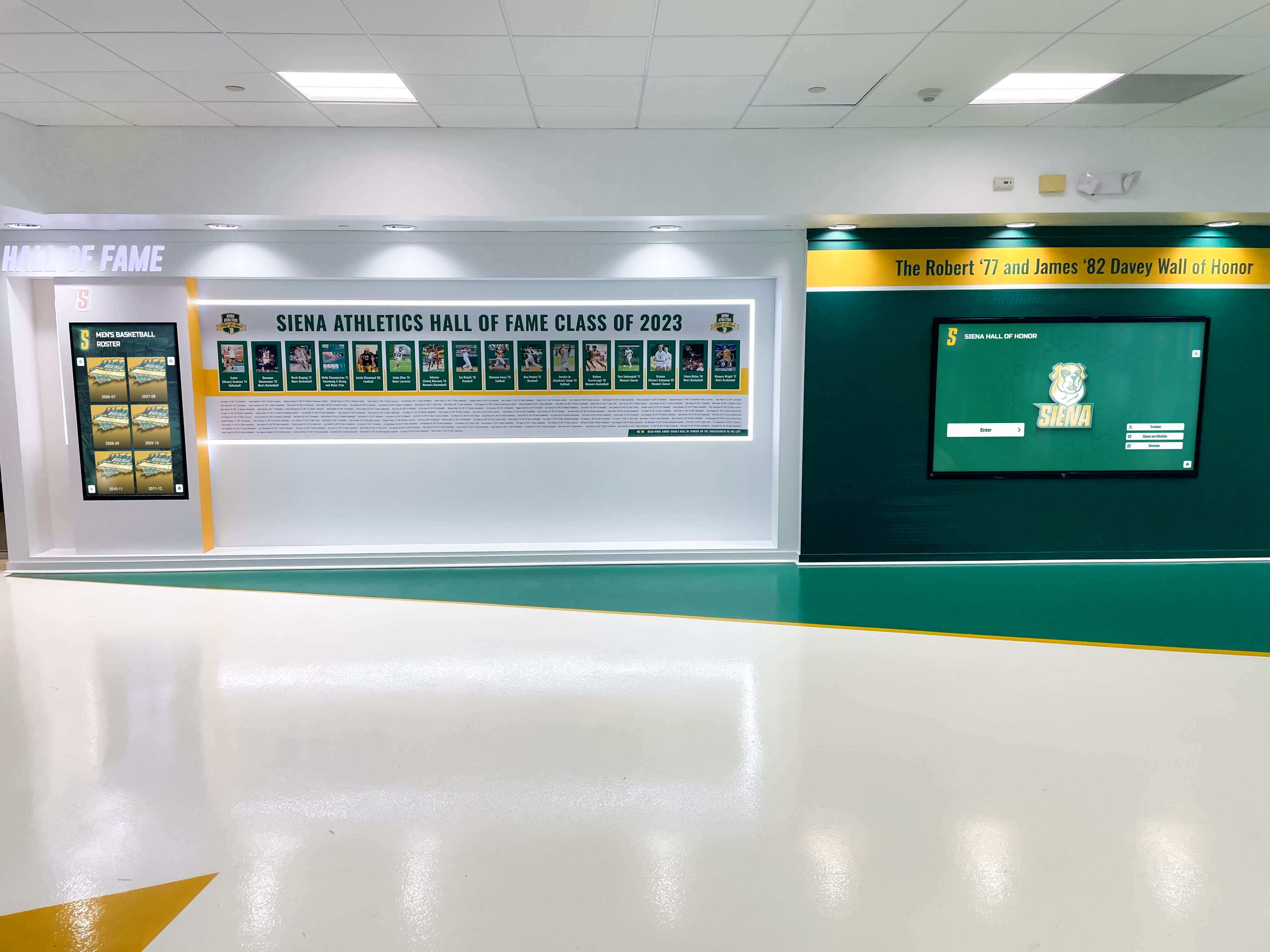
Recognition walls that pair physical championship plaques with digital display components benefit from scalable SVG artwork that can serve both formats without rebuilding — the viewBox is what makes that scale flexibility possible
Frequently Asked Questions About the Championship Banner SVG ViewBox
What is an SVG viewBox and why does it matter for championship banner printing?
The SVG viewBox attribute defines the internal coordinate system of an SVG file — specifically the aspect ratio and coordinate space the artwork was drawn in. For championship banner printing, it matters because a large-format print vendor’s production software uses the viewBox to determine how to scale the artwork to fill the banner canvas. If the viewBox aspect ratio does not match the banner’s ordered dimensions, the vendor’s software stretches or crops the artwork to fill the canvas, distorting mascots, text, and layout elements. A correctly declared viewBox ensures the artwork scales proportionally to any banner size without distortion.
What happens if an SVG file has no viewBox attribute?
An SVG without a viewBox attribute relies on its explicit width and height attributes for scaling. If those attributes use fixed pixel values, the artwork has a fixed intrinsic size and will be scaled by the vendor’s software using whatever dimensions those pixel values imply — which may not match the banner’s ordered proportions. In some rendering contexts, an SVG without a viewBox or with only pixel-based width and height will be placed at a fixed size and clipped rather than scaled to the banner canvas. Adding a viewBox that matches the intended banner aspect ratio removes the rendering ambiguity and gives every production environment explicit instructions for scaling.
How do I find and fix the viewBox in a championship banner SVG file?
Open the SVG file in any plain text editor and look for the opening <svg element near the top of the file. The viewBox attribute appears inside that element as four space-separated numbers: min-x min-y width height. For banner artwork, min-x and min-y should be 0 0. Check whether the width-to-height ratio of the viewBox matches the banner’s intended width-to-height ratio in inches. If they do not match, edit the viewBox values so the ratio matches, open the file in a browser to confirm all artwork is visible within the canvas, and re-export for vendor submission.
What is preserveAspectRatio and why is “none” dangerous for banner artwork?
The preserveAspectRatio attribute controls what happens when an SVG is scaled into a container with a different aspect ratio than the viewBox. The value none tells the renderer to stretch the artwork to fill the container exactly, regardless of proportion — which distorts the artwork. For championship banner artwork, this means a banner ordered at a different proportion than the viewBox will have every element stretched or squashed to fill the canvas. The safe value is xMidYMid meet, which is also the default when the attribute is absent. For banner production, either omit the attribute or set it explicitly to xMidYMid meet.
Should championship banner SVG files contain live text elements or outlined paths?
Championship banner SVG files submitted to print vendors should contain outlined paths, not live text elements. Live text in an SVG references a font by name — if that font is not installed on the vendor’s production system, the renderer substitutes a default typeface that changes the text appearance on the final banner. Converting text to paths in Adobe Illustrator (Type > Create Outlines) or Inkscape (Path > Object to Path) eliminates the font dependency entirely, because the characters become vector shapes that require no external font to render. Keep the original file with live text as an editable archive; send only the outlined version to the vendor.
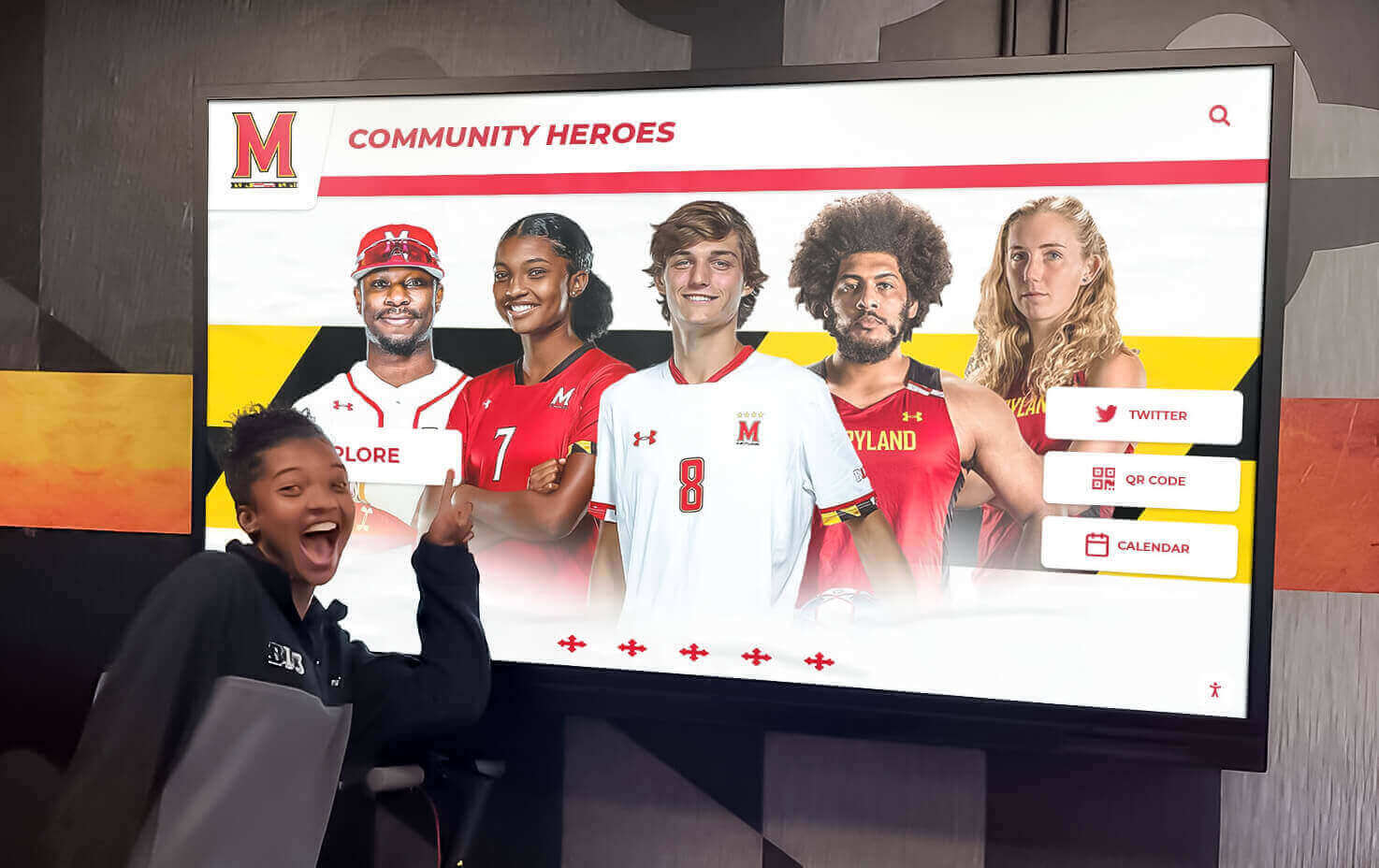
Recognition displays that engage athletes, families, and visitors depend on graphics that look professionally produced — correct SVG viewBox configuration is the foundation of that quality from source file to finished output
A Verified SVG File Delivers a Banner That Looks Exactly as Designed
The championship banner SVG viewBox checklist addresses an entire category of print production failures before artwork reaches a vendor. Verifying the viewBox aspect ratio, removing unsafe preserveAspectRatio settings, confirming content is within the coordinate bounds, and outlining all text transforms an SVG file from a potential problem into a production-ready source that any large-format vendor can take straight to print.
For athletic programs that maintain championship recognition across physical banners, hallway honor boards, and digital displays, correct SVG source files are also the foundation of efficient multi-format workflows. A single properly configured SVG scales from a 4-foot gymnasium banner to a social media graphic to a lobby screen display — provided the viewBox and scaling attributes are set correctly from the start.
The checklist requires no advanced graphic production expertise. Knowing how to open an SVG in a text editor, reading four numbers in the viewBox attribute, and confirming a ratio match against the banner’s ordered dimensions is sufficient to catch every common viewBox-related production failure before it becomes a reprint or a revision cycle.
Bring Championship Recognition Into a Unified Display
Rocket Alumni Solutions builds championship recognition systems for schools — from scalable graphic standards to interactive digital displays that carry banner history into a searchable, touchscreen-accessible format for athletes, families, and visitors.
Get notified when Rocket Graphics opens