A championship banner registration marks preflight check is the step in print file review that confirms alignment marks are present, correctly colored, outside the live area, and positioned so the vendor’s equipment can use them — and that they are not confused with crop marks, which serve a different purpose. The direct answer: before submitting any championship banner PDF to a commercial print vendor, confirm that registration marks appear at each corner and along the edges outside the bleed boundary, that every mark is set to Registration color (100% of all ink channels), that no registration mark overlaps artwork or falls inside the trim boundary, and that the marks visible in the exported PDF match the vendor’s stated alignment mark requirements. Run this check in Adobe Acrobat with the full-page view active to see the mark zone outside the trim area.
This checklist is written for school administrators, athletic directors, facilities managers, and recognition-program coordinators who review championship banner artwork before approving files for vendor submission — not for professional prepress operators who run these checks as part of daily production workflow.
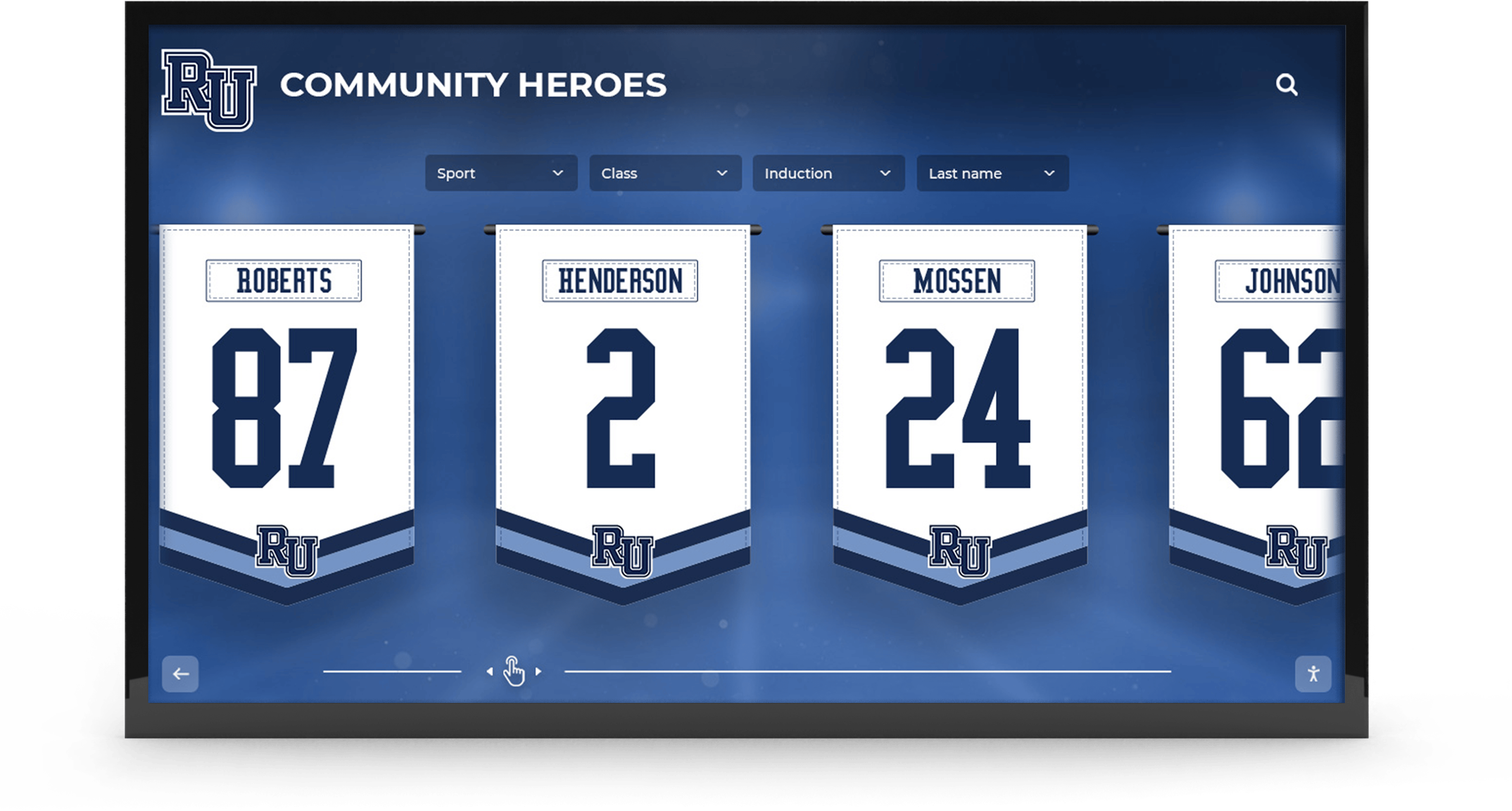
Championship banners installed in school gymnasiums and lobbies represent permanent athletic records — a registration mark error that reaches the vendor can cause plate-alignment issues on multi-ink files or trigger a production hold for file correction
Why Registration Marks Matter for Championship Banner Production
Registration marks — the circular crosshair symbols placed outside the trim area of a print file — tell a print vendor’s equipment and operators how to align multiple ink layers relative to one another. A registration mark is set to Registration color, which means it prints at 100% on every ink channel simultaneously. When the physical mark prints on each plate or pass, the vendor checks that every mark aligns across all layers — confirming that the output equipment is placing each ink channel in the correct position before the full production run proceeds.
On offset press, plate-to-plate registration verification using these marks prevents the color fringing that appears when cyan, magenta, yellow, and black do not land in precisely the same position. On digital large-format equipment — the type most commonly used for vinyl and fabric championship banners — the RIP handles color registration automatically, so registration marks are less critical to the mechanical printing process. However, they remain part of the standard print file specification that vendors expect to see on commercial-grade artwork, and their absence can trigger a production hold at vendors who run an automated preflight check before accepting files.
The more common registration mark issue in championship banner production is not missing marks but misidentification: designers and administrators who are familiar with crop marks sometimes treat registration marks as equivalent and use only one type when both are required by the vendor, or position registration marks incorrectly because their function is less visually obvious than crop marks.
Understanding what registration marks do — and what they do not do — is the foundation of the preflight checklist below.
Registration Marks Versus Crop Marks: A Practical Distinction
Registration marks and crop marks are separate file elements that appear in similar locations (the mark zone outside the bleed boundary) but serve different purposes:
| Element | Symbol | Purpose | Position |
|---|---|---|---|
| Registration mark | Circle with crosshair (+) | Plate-to-plate alignment verification | Outside bleed, often at center of each side and at corners |
| Crop mark | Four pairs of short lines at corners | Indicates trim position for cutting equipment | Outside bleed, at the four corners only |
A print file for a championship banner may include both registration marks and crop marks, or only crop marks, depending on the vendor’s specification. The two elements are generated separately in design applications and must be enabled independently in the PDF export dialog.
A file that has only crop marks does not have registration marks — and vice versa. Most championship banner vendors require both for commercial-grade file submission.
The Three Registration Mark Problems That Affect Championship Banner Files
Problem 1: Registration Marks Set to Black Instead of Registration Color
A registration mark drawn or generated with black (100% K) rather than Registration color will appear on only the black plate in a multi-ink print file. On a four-color CMYK championship banner, that means the cyan, magenta, and yellow layers have no alignment reference mark. The vendor cannot verify cross-channel alignment from these marks alone.
This problem occurs most often when a designer creates registration marks manually using the ellipse and line tools rather than relying on the design application’s automatic mark generation — or when a mark is created in a document that defaults to black for new objects and the designer does not change the color.
Problem 2: Registration Marks Inside the Live Area or Trim Boundary
Registration marks that appear inside the trim box are printed as visible elements in the finished banner. A championship banner with a crosshair-circle mark printed inside the design area — even partially — has a permanent artifact on the production output that cannot be removed after printing.
This error occurs when artwork dimensions are changed after marks are placed, when marks are manually positioned without reference to the document boundary, or when a template is adapted for a new banner size without adjusting mark positions.
Problem 3: Registration Marks Confused With Crop Marks in File Review
Administrators reviewing championship banner files before approval may visually inspect the mark zone and see corner lines (crop marks) and assume registration marks are also present. Registration marks appear separately — typically as circular crosshairs along the midpoints of each document side, not only at the four corners. A file review that confirms “I see marks outside the artwork” has not necessarily confirmed that both crop marks and registration marks are present.
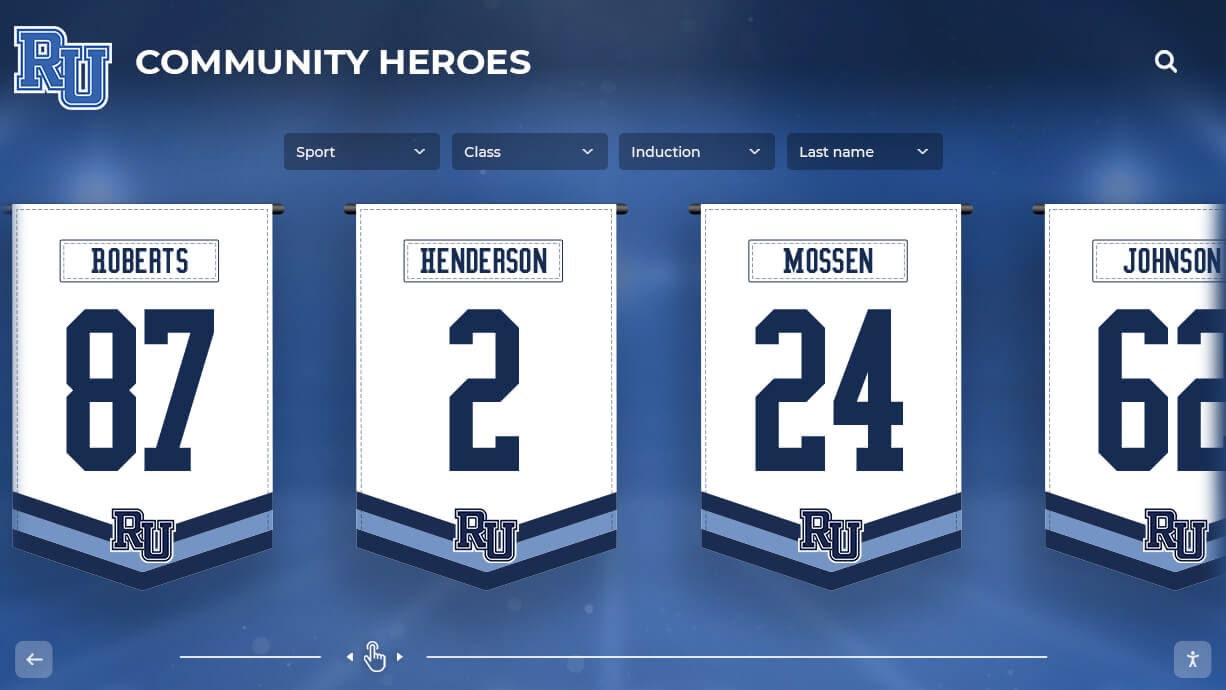
Championship banners hang in high-traffic recognition spaces for decades — a production hold caused by missing or miscolored registration marks delays installation at the events they are built to mark
Championship Banner Registration Marks Preflight Checklist
Work through each step before submitting any championship banner PDF to a commercial print vendor. Items marked (Required) will cause a vendor hold or alignment error if skipped. Items marked (Recommended) prevent less common failure modes.
Step 1: Confirm Registration Marks Are Present in the Exported PDF
- Open the championship banner PDF in Adobe Acrobat (Reader or Pro). (Required)
- Navigate to View > Page Display and ensure the view includes the full sheet outside the trim boundary — the mark zone must be visible, not clipped. (Required)
- Zoom out to approximately 25–50% to see the entire sheet including marks at all edges. (Required)
- Confirm that circular crosshair marks appear at the midpoints of the top, bottom, left, and right edges of the document, outside the bleed boundary. These are registration marks. (Required)
- Confirm that corner crop mark lines are also present — they are separate elements. (Required)
- If only corner lines are visible and no circular crosshairs are present, the file was exported without registration marks. Return to the source application, enable registration marks in the PDF export dialog, and re-export. (Required)
Step 2: Verify Registration Mark Position Outside the Bleed Area
Registration marks must fall in the mark zone — entirely outside the bleed boundary, with no part of the mark overlapping the bleed extension or the artwork.
| Check | Method | Pass Criteria | Priority |
|---|---|---|---|
| Marks outside bleed boundary | Full-page view in Acrobat | All crosshair marks clear of the bleed box | Required |
| No mark overlap with artwork | Zoom to 200% at each mark | No registration mark element touches any design content | Required |
| Marks at all four edge midpoints | Visual inspection | Crosshair marks present at top, bottom, left, and right | Required |
| Marks not clipped by page edge | Full-page view | Entire mark visible, not cut off at sheet boundary | Recommended |
If any registration mark overlaps the bleed zone or the trim boundary, the mark must be repositioned in the source application before re-export. Marks that are partially inside the bleed zone may print into the finished artwork on some equipment.
Step 3: Confirm Registration Mark Color Is Registration (Not Black or Any Other Color)
This is the most commonly missed step in championship banner registration mark verification. The mark must be set to Registration color, which prints at 100% on every color channel.
- In Acrobat Pro, open Tools > Print Production > Output Preview. (Recommended)
- In Separations mode, toggle the CMYK channel plates on and off one at a time. (Recommended)
- Confirm that each registration mark crosshair is visible on every plate — Cyan, Magenta, Yellow, and Black. A mark visible on all four plates is set to Registration color. (Required)
- If a mark is visible only on the Black plate (100% K), it is not set to Registration color. Open the source file, select the mark, and change its fill to the Registration swatch before re-exporting. (Required)
- If a mark is visible on some plates but not others, the color is set to a process mix rather than Registration. The same correction applies: select and reassign to Registration swatch. (Required)
For PDF files exported from Adobe Illustrator or InDesign using the built-in registration mark export option, the application applies Registration color automatically. This verification step confirms the export was correctly configured rather than relying on manually placed marks.
Step 4: Confirm Registration Marks Are Absent from the Live Area
- Zoom to 100% and scroll through the full banner artwork area. (Required)
- Confirm that no crosshair or circle element appears anywhere inside the trim boundary. (Required)
- Check near the edges of the trim boundary specifically — this is where marks placed with insufficient offset would appear. (Required)
- If any registration mark element appears inside the trim area, return to the source application, delete or reposition the mark, and re-export. A mark inside the live area will print as a visible artifact on the finished banner. (Required)
Step 5: Verify That Crop Marks and Registration Marks Are Both Present
Because crop marks and registration marks serve different functions and are enabled independently in design applications, a file may have one type without the other.
| Condition | What Is Present | What Is Missing | Action Required |
|---|---|---|---|
| Only corner lines visible | Crop marks | Registration marks | Re-export with registration marks enabled |
| Only crosshairs at edge midpoints visible | Registration marks | Crop marks | Re-export with crop marks enabled |
| Both corner lines and crosshairs present | Both mark types | Nothing | Pass — proceed to Step 6 |
| No marks of any type visible | Neither | Both | Re-export with both mark types enabled |
Confirm the vendor’s requirement before submission — some large-format vendors accept files with crop marks only and generate registration marks in their workflow; others require both in the submitted file.
Step 6: Confirm Registration Mark Requirements With the Vendor
Registration mark conventions vary more across large-format vinyl and fabric banner vendors than crop mark conventions do. Before finalizing the export, confirm:
- Whether the vendor requires registration marks in submitted files or generates them in-house. (Required)
- The required offset distance between the marks and the bleed boundary. Standard is 0.125–0.25 inch (3–6 mm). (Required)
- Whether the vendor’s automated preflight system will flag or reject files that include registration marks with non-Registration color. (Recommended)
- Whether the vendor’s production equipment uses registration marks during digital large-format printing or treats them as informational only. (Recommended)
Confirming these requirements eliminates the possibility of re-export after a vendor hold caused by mark format mismatches.
Step 7: Re-export and Verify After Any Correction
After correcting registration mark settings, mark position, or mark color in the source application:
- Re-export the championship banner to PDF using the same export preset used for the original file. (Required)
- Open the new PDF in Acrobat and repeat Steps 1 through 6 above. (Required)
- Confirm all registration mark corrections are reflected in the new export. (Required)
- Run the complete PDF/X preflight check on the re-exported file — any re-export may introduce new issues in color space, font embedding, or transparency. The championship banner PDF/X preflight checklist covers the full verification process. (Required)
How Design Applications Generate Registration Marks
Design applications generate registration marks as part of the same export workflow that generates crop marks. The key setting in each application:
Adobe Illustrator: In the File > Save As > Adobe PDF dialog, go to the Marks and Bleeds panel. Check Registration Marks under Printer’s Marks in addition to Trim Marks. Illustrator sets both mark types to Registration color automatically and places them at the configured offset. Do not use the Object > Create Trim Marks or Effect > Crop Marks commands as substitutes — those commands create artwork objects, not print marks.
Adobe InDesign: In the File > Export > Adobe PDF (Print) dialog, go to the Marks and Bleeds panel. Check Registration Marks in addition to Crop Marks. InDesign applies Registration color and standard placement automatically.
CorelDRAW: In the File > Print dialog, go to the Prepress tab. Enable Registration Marks alongside Crop Marks. For PDF export via File > Publish to PDF, open PDF Settings and enable both mark types in the Prepress section.
Canva and PowerPoint: Neither application generates production-standard registration marks on PDF export. Files designed in these applications for commercial banner production must be rebuilt in a professional design application or submitted to the vendor with the understanding that registration marks will be absent. See the championship banner font embedding checklist for a full discussion of commercial print export limitations in consumer applications.
Affinity Designer and Affinity Publisher: In the File > Export > PDF dialog, enable Registration Marks under the Bleed and Marks section alongside crop marks. Affinity applies Registration color and standard placement automatically.

Championship recognition walls that span multiple sports and seasons depend on consistent print file standards applied at every production run — registration marks verification is one step in the preflight workflow that protects each new banner's print quality
Registration Marks in the Context of School Athletic Recognition Programs
Championship banner production is a print production discipline, but the banners themselves are recognition artifacts — permanent records of athletic achievement that are visible to students, athletes, parents, and visitors for as long as they hang. A production delay caused by an incorrect registration mark in a submitted file is not just a logistical problem; it is a delay in recognizing the athletes whose season the banner commemorates.
School athletic programs that manage recognition holistically — coordinating championship banner production alongside other recognition formats — benefit from applying consistent print file standards to every production run. Athletic programs that digitize varsity letter records alongside physical banner production build archives where the same verification discipline applied to banner files protects the print quality of every recognition material the program produces.
For programs that track athletic achievement alongside academic recognition, the same file review standards apply across banner types. Academic recognition programs that display honor roll banners, merit award signage, and departmental recognition materials benefit from the same preflight checklist approach that championship banner production uses. Resources covering academic recognition program planning for schools reflect how recognition coordinators approach multi-category award programs — a framework that applies equally to the print file standards governing every banner in a recognition collection.
Schools that document their full recognition history — athletic championships, academic honors, and community awards — build archives that extend the value of each individual banner. Connecting those archives to digital display systems requires that physical source files meet production standards consistently. Digital hall-of-fame induction criteria and display standards reflect how programs establish the policies that govern which achievements enter the permanent record — and the print standards established for championship banners govern how those records are represented in physical format.
Recognition programs that include student achievement displays alongside athletic championship banners address a wider audience with the same production materials. Academic award categories for high school recognition programs describe the recognition structures that govern what gets a banner, a display case, or a wall recognition — and each category that reaches physical production format requires the same print file verification as championship banners.
Connect Your Championship Banners to a Lasting Recognition System
Rocket Alumni Solutions helps school athletic programs build recognition systems that span physical championship banners and digital displays — hall-of-fame kiosks, interactive recognition walls, and award archives that extend the impact of every banner your program produces. See how it fits together for your school.
Get notified when Rocket Graphics opensSchools developing digital recognition environments alongside physical championship banners face a common challenge: ensuring that the source artwork that passes print preflight also works as a source for digital display content. Digital wall-of-fame UX design for school recognition addresses how digital recognition systems present the same achievement records that physical banners document — and print-quality source files with correct registration marks and verified color specifications are the foundation for that translation.
Programs that recognize a full range of student achievement alongside athletic championships build recognition environments that serve the entire school community. Special awards programs for students in school recognition reflect the breadth of what school recognition programs acknowledge — and the print production standards that govern championship banner files apply equally to every physical award and display that reaches a vendor.
For schools building class reunion experiences that incorporate championship history and athletic achievement displays, consistent print standards across all recognition materials ensure that banners produced decades apart look equivalent when displayed side by side. Class reunion touchscreen display planning for schools addresses how recognition programs bring together historical materials for alumni events — contexts where print quality inconsistencies across different production years are most visible.
Academic recognition programs that overlap with athletic recognition in school hallways and trophy areas produce banners that must meet the same commercial print standards as championship banners. Resources on academic honor designations and school recognition programs reflect how schools communicate institutional achievement — and the banners that represent those achievements require the same registration marks preflight verification as any other commercial print file.

Recognition environments that combine physical championship banners with digital displays depend on print files that pass preflight verification at every step — registration marks verification is one part of the complete preflight workflow that protects every banner in a program's archive
Quick-Reference Registration Marks Preflight Checklist Table
Use this table as a one-page reference during championship banner file review before vendor submission. Work through every row before approving any file for production.
| Check Item | Application | Method | Pass Criteria | Priority |
|---|---|---|---|---|
| Registration marks present in PDF | Acrobat | Full-page view, zoom to 25–50% | Circular crosshair marks visible at edge midpoints | Required |
| Crop marks also present | Acrobat | Visual inspection of corners | Corner trim line pairs visible at all four corners | Required |
| Marks outside bleed boundary | Acrobat | Zoom to 200% at each mark location | All marks entirely outside bleed box | Required |
| No marks inside live area | Acrobat | 100% zoom through artwork area | No crosshair or circle element inside trim boundary | Required |
| Marks set to Registration color | Acrobat Pro Output Preview | Toggle plates in Separations mode | Marks visible on all four CMYK plates | Required |
| Marks present at all four edge midpoints | Acrobat | Full-page view | Crosshair at top, bottom, left, and right edges | Required |
| Mark offset matches vendor specification | Source application export dialog | Compare offset value to vendor requirement | Offset of 0.125–0.25 inch (3–6 mm) or per vendor | Required |
| Vendor requirement confirmed for mark types | Vendor communication | Written confirmation | Vendor accepts submitted file format for marks | Required |
| PDF/X preflight passed after correction | Acrobat Preflight | Run PDF/X-1a or X-4 profile | No preflight errors in corrected final file | Required |
Frequently Asked Questions: Championship Banner Registration Marks
What are registration marks on a championship banner print file?
Registration marks are circular crosshair symbols placed outside the bleed boundary that allow press operators and print equipment to verify that multiple ink layers are aligned correctly relative to one another. They are set to Registration color — 100% of every ink channel simultaneously — so the mark appears identically on every plate. On digital large-format equipment, registration marks are less critical to the mechanical printing process than on offset press, but many vendors still require them as part of their standard preflight file specification.
What is the difference between registration marks and crop marks on a championship banner?
Registration marks are circular crosshairs that verify plate-to-plate alignment, placed at the midpoints of each document edge. Crop marks are short corner lines that indicate where finishing equipment should cut the substrate, placed only at the four corners. Both appear in the mark zone outside the bleed area, but they serve different functions and are enabled independently in PDF export dialogs. A championship banner file may include both, or only crop marks, depending on the vendor — but the two elements are not interchangeable.
What color should registration marks be on a championship banner file?
Registration marks must be set to Registration color — a swatch available in professional design applications that applies 100% of every ink channel. This ensures the mark prints identically on every plate for alignment verification. A registration mark set to black only (100% K) will appear on only the black plate and cannot verify alignment across the remaining channels. Design applications that generate registration marks automatically through their PDF export dialog apply Registration color without manual configuration.
Do large-format vinyl championship banner vendors require registration marks?
Requirements vary by vendor. Large-format digital equipment handles color registration automatically through the RIP, making registration marks less operationally critical for vinyl banner production than for offset press. However, many vendors include registration marks in their standard file requirements and flag files as incomplete in automated preflight if marks are absent. Some vendors generate registration marks in their own workflow and do not require them in the submitted file. Confirm the vendor’s requirement before export.
How do I add registration marks to a championship banner PDF in Adobe Illustrator?
In Adobe Illustrator, add registration marks during PDF export through File > Save As > Adobe PDF. In the Marks and Bleeds panel, check Registration Marks under Printer’s Marks in addition to Trim Marks. Do not use the Object > Create Trim Marks command or the Effect > Crop Marks command — those create marks as visible artwork objects in or near the live area, not print marks in the mark zone outside the bleed boundary.
Print It Right the First Time
A championship banner registration marks preflight check addresses a specific, narrow category of production risk: confirming that alignment marks are present in the correct form and position so the vendor’s equipment and workflow can use them as intended. The check itself takes fewer than five minutes on a correctly exported file — confirm marks are present and outside the bleed, confirm Registration color using the Output Preview separations view, confirm the vendor’s requirement is met, and proceed. For files that need correction, the same steps identify exactly what needs to change in the source application before re-export.
Championship banners represent a school’s athletic history in the most permanent, visible form the recognition program produces. A production hold for missing or miscolored registration marks delays that recognition for the athletes whose season the banner documents — which is the strongest practical argument for building this check into every banner file review before submission.
Build a Championship Recognition Program That Lasts
Rocket Alumni Solutions helps school athletic programs build championship recognition systems — from print-ready graphic standards and digital display networks to interactive hall-of-fame kiosks that connect banner history to the athletes and alumni who earned it. See how your school's recognition program fits together.
Get notified when Rocket Graphics opens