A championship banner PDF/X preflight check is the final production gate between a completed artwork file and an approved print order — and the most reliable way to catch color space, font, resolution, bleed, and transparency errors before a vendor pauses the job or delivers a banner that does not match the approved proof. The short answer to passing preflight: export all championship banner artwork as PDF/X-1a or PDF/X-4 and verify the result in Adobe Acrobat’s Preflight tool before submitting to any commercial print vendor.
This checklist is organized by the seven most common preflight failure categories for large-format championship banner files, with a check-by-check table that identifies the failure mode, the tool that catches it, and the fix. It is written for school administrators, athletic directors, facilities managers, and recognition-program coordinators who review and approve banner artwork before it goes to a commercial vendor — not for professional prepress operators.
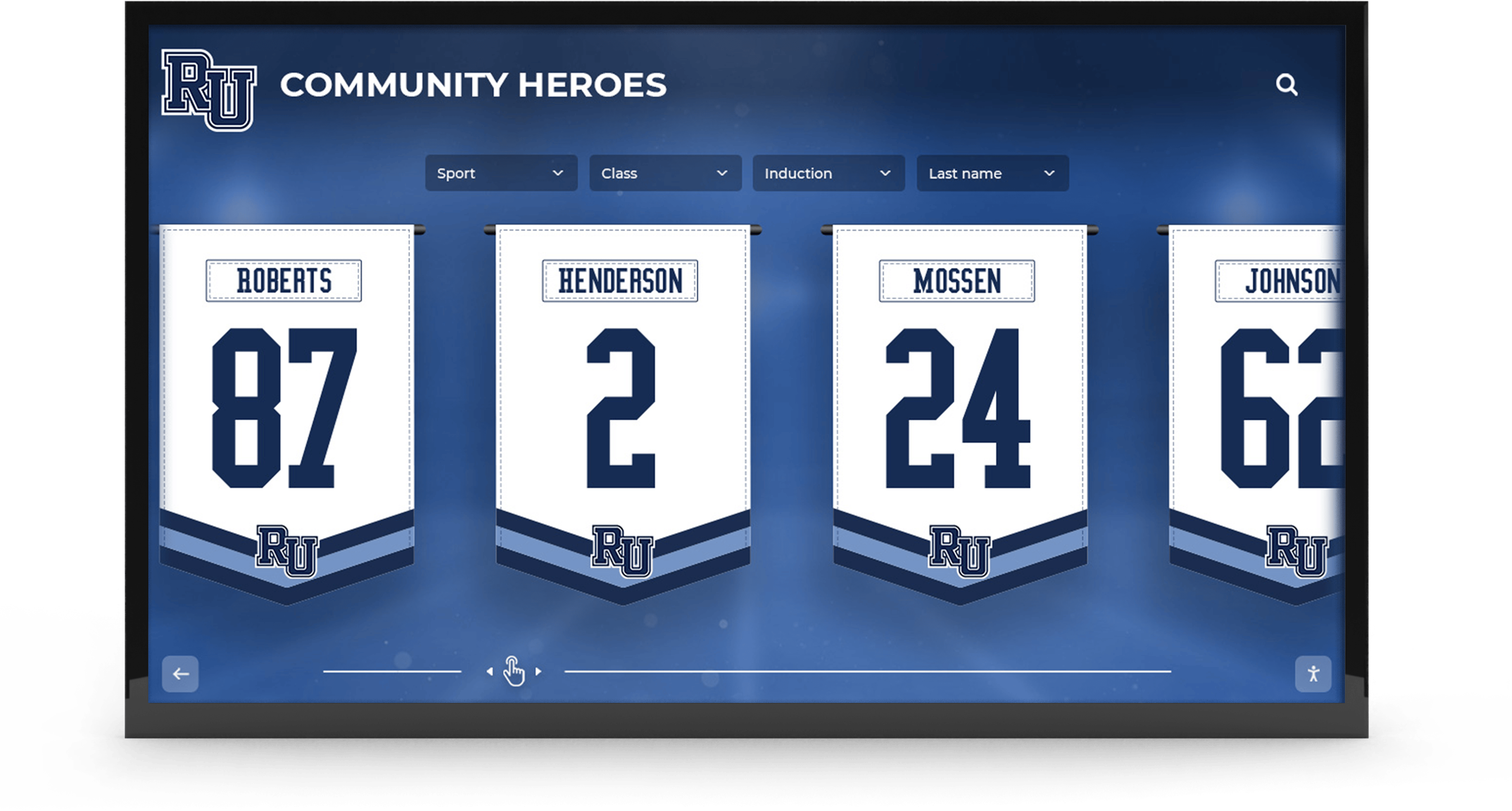
Championship and recognition banners installed in school lobbies and gymnasiums represent a long-term investment in athletic history — getting the print file right the first time prevents reprints, correction fees, and delayed recognition events
Why PDF/X Preflight Matters for Championship Banner Production
PDF/X preflight checks validate that a print file is technically complete and compliant with the ISO standard the vendor’s equipment expects. A file that passes preflight can proceed to the vendor’s raster image processor (RIP) and produce output that matches the approved artwork. A file that fails preflight is held pending correction — at minimum, causing a production delay; at worst, triggering a second print run after an error appears on the finished banner.
Championship banners are among the highest-stakes print items athletic programs order. They are large, expensive, installed for decades, and read by every athlete, student, and visitor who walks through a gymnasium or school lobby. A color space error that shifts school colors from a CMYK specification to an RGB-rendered approximation, or a transparency issue that produces a white box where a mascot graphic was supposed to blend into a colored background, is visible permanently on a banner that cost hundreds of dollars and celebrates an achievement the team earned years ago.
The PDF/X family of standards — defined in ISO 15929 (PDF/X-1a) and ISO 15930 (PDF/X-4) — specifies exactly what a production-ready file must contain and what it must not contain. A file that is technically conformant to either standard has resolved the most common preflight failure categories before the vendor’s equipment ever processes it. Requesting PDF/X-1a or PDF/X-4 from any designer or contractor producing championship banner artwork is the most efficient administrative step an athletic department can take to reduce vendor revision cycles.
According to the Printing Industries of America, color management and file submission errors are among the most common reasons commercial print jobs require corrections before they can proceed to press — a category of delay that structured preflight verification at the school level can prevent before the file reaches the vendor.
The Championship Banner PDF/X Preflight Checklist
Work through each section below before submitting a championship banner file to any commercial print vendor. Items marked (Required) will cause a failed vendor preflight or a visible print error if not resolved. Items marked (Recommended) prevent quality issues in edge cases.
Step 1: Verify Color Space
Color space errors are the most common cause of a championship banner’s printed colors not matching the approved proof. Championship banners must be delivered in CMYK color — not RGB, not LAB, and not a mix of color spaces within the same file.
School colors defined in a brand guide as Pantone (PMS) values translate to CMYK for process printing and to specific Pantone spot ink values for spot-color printing. Which output method the vendor uses determines the right color specification — confirm before designing the artwork, not at submission time.
| Check | Method | Pass Criteria | Priority |
|---|---|---|---|
| Document color mode is CMYK | Acrobat Preflight > Output Intent | No RGB or LAB objects in the file | Required |
| School colors match approved CMYK values | Side-by-side comparison with brand guide | All specified school colors reproduce within tolerance | Required |
| Images embedded in the file are CMYK | Acrobat Preflight > Images | No RGB images embedded in the document | Required |
| Spot colors converted or declared | Acrobat Preflight > Colors | All spot colors either converted to CMYK or declared as named spot inks with vendor approval | Required |
| ICC output intent embedded | Acrobat Preflight > Output Intent | A CMYK output intent profile (e.g., FOGRA39, US Web Coated SWOP) is declared in the file | Recommended |
To fix an RGB file: In Adobe Illustrator, use Edit > Edit Colors > Convert to CMYK. In Adobe InDesign, set document color mode to CMYK under File > Document Setup. After conversion, verify school colors against the brand guide — automatic RGB-to-CMYK conversion shifts colors, and converted values must be adjusted back to the approved CMYK specification.
Step 2: Confirm Font Embedding
All fonts in a championship banner file must be embedded or converted to vector outlines before vendor submission. An unembedded font is replaced by the vendor’s production system with a default typeface, changing the visual appearance of every text element on the banner — school name, sport designation, championship year, and coach name.
For a complete application-by-application font embedding workflow, the championship banner font embedding checklist covers InDesign, Illustrator, CorelDRAW, Affinity, Canva, and PowerPoint export settings in detail. For the preflight check specifically:
- Open the exported PDF in Adobe Acrobat Reader (free) and go to File > Properties > Fonts tab.
- Every font listed must show “(Embedded)” or “(Embedded Subset)” after its name.
- Any font appearing without one of those notations is unembedded and must be corrected before vendor submission.
Step 3: Check Resolution for Rasterized Elements
Rasterized elements in championship banner artwork must be at minimum 150 dpi at the final print size. Large-format banner printers produce output at lower dpi than desktop laser printers — 150 dpi at actual banner dimensions is the industry standard minimum for photo-quality output. Text and logo elements that remain as vector objects are resolution-independent.
| Check | Method | Pass Criteria | Priority |
|---|---|---|---|
| All rasterized images at 150 dpi minimum at print size | Acrobat Preflight > Images | No image below 150 dpi at the actual banner output dimensions | Required |
| Text remains vector, not rasterized | Acrobat Preflight > Images | No text elements converted to raster during transparency flattening | Required |
| Mascot and logo graphics at 300 dpi if detail-heavy | Visual review at 100% size in Acrobat | Fine linework readable without pixelation at 100% scale | Recommended |
To check effective resolution: In Acrobat Preflight, the Images category reports each raster element’s effective resolution at the placed dimensions. An image that is 300 dpi at its native size but placed at 300% of that size in the layout has an effective resolution of 100 dpi — below threshold. Resolution must be verified at the placed size, not the file’s native size.
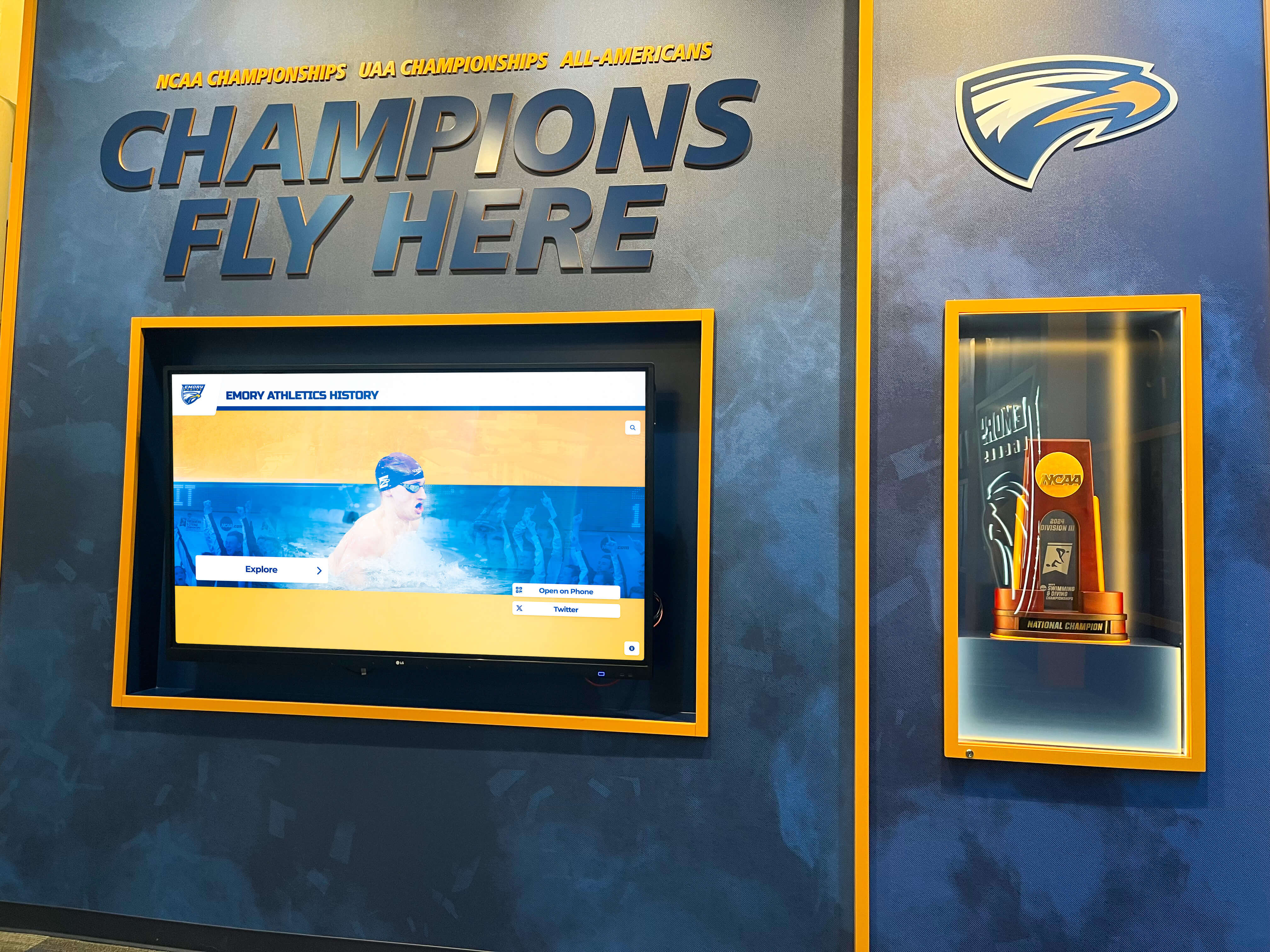
Championship recognition walls accumulate banners from multiple sports and seasons — a consistent preflight standard applied to every banner submission ensures the newest addition matches the quality of the installation hung a decade earlier
Step 4: Validate Bleed, Trim, and Safe Zones
Bleed, trim, and safe-zone compliance is required for every championship banner sent to a commercial print vendor. A file without correct bleed will either be returned for correction or printed with a white edge along one or more sides where the background color does not extend to the cut line.
- Bleed: Background color and imagery must extend beyond the trim mark. Standard commercial bleed is 0.125 inch (3 mm) on all sides. Large-format banner vendors may require 0.5 inch or greater to accommodate hem and grommet seam allowances — confirm with the vendor before finalizing artwork dimensions.
- Trim marks: Crop marks must be visible in the exported PDF at the correct dimensions. Acrobat Preflight checks for trim box alignment and flags files where the trim box is missing or set to the media box boundary without bleed.
- Safe zone: All critical text — school name, championship title, sport, year, win-loss record — must sit inside the safe zone (typically 0.25 to 0.5 inch inside the trim mark). Text outside the safe zone risks being cut during production.
Bleed requirements are the single most variable specification across large-format vendors. Confirm the vendor’s bleed, trim, and safe-zone dimensions in writing before the artwork is finalized — rebuilding a completed design to a different bleed spec takes significantly more time than setting the correct dimensions in the original document.
Step 5: Review Transparency Settings
Transparency flattening errors are an invisible failure — they produce correct-looking PDF previews that print incorrectly. Transparency appears in championship banner artwork wherever a design element uses soft drop shadows, feathered edges, gradient masks, or blend modes layered over other artwork. When a file is exported to PDF/X-1a, transparency must be flattened — because PDF/X-1a does not support live transparency. If the flattening step is not configured correctly, elements that overlapped transparently in the design file may produce:
- White halos around a mascot graphic placed over a colored background
- Incorrect colors where two transparent layers overlap
- Text elements converted from vector to low-resolution raster at the flattening boundary
PDF/X-4 supports live transparency, eliminating this issue entirely for vendors whose equipment supports the format. If the vendor accepts PDF/X-4, request it — it removes the transparency flattening risk from the submission workflow. If the vendor requires PDF/X-1a, set the flattening resolution to 1200 dpi in the PDF export dialog to preserve sharpness at transparency boundaries.
| Check | Method | Pass Criteria | Priority |
|---|---|---|---|
| No live transparency in PDF/X-1a file | Acrobat Preflight > Transparency | File contains no live transparency objects | Required for PDF/X-1a |
| Flattening resolution set to 1200 dpi | Export dialog setting | PDF/X-1a export uses high-resolution flattening | Required for PDF/X-1a |
| No white halos at transparency boundaries | Visual review in Acrobat at 100% | No white artifacts around transparent design elements | Required |
| PDF/X-4 used if vendor supports it | Vendor specification | PDF/X-4 submitted when vendor equipment accepts the format | Recommended |
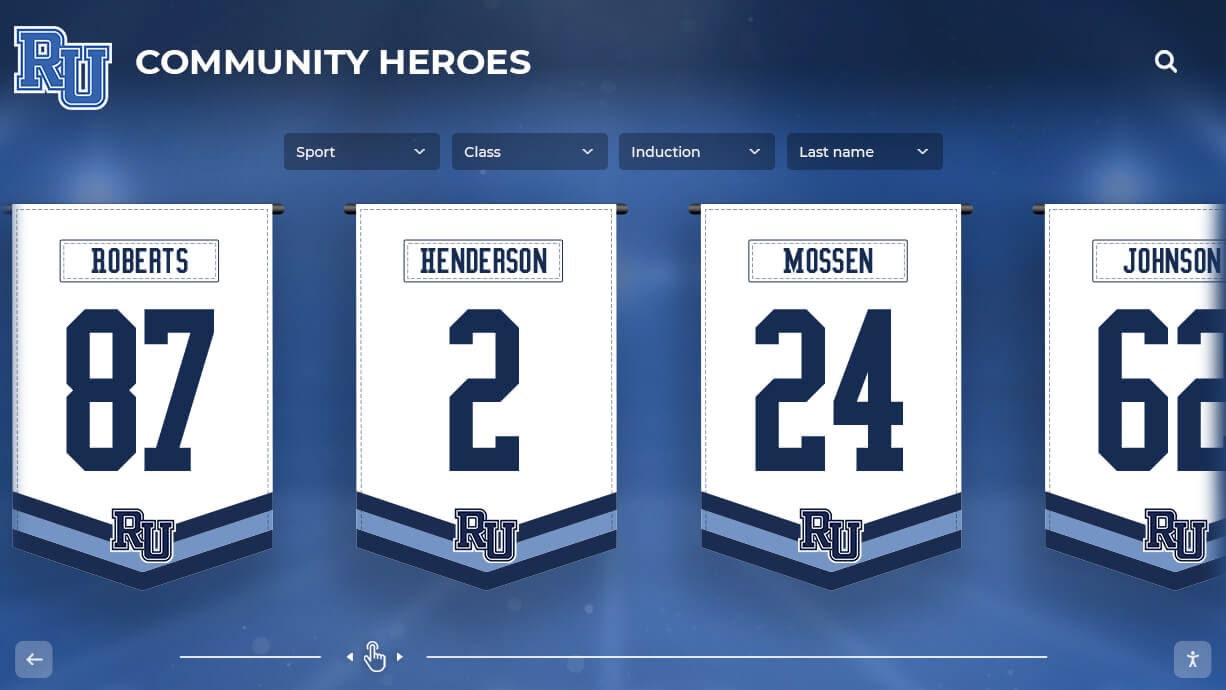
Hanging recognition banners display in high-visibility school spaces — a transparency error that survives submission and reaches print stays visible for the life of the installation
Step 6: Confirm Output Intent and ICC Profile
An output intent declares the color space the file was prepared for and allows the vendor’s equipment to reproduce colors correctly. PDF/X-1a requires an embedded output intent — a file without one is technically non-compliant and will fail a strict preflight check. PDF/X-4 also requires an output intent.
For championship banner production, common output intent profiles include:
- US Web Coated (SWOP) v2 — most common for US commercial printing
- FOGRA39 — common for European offset printing
- GRACoL 2006 Coated 1v2 — used by vendors specifying G7-calibrated output
The vendor’s submission guidelines will specify which profile they require. Embed the correct output intent during PDF export in the application’s color management settings, or use Acrobat Pro’s Preflight Fix functions to embed a profile after export.
Step 7: Check Overprint Settings
Overprint errors create color mixing problems that do not appear in standard PDF preview modes. Overprint is a setting that tells the vendor’s RIP to mix the colors of stacked objects rather than printing the top object opaque. It is correct when used intentionally — for example, black ink that overprints underneath objects to prevent white gaps at printing misalignment — but dangerous when applied accidentally to colored type or background elements.
- Enable Overprint Preview in Adobe Acrobat (View > Preview > Overprint Preview) to see how overprint settings will render at output.
- Any element that should appear opaque but is set to overprint will appear as a color blend in Overprint Preview mode — correct it in the source file before re-exporting.
- Black text (100% K) should overprint by default on most press and large-format output — confirm with the vendor whether they expect black-only overprint or a rich-black specification for heavy display type.
PDF/X Compliance Levels for Championship Banner Production
Two PDF/X variants are relevant for championship banner production. Understanding the difference determines which format to request from a designer or contractor.
| Standard | Transparency | Color | Best For |
|---|---|---|---|
| PDF/X-1a (ISO 15929) | Must be flattened before export | CMYK and spot only — no RGB | Vendors with standard large-format presses; most common requirement |
| PDF/X-4 (ISO 15930-7) | Live transparency supported | CMYK, spot, and RGB allowed with output intent | Vendors with modern RIPs; preferable when designer uses complex transparency effects |
For school athletic programs ordering championship banners from a commercial vendor for the first time, requesting PDF/X-1a is the safe default — it is the most widely supported format among large-format vendors and the format that requires the most complete preflight compliance, which provides the strongest guarantee that the file will proceed to print without correction.
How to Run Preflight in Adobe Acrobat Pro
Adobe Acrobat Pro’s built-in Preflight tool runs the full suite of PDF/X compliance checks described above from a single dialog. It is the most thorough automated verification available without a third-party prepress tool.
- Open the championship banner PDF in Acrobat Pro.
- Go to Tools > Print Production > Preflight.
- In the Profiles list, search for “PDF/X-1a” or “PDF/X-4.”
- Select the profile matching the vendor’s required format and click Analyze.
- Review the results report: errors must be corrected; warnings should be reviewed but may not require correction.
- For errors that Acrobat can fix automatically — such as a missing output intent or overprint on transparent objects — use the Fixups tab to apply corrections directly in Acrobat without returning to the source application.
Using Adobe Acrobat Reader (free): Acrobat Reader does not include the full Preflight tool. It does allow font verification through File > Properties > Fonts — which catches missing font embedding — but cannot check color space, bleed, transparency, or output intent. Run the full Preflight check in Acrobat Pro before submitting any championship banner file for commercial production.
Schools that order championship banners on a recurring schedule — adding a new banner each season for a football, basketball, swimming, or track program — benefit from creating a saved Preflight profile in Acrobat Pro that includes all seven checks above. A saved profile runs all checks in a single click rather than running each category separately, which reduces the time per submission to under five minutes once the profile is configured.
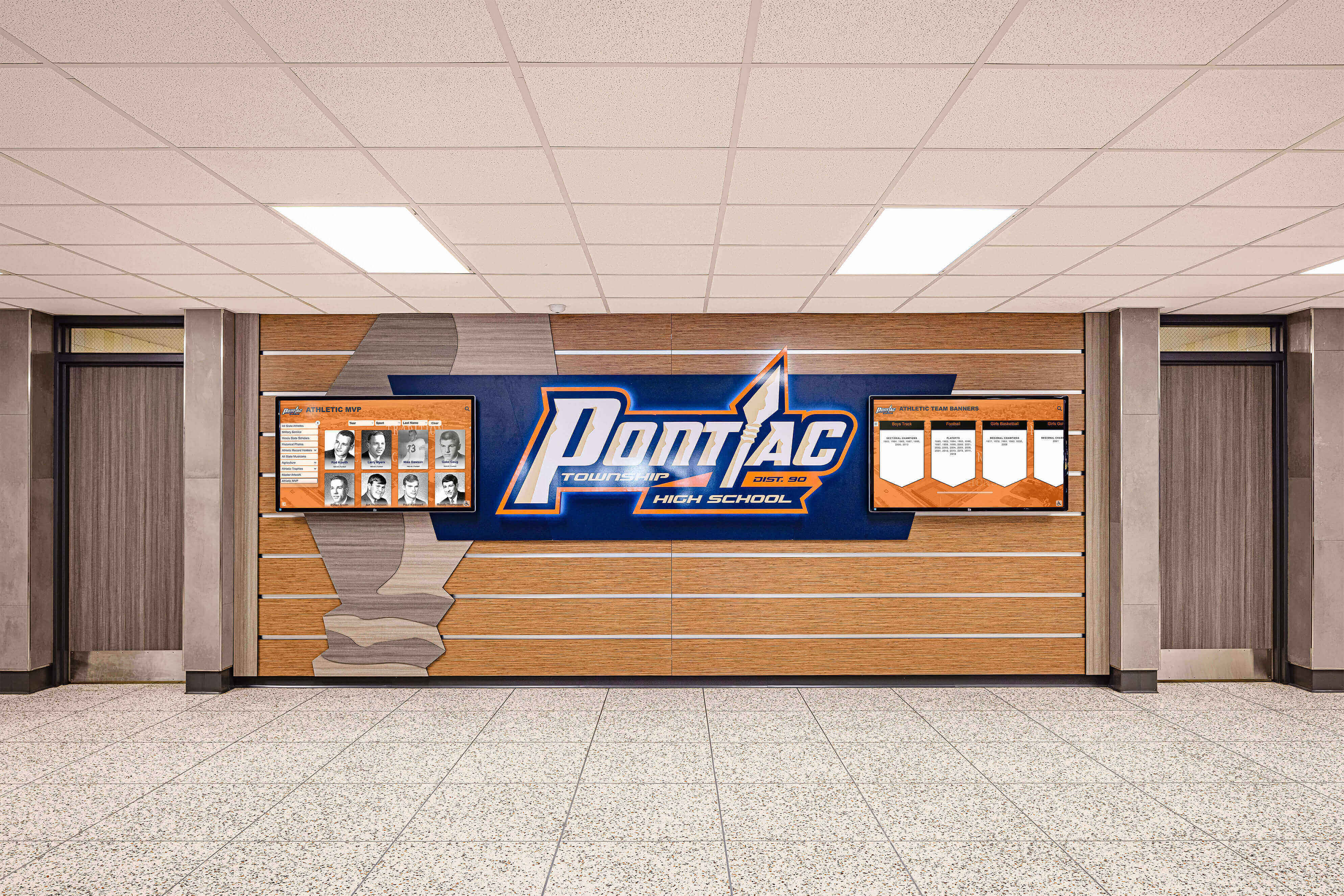
Athletic recognition programs display championship history in high-traffic school corridors — preflight-verified print files produce banners that look as sharp on the wall as they did in the approved design proof
Championship Banner Preflight in the Context of School Recognition Programs
A championship banner PDF/X preflight checklist addresses print production, but the artwork being verified carries significance that extends well beyond a single print run. Championship banners represent verified athletic achievement for teams and coaches who may be commemorated on that banner for decades — connecting the athletic program’s history to every student who walks through the gymnasium in the years ahead.
Schools maintaining active alumni engagement programs recognize that championship history documented on physical banners is also one of the first things returning alumni ask about when they visit. The alumni where-are-they-now spotlight approach to ongoing recognition connects the championship history displayed on gymnasium walls to the continuing stories of the athletes who earned those titles — making print-quality championship artwork the foundation of a broader recognition ecosystem, not just a gym decoration.
Athletic departments that produce championship banners for multiple sports across a school year may find that banner production timelines overlap with other recognition event planning. Championship banners are frequently unveiled at season-ending banquets, athletic award nights, and homecoming celebrations — events that require the same advance coordination described in resources like a family reunion planning checklist: venue confirmation, attendee communications, materials preparation, and a clear sequence for the event program. A banner that arrives from the vendor during the week of the event, only to fail a field inspection because of a color or text error, creates a recognition failure at the worst possible moment.
For schools managing recognition programs that extend beyond athletics — to academic honor societies, student government, and leadership recognition — the same PDF/X preflight standards that protect championship banner artwork also apply to any recognition graphic or display produced at commercial scale. Schools developing recognition materials for student leadership programs benefit from understanding how visual presentation standards connect to the recognition experience described in resources on class president digital display best practices, where consistent, high-quality presentation reinforces the significance of the recognition itself. Similarly, the visual standards applied to athletic recognition programs can extend to programs like National Honor Society recognition, where print-quality graphics reinforce the weight of the achievement.
Schools planning homecoming week celebrations where championship banners are featured as part of the event decoration and recognition display often need to produce banner artwork on a compressed timeline before the event date. A preflight checklist that runs in under five minutes — once a profile is configured in Acrobat Pro — allows a single file review step to replace a longer back-and-forth vendor correction cycle, which is especially valuable when the event is two weeks away and the banner must arrive with time to install.
Football programs with long rivalry and championship histories can benefit from documenting that history in championship banner collections — the kind of multi-decade athletic legacy explored in resources covering college football trophy games and historic rivalries reflects exactly the type of achievement that championship banner programs exist to commemorate. Getting that documentation right — at the print file level — ensures the physical record is as accurate and durable as the historical achievement it represents.
Athletic booster clubs that help fund championship banner production through school fundraising events — the kind of community-building activities explored in school event and fundraiser planning guides — invest real resources in recognition materials that represent the program for years. A preflight error that produces a color-shifted or text-corrupted banner wastes that investment and delays the recognition the team deserves.
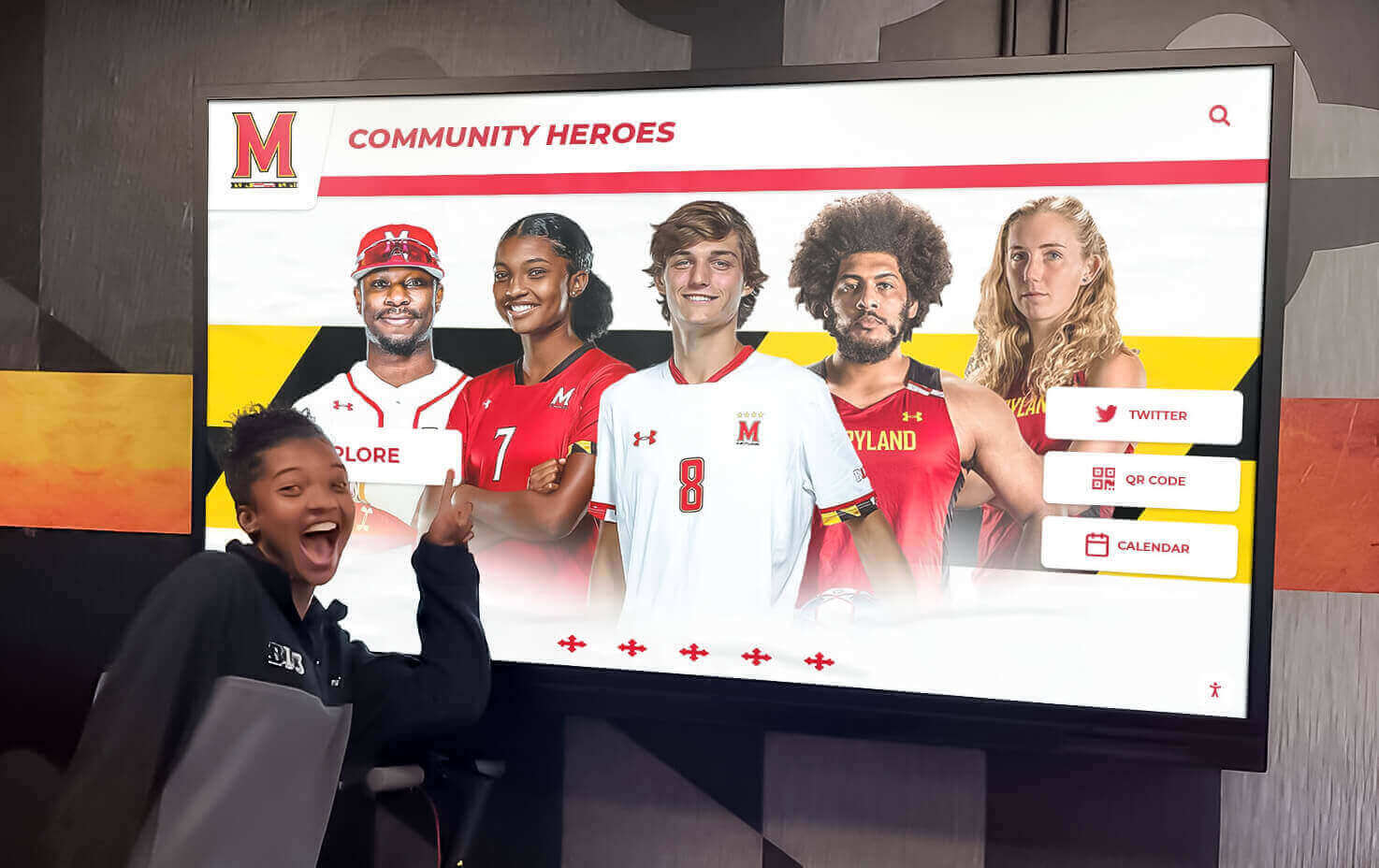
When championship banner artwork meets PDF/X preflight standards, that same source file adapts cleanly to digital recognition formats — extending athletic history from the gymnasium to lobby touchscreens, hallway displays, and school websites
Connecting Print-Ready Banners to Digital Recognition Systems
A championship banner that passes PDF/X preflight and is correctly installed in a gymnasium or lobby is one layer of a school’s championship recognition program. Athletic departments building comprehensive recognition ecosystems use that same artwork — and the data behind it — to populate digital hall-of-fame systems, touchscreen honor wall kiosks, corridor record boards, and school website archives.
The source artwork that passes PDF/X preflight is the design asset best positioned to adapt for digital use: it contains correctly specified school colors in CMYK (easily converted for screen), embedded fonts (available for digital text rendering), and high-resolution rasterized elements (downsampled for screen without quality loss). A print-ready source file with intact fonts and high-resolution images is significantly easier to adapt for a digital display than a flat rasterized export or an outlined print delivery file with no live text.
Schools that build interactive touchscreen recognition experiences for their campuses benefit from championship artwork produced to consistent quality standards at the print stage — because the same assets that work at banner scale adapt to portrait display orientation, touchscreen interaction zones, and digital typography rendering without requiring artwork recreation.
For athletic programs with banner collections spanning multiple decades — high school football programs, swim programs, basketball programs with long conference championship histories — the digital layer of that collection is as important as the physical one. Connecting the physical banner archive to a searchable digital display extends the recognition to alumni who no longer visit the gymnasium, prospective students and families touring the school, and community members who follow the program’s history online.
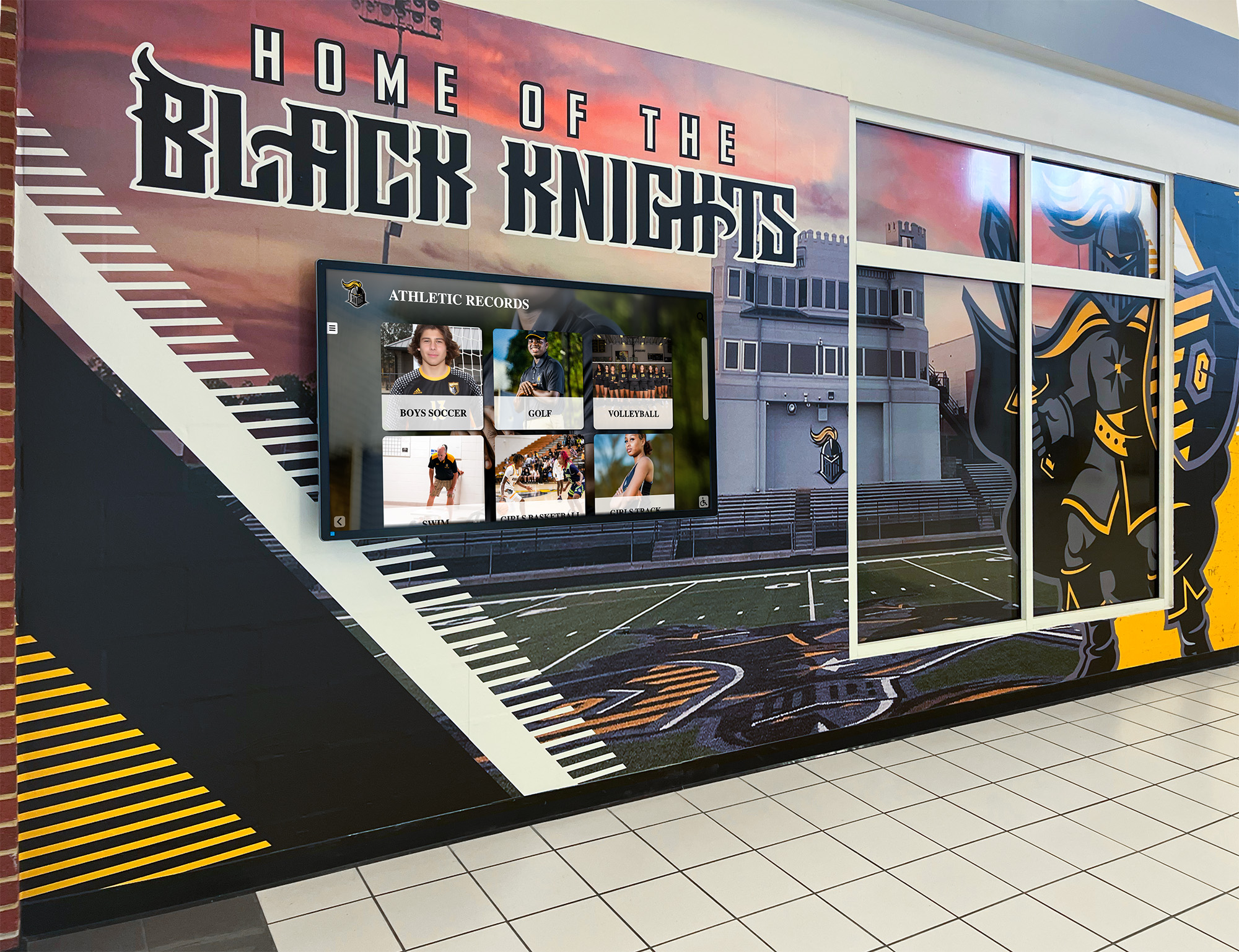
When championship banner artwork moves from print production to a digital recognition system, properly archived, preflight-verified source files make that transition a resize and reformat rather than a complete artwork rebuild
Frequently Asked Questions About Championship Banner PDF/X Preflight
What is a PDF/X preflight check for championship banners?
A PDF/X preflight check is a structured verification of a championship banner print file against the ISO PDF/X standard — confirming that color space is CMYK, fonts are embedded, rasterized images meet minimum resolution, bleed and trim marks are correct, transparency is properly flattened, and an output intent is declared. Running preflight before vendor submission catches technical errors that cause print jobs to be held for correction or produce banners that do not match the approved design proof.
What is the difference between PDF/X-1a and PDF/X-4 for banner production?
PDF/X-1a (ISO 15929) requires all transparency to be flattened before export and limits color to CMYK and spot inks — it is the most widely supported format among commercial large-format vendors. PDF/X-4 (ISO 15930-7) supports live transparency and allows CMYK, spot, and RGB with a declared output intent — it is preferable for complex artwork with soft shadows, feathered masks, and blend modes. For most school athletic departments, PDF/X-1a is the safe default unless the vendor specifies otherwise.
What resolution do championship banner images need to pass preflight?
Rasterized elements in championship banner artwork must be at minimum 150 dpi at the final print size — not at the image’s native file size, but at the actual output dimensions. An image that is 300 dpi natively but placed at 300% of its original size has an effective resolution of 100 dpi, which is below the minimum. Acrobat Preflight reports effective resolution at placed dimensions.
What bleed is required for championship banner print files?
Standard commercial print bleed is 0.125 inch (3 mm) on all sides beyond the trim mark. Large-format banner vendors may require 0.5 inch or greater to accommodate hem and grommet allowances. Confirm bleed dimensions with the vendor before finalizing artwork — rebuilding a completed banner layout to a different bleed specification takes significantly more time than setting the correct dimensions in the original document.
Can I run a PDF/X preflight check without Adobe Acrobat Pro?
Acrobat Reader (free) allows font verification through File > Properties > Fonts but does not include the full Preflight tool. A full PDF/X compliance check requires Acrobat Pro or a dedicated prepress tool. Most commercial print vendors also offer a free preflight upload on their website — submitting through the vendor’s preflight system as a final check catches format errors the in-house review may have missed.
Print It Right the First Time
A championship banner PDF/X preflight checklist compresses seven technical verification categories — color space, font embedding, resolution, bleed, transparency, output intent, and overprint — into a structured review that runs in under ten minutes with the right tools. A file that passes all seven categories will proceed through the vendor’s production system without correction holds, print with colors that match the approved proof, and deliver to the school on the production timeline the vendor quoted.
For athletic departments that commission championship banners on a recurring schedule — adding a new season’s achievement to a collection that spans decades — the cumulative value of a consistent preflight standard compounds with every new order. The tenth banner ordered under the same verified workflow is exactly as reliable as the first.
Bring Championship Recognition Into a Unified Digital Program
Rocket Alumni Solutions builds championship recognition systems for schools — from print-ready graphic standards to interactive digital displays that carry banner history into a searchable, touchscreen-accessible format for athletes, families, and visitors. See how your school's championship program fits together.
Get notified when Rocket Graphics opens