A championship banner overprint preview checklist is the single fastest way to catch the class of errors that look correct on screen and on a soft proof but print wrong every time: white text that vanishes entirely, school-color elements that shift to unexpected blended tones, and opaque graphics that print as color mixes because the overprint flag is set when it should not be. The direct answer: before submitting any championship banner file to a commercial print vendor, enable Overprint Preview in Adobe Acrobat (View > Preview > Overprint Preview), inspect every white and light-colored element, check all text objects, and verify black element overprint behavior — then repeat the inspection in the source application before re-exporting.
This checklist is organized by failure type and application, with a step-by-step table for each verification category. It is written for school administrators, athletic directors, facilities managers, and recognition-program coordinators who review banner artwork before production approval — not for professional prepress operators who run these checks daily.
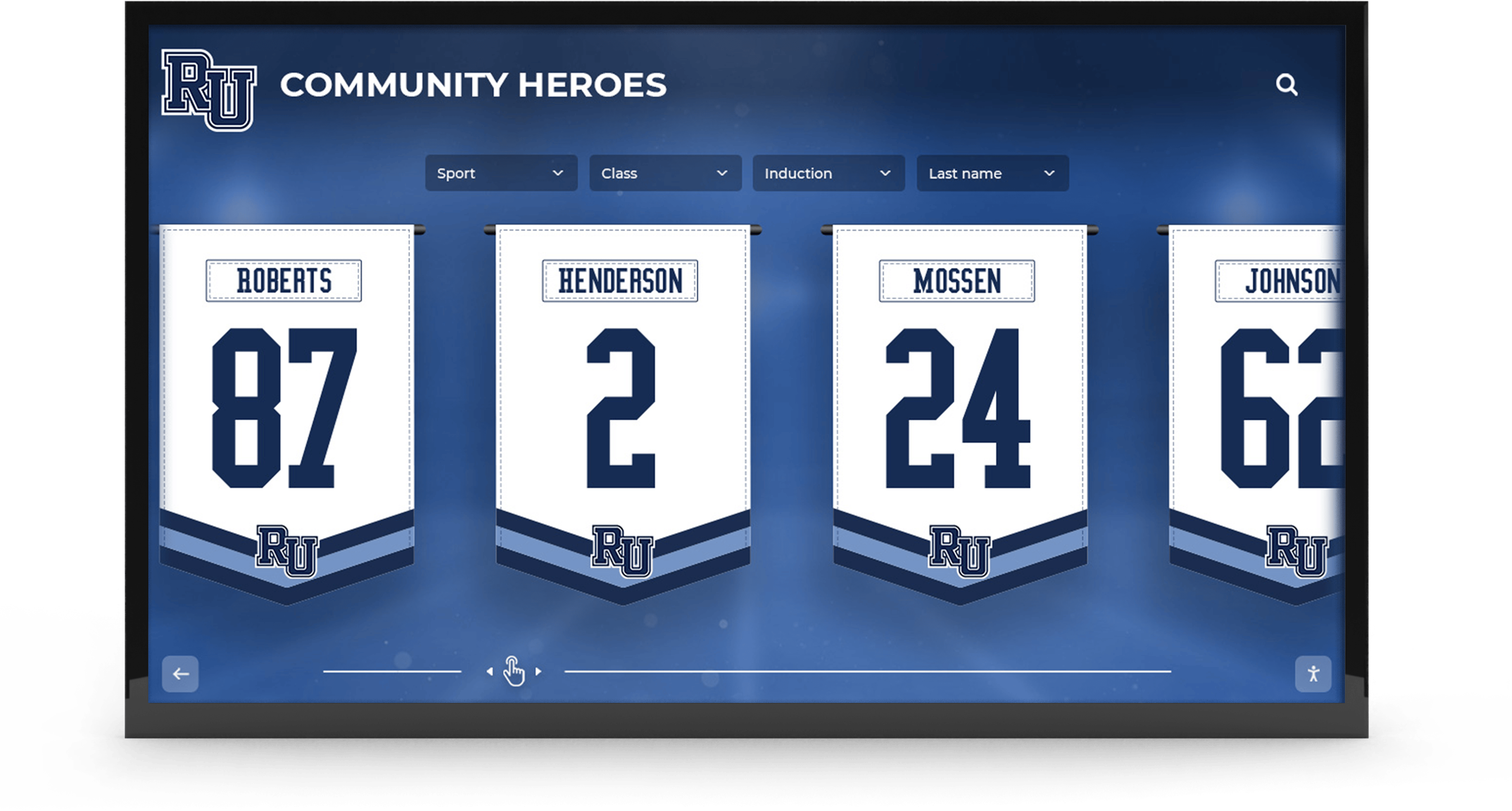
Championship banners installed in school gymnasiums and lobbies represent permanent athletic records — an overprint error that survives vendor submission produces banners with invisible text or color-shifted graphics that cannot be corrected after production
Why Overprint Preview Is Required for Championship Banner Approval
Overprint is a print instruction embedded in a PDF or design file that tells the vendor’s raster image processor (RIP) to mix the ink of one object with the ink of objects beneath it, rather than removing the underlying ink and replacing it with the top object’s solid color. That mixing behavior — called “overprinting” — is correct in specific situations and catastrophically wrong in others.
On a championship banner, overprint is used correctly in two narrow scenarios: when black ink is set to overprint underneath other elements to prevent thin white misregistration gaps at color boundaries, and when a designer intentionally uses overprint trapping to bridge gaps at press registration tolerances. In every other situation — colored text, white text, mascot graphics, school-color background fields, and decorative elements — the correct setting is knockout, meaning the top object’s ink replaces whatever is beneath it.
The dangerous property of overprint errors is that they are completely invisible in standard PDF preview modes. Adobe Acrobat, web browsers, and most PDF viewers render all objects at their apparent fill color regardless of overprint flags. A championship banner file can look perfect in every screen review, match the approved digital proof exactly, and still arrive from the vendor with entire text elements missing — because the vendor’s production equipment processed the overprint instructions the screen preview silently ignored.
According to Adobe’s official technical documentation, Overprint Preview mode in Adobe Acrobat and Adobe applications simulates on screen exactly how overprinting inks interact at output — making it the primary tool for catching overprint errors before a file reaches production. Enabling it takes two clicks; skipping it is the most common source of invisible championship banner production failures.
For school athletic programs that commission championship banners on a recurring schedule, a consistent overprint preview step added to the pre-submission workflow prevents the class of vendor correction holds and reprint requests that damage recognition program timelines and budgets.
The Three Overprint Errors That Destroy Championship Banner Artwork
Understanding what goes wrong — and why — makes the checklist steps faster to execute and easier to interpret.
Error 1: White Text That Disappears Entirely
White text or white graphic elements set to overprint are the most catastrophic overprint failure in championship banner production. White ink is 0% of all ink colors. When overprint instructs the RIP to mix the white object’s ink with the ink beneath it, the result is 0% contribution from the white element and 100% contribution from whatever is beneath it — which means the white object is completely absent from the printed output. A championship banner with white school name text set to overprint on a dark mascot-color background will arrive from the vendor with no school name.
This error occurs most often when a designer copies a white element from a file where overprint was set for a specific purpose, or when a template was built with a global overprint setting that was not reset before applying it to new content.
Error 2: Color-Shifted Opaque Elements
A colored graphic element — a mascot fill, a championship year number, a conference logo — set to overprint on a colored background blends with that background color rather than replacing it. A royal-blue numeral set to overprint on a red background prints as a purple-blue-red mix, not as the intended royal blue. On a championship banner that hangs beside others from previous years, that color shift is immediately visible as a quality discrepancy.
This error is more common in files assembled from multiple sources — elements with different overprint histories combined into a single banner layout — than in files designed from scratch by a single designer following a consistent workflow.
Error 3: Unintended Knockout Gaps at Color Boundaries
The reverse error — black text or fine linework that should overprint but is set to knockout — produces thin white gaps at every boundary where black objects meet colored elements. On a large-format championship banner viewed at close range, those gaps appear as registration errors even on digital printing equipment that is inherently more precise than offset press. The error is subtle compared to disappearing text, but visible at banner viewing distance on dark backgrounds.
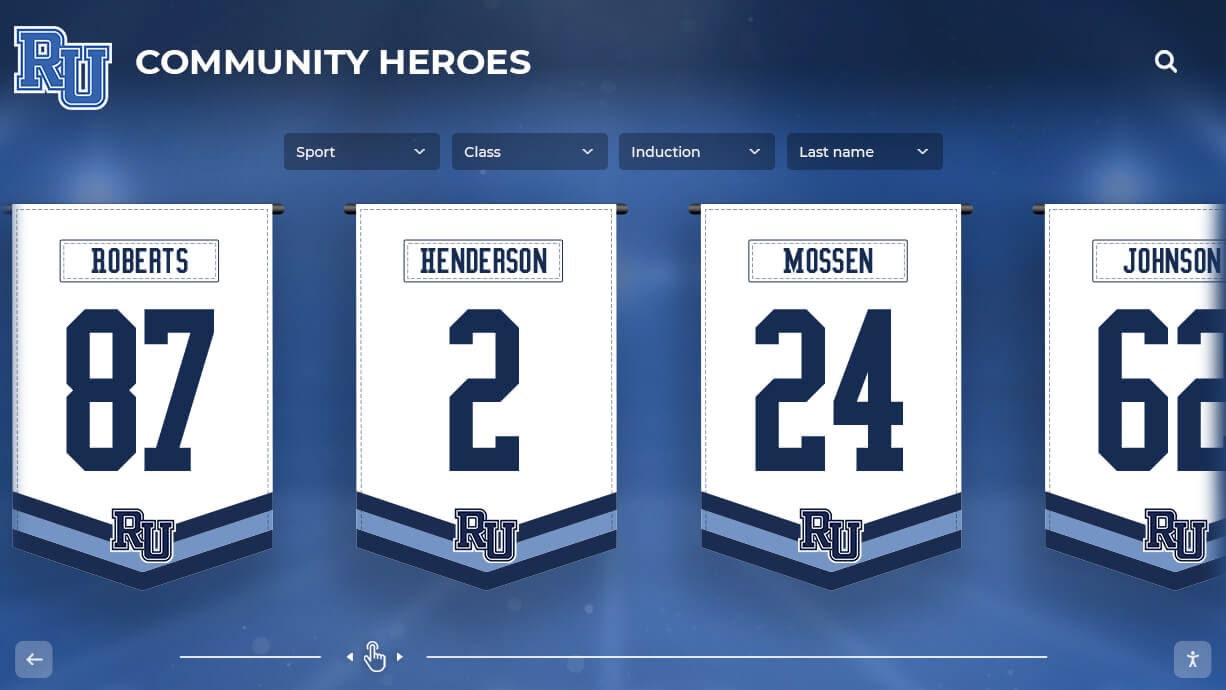
Large-format hanging banners are viewed at close range in high-traffic areas — a color-shifted element or missing text element that survives production is visible to every student, athlete, and visitor who walks past
Championship Banner Overprint Preview Checklist
Work through each step below before submitting any championship banner PDF to a commercial print vendor. Items marked (Required) will cause a visible print error or production hold if skipped. Items marked (Recommended) prevent less common failure modes.
Step 1: Enable Overprint Preview in Adobe Acrobat
- Open the championship banner PDF in Adobe Acrobat (Reader or Pro — both support Overprint Preview). (Required)
- Navigate to View > Preview > Overprint Preview. In older Acrobat versions, this is found at View > Overprint Preview. (Required)
- Confirm Overprint Preview is active — a correctly configured PDF with no overprint errors may look identical to the standard view; a file with errors will show visible changes. (Required)
- Zoom to 100% before beginning the inspection. Overprint errors at boundaries are small and may not be visible at reduced zoom. (Recommended)
Step 2: Inspect White and Light-Colored Elements
| Element Type | What to Look For | Pass Criteria | Priority |
|---|---|---|---|
| White text | In Overprint Preview, text is visible and reads as white against the background | All white text visible with full contrast | Required |
| White logo elements | Reversed logo marks, rules, borders remain visible | White elements appear white, not transparent | Required |
| Light-colored text (cream, gold, pale blue) | Colors remain at intended saturation | No unexpected darkening or color mixing visible | Required |
| White fills on opaque elements | Background shapes, framing boxes visible | Elements block the background behind them | Required |
If any white element appears to disappear or takes on the color of the background behind it when Overprint Preview is active, the overprint flag is set incorrectly on that element and must be corrected in the source file.
Step 3: Check All Text Objects
- Identify every text element in the banner: school name, sport designation, championship year, season record, coach name, and any caption or description text. (Required)
- In Overprint Preview mode, verify each text element is fully visible and readable against its background. (Required)
- Pay specific attention to text placed over photographic or graphic elements — these are the most common locations where overprint flags produce unexpected color interactions. (Required)
- Verify that text set in school colors other than black renders at the correct school color, not a blended tone. (Required)
- Check numerals — championship years and jersey numbers on recognition banners are often sourced from design elements with different overprint histories than surrounding text. (Recommended)
Step 4: Verify Black Element Overprint Behavior
Black (100% K) text and linework should overprint in most commercial print workflows. Verify that this setting is consistent with the vendor’s specification before and after the preflight review.
| Check | Method | Pass Criteria | Priority |
|---|---|---|---|
| Black text overprint enabled | Acrobat > Object Properties on a black text element | Overprint Fill is checked for 100% K text | Recommended |
| No white gaps at black text boundaries | Visual inspection in Overprint Preview at 100% zoom | No thin white halos at edges of black text on colored backgrounds | Required |
| Rich black (multi-ink) elements checked separately | Compare Overprint Preview to standard view for any heavy display text using multi-ink black | Colors blend as intended, not as unexpected color shifts | Required |
If the vendor has specified that they apply global black overprint settings at their RIP, confirm whether the file should include or exclude overprint flags on black — following the vendor’s specification prevents conflicts between file-level and RIP-level overprint instructions.
Step 5: Audit Spot Color Interactions
For championship banners that use Pantone spot inks (rather than CMYK process color), overprint behavior between spot color plates determines whether colors mix or knock out correctly at the press.
- In Overprint Preview, enable Separations Preview (Window > Separations Preview in Illustrator, or the Separations view in Acrobat Pro Output Preview). (Recommended)
- Toggle each color plate off and on. Elements that should appear on only one plate must not appear as color contributions on other plates in Overprint mode. (Required)
- Verify that spot color trapping relationships — if trapping was applied in the source application — produce the intended narrow trap zone rather than a broad color mix. (Recommended)
- Confirm that a second spot color element placed over a first spot color element knocks out correctly where intended and overprints correctly where trap zones were applied. (Required)
For a complete workflow covering spot color setup in Illustrator and InDesign, the championship banner spot color setup guide covers plate separation and vendor communication for Pantone ink specification in detail.
Step 6: Confirm Overprint Settings in the Source Application
Overprint Preview in Acrobat confirms how the exported PDF will print. To correct overprint errors, changes must be made in the source application — Illustrator, InDesign, CorelDRAW, or Affinity Designer — before re-exporting.
In Adobe Illustrator:
- Select a suspect element and open the Attributes panel (Window > Attributes).
- Check the Overprint Fill and Overprint Stroke checkboxes. Uncheck either that should not be overprinting.
- For white or light-colored fills: both Overprint Fill and Overprint Stroke must be unchecked.
- Enable View > Overprint Preview in Illustrator directly to verify the fix before re-export.
In Adobe InDesign:
- Select the element and go to Window > Output > Attributes.
- Uncheck Overprint Fill and/or Overprint Stroke as appropriate.
- Enable View > Overprint Preview in InDesign to verify.
In CorelDRAW:
- Select the object and go to Object Properties > Fill > Advanced > Overprint fill.
- Uncheck overprint where it should not apply.
Step 7: Re-export and Verify
After correcting overprint settings in the source application:
- Re-export the championship banner to PDF using the same export settings used for the original file. (Required)
- Open the new PDF in Acrobat and enable Overprint Preview again. (Required)
- Confirm that all previously identified overprint errors are resolved. (Required)
- Run the full PDF/X preflight check on the re-exported file — any re-export risks introducing new preflight failures in other categories. The championship banner PDF/X preflight checklist covers the complete seven-category verification. (Required)
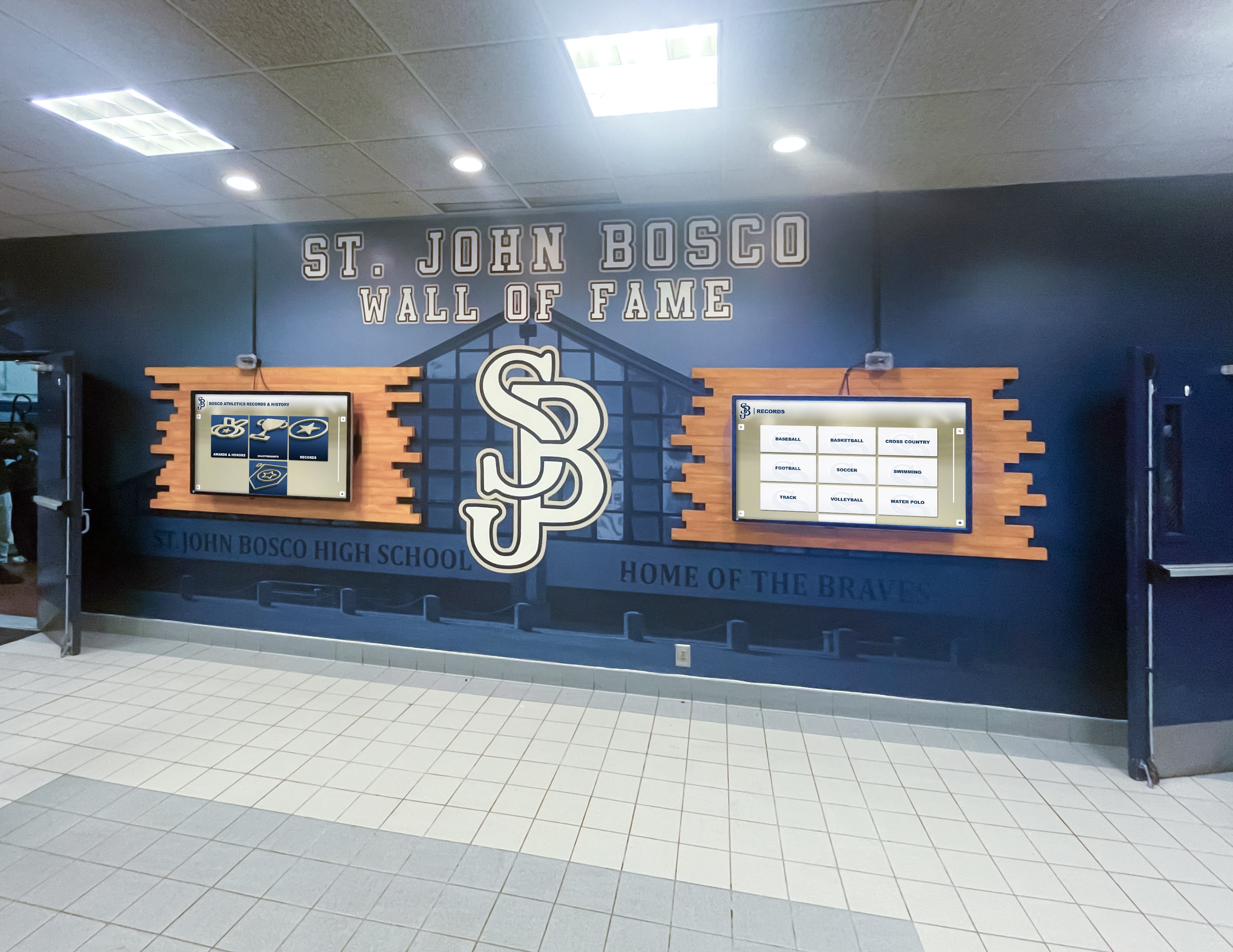
Athletic hallways that combine physical championship banners with digital recognition screens depend on consistent file quality — overprint-verified print files produce banners that read as sharply at installation distance as they appeared in the approved design proof
How Overprint Preview Differs from Standard PDF Preview
The distinction between standard preview and Overprint Preview mode matters practically, not just technically.
| Preview Mode | What It Shows | Overprint Errors Visible? |
|---|---|---|
| Standard PDF view (Acrobat, browser, most viewers) | Objects rendered at their apparent fill color; overprint flags ignored | No — overprint errors appear correct |
| Overprint Preview (Acrobat, Illustrator, InDesign) | Objects rendered with overprint ink mixing simulated | Yes — white disappearing, color shifts, gaps all visible |
| Output Preview / Separations Preview (Acrobat Pro) | Individual color plate content displayed separately | Yes — overprint errors visible per plate |
| Soft proof / color-managed preview | Color profile simulation of output device | Depends on tool — overprint simulation not always included |
A championship banner file reviewed only in standard PDF view — the default view when a PDF is opened — can look correct and still contain errors that will be visible on the finished banner. Overprint Preview is not a default mode in any application; it must be explicitly enabled for every review session.
The Ghent Workgroup’s print production specifications — a widely referenced prepress standard cited by many large-format vendors — specifically recommend verifying overprint behavior visually as part of the pre-submission file review for large-format print jobs, because overprint errors are among the most common file quality failures in commercial production.
Running Overprint Preview in Adobe Illustrator and InDesign
For school staff who receive source files from a designer and review them before sending to a vendor, Overprint Preview is available in the design applications as well as in Acrobat.
Adobe Illustrator: Navigate to View > Overprint Preview. The keyboard shortcut is Alt+Shift+Ctrl+Y (Windows) or Option+Shift+Command+Y (Mac). Overprint Preview in Illustrator shows exactly how the artwork’s overprint settings will behave when separated at the vendor’s RIP.
Adobe InDesign: Navigate to View > Overprint Preview. The keyboard shortcut is the same as Illustrator. InDesign’s Overprint Preview applies the same simulation and is the authoritative view for multi-page documents that include championship banner artwork alongside other print materials.
Key behavior to note in both applications: Overprint Preview in Illustrator and InDesign reflects the current overprint settings in the live document — it shows what the next export will produce, not necessarily what the previously exported PDF contains. Always run Overprint Preview in Acrobat on the final exported PDF as the authoritative production check, even if the source file review in Illustrator or InDesign appeared correct.

Championship recognition in athletic lounges and trophy areas depends on print materials that match the quality of permanent installations — a single overprint error that reaches the vendor produces a visible discrepancy that may hang beside correct banners for years
Quick-Reference Overprint Preview Checklist Table
Use this table as a one-page reference during file review. Work through every row before approving any championship banner file for vendor submission.
| Check Item | Application | Method | Pass Criteria | Priority |
|---|---|---|---|---|
| Enable Overprint Preview | Acrobat, Illustrator, InDesign | View > Overprint Preview | Mode active, confirmed visually | Required |
| White text visible | Acrobat Overprint Preview | Visual inspection at 100% | All white text readable, not transparent | Required |
| White graphic elements visible | Acrobat Overprint Preview | Visual inspection | White fills block background | Required |
| Light-colored text correct | Acrobat Overprint Preview | Color comparison | No color-mixing artifacts on pale text | Required |
| School-color elements solid | Acrobat Overprint Preview | Visual inspection | Colors appear at intended saturation | Required |
| Black text overprint per spec | Source app Attributes panel | Check Overprint Fill setting | Matches vendor specification | Recommended |
| No white gaps at black boundaries | Acrobat Overprint Preview | Visual inspection at 100% | No halos or gaps at black/color edges | Required |
| Spot color plates separate correctly | Acrobat Output Preview | Toggle plates on/off | Each element on intended plates only | Required |
| Overprint settings corrected in source | Illustrator / InDesign Attributes | Overprint Fill/Stroke checkboxes | All incorrect overprint flags cleared | Required |
| Re-exported PDF verified | Acrobat Overprint Preview | Full re-review of exported PDF | No overprint errors in final file | Required |
| PDF/X preflight passed on re-export | Acrobat Preflight | Run PDF/X-1a or X-4 profile | No preflight errors in final file | Required |
Overprint Preview in the Context of School Recognition Programs
Championship banner files are production documents that represent a school’s athletic history, but they exist within a broader recognition ecosystem. The care taken to verify overprint settings before a banner reaches the press is part of the same quality standard that governs every recognition material a school produces — from physical award displays to digital recognition systems.
Schools building comprehensive athletic recognition programs often manage banner production alongside other recognition-display projects. Digital archives for schools, colleges, and universities increasingly preserve championship records in searchable digital formats that extend the visibility of banner content beyond the gymnasium wall — making the source artwork produced for print the foundation for digital records that serve alumni, prospective students, and community members indefinitely.
Athletic departments coordinating championship banner production as part of a larger recognition awards cycle — including cord colors for honor programs, award categories, and end-of-season ceremonies — benefit from understanding how print standards connect to the recognition experience described in resources like honors cord colors by GPA level. Physical recognition materials of all kinds depend on the same underlying quality controls at the production stage: consistent color, legible text, and correct print settings that survive the journey from design file to finished product.
For schools that display championship banners in athletic hallways alongside digital recognition screens, the school recognition display configuration workflow for digital honor displays raises the same quality question the overprint preview checklist answers for print: does the file produce the intended visual result on the actual output device? The answer for print is Overprint Preview; the answer for digital recognition displays involves display calibration and connection testing.
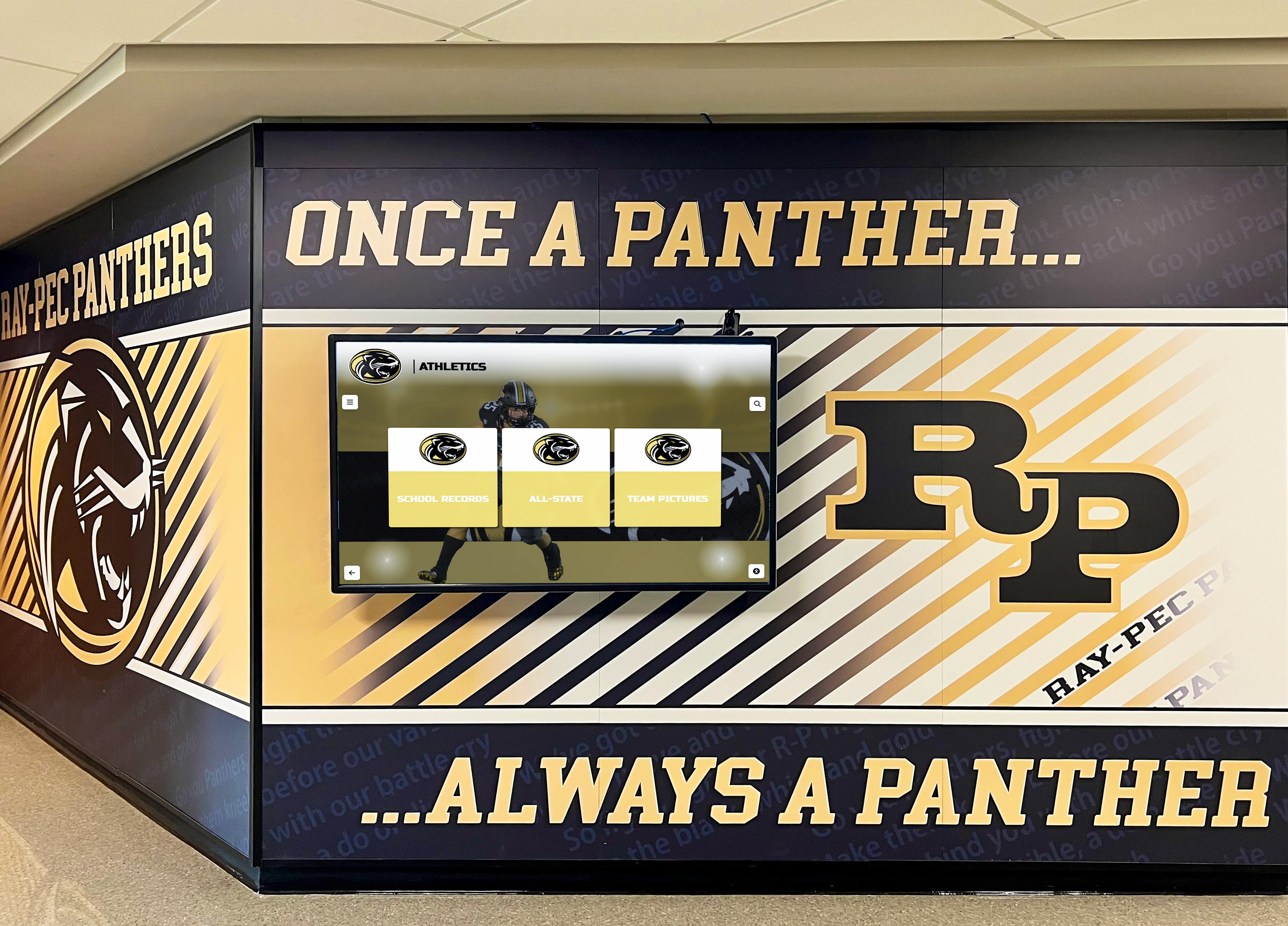
When championship banner artwork is produced to consistent overprint and preflight standards, that same source file adapts to digital recognition display formats — extending athletic history from gymnasium banners to lobby screens and hallway kiosks
Schools coordinating recognition program events where championship banners are unveiled — banquets, award nights, homecoming events — often produce supplementary digital signage and social graphics alongside the physical banner. For athletic programs running concession stand signage and event-night displays, the same file quality discipline applied to championship banner production carries over to every graphic published for the recognition event.
Recognition programs that extend beyond athletics — to academic honors, student leadership, and service awards — benefit from the same print production standards. Resources on robotics team recognition ideas reflect how recognition-program coordinators approach multi-category award displays that include printed materials, digital content, and physical signage — all subject to the same file quality requirements at the point where artwork reaches a vendor.
For schools that maintain touchscreen recognition displays in lobbies and athletic hallways alongside physical championship banners, the overprint-verified print file provides the highest-quality source asset for adapting championship artwork to portrait or landscape digital display formats. A print-ready file with correctly specified colors, embedded fonts, and verified overprint settings is significantly easier to adapt for digital use than a flat rasterized export or a file with unknown overprint states that may interact unexpectedly with display rendering software.
Schools exploring touchscreen recognition display options for academic or athletic recognition programs can use championship banner artwork that passes overprint verification as the source graphic for digital display content — avoiding artwork recreation by adapting the same verified print file for screen dimensions and resolution.
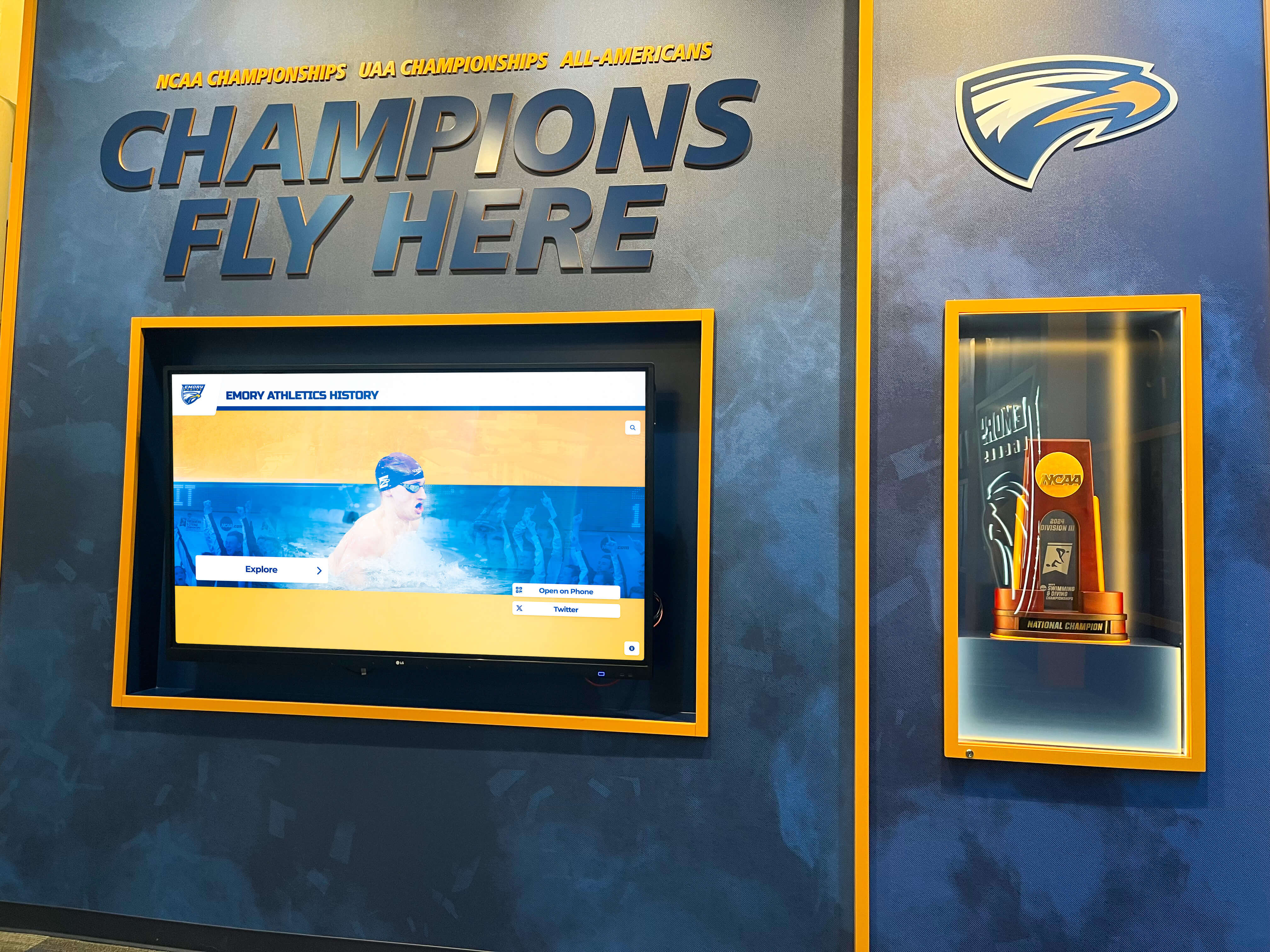
Championship recognition collections spanning multiple sports and seasons depend on consistent print file quality — a written overprint review standard applied to every new banner submission ensures the newest addition matches the quality of installations from a decade earlier
Frequently Asked Questions: Championship Banner Overprint Preview
What is overprint preview and why does it matter for championship banners?
Overprint Preview is a display mode in Adobe Acrobat, Illustrator, and InDesign that simulates on screen how overprinting ink instructions will interact at output. Standard PDF preview modes ignore overprint flags and display all objects at their apparent fill colors — meaning errors are invisible until the banner comes back from the vendor. Overprint Preview reveals white text that will disappear, colored elements that will print as unexpected blends, and gaps at color boundaries. For championship banner production, enabling Overprint Preview before vendor submission is the only reliable way to catch these errors before they appear permanently on a finished banner.
Why does white text disappear on championship banners?
White text disappears on a printed championship banner when the text element’s overprint setting is enabled. White ink is 0% of all ink colors. When overprint instructs the vendor’s RIP to mix the white object’s ink with the background beneath it, the result is 0% contribution from the white text — the element is completely absent from printed output. Overprint Preview in Adobe Acrobat simulates this behavior before the file reaches the vendor. If white text disappears when Overprint Preview is active, the Overprint Fill setting must be unchecked in the source application before re-exporting.
How do I enable Overprint Preview in Adobe Acrobat?
In Adobe Acrobat (Reader or Pro), navigate to View > Preview > Overprint Preview. In older Acrobat versions, it is at View > Overprint Preview. Overprint Preview must be enabled each review session — it is not a persistent default. Once active, zoom to 100% and inspect all white, light-colored, and school-color elements for unexpected transparency or color mixing. The same option is available in Adobe Illustrator and InDesign under View > Overprint Preview.
Can overprint errors be fixed in Acrobat without returning to the source file?
Acrobat Pro’s Preflight Fixups can address some overprint issues globally — for example, removing all overprint flags across a file. However, global corrections also remove intentional overprint settings such as black text overprint, which may be required by the vendor. The recommended approach is to correct overprint settings element by element in the source application, re-export to PDF, and verify the corrected file with Overprint Preview before submitting. Acrobat Fixups are appropriate as a last resort when the source file is unavailable.
Should black text on championship banners be set to overprint?
Whether black text should overprint depends on vendor specifications. For most large-format banner vendors, 100% K (black-only) text should overprint to prevent thin white misregistration gaps at color boundaries. Rich black text — using a multi-ink formula — should not overprint, because overprinting multi-ink black on colored elements produces dark color blends rather than clean black. Confirm the vendor’s overprint specification for black text in writing before finalizing the file, and test in Overprint Preview to confirm the behavior matches the specification.
Print It Right the First Time
A championship banner overprint preview checklist addresses one of the smallest settings in a print file and one of the largest sources of production failures: an overprint flag that is set when it should not be is invisible in standard review, costs nothing to find with the right tool, and produces a visible, permanent error on a banner that hangs in a gymnasium for decades. Enabling Overprint Preview in Adobe Acrobat, running through each element category in the order above, correcting errors in the source application, re-exporting, and verifying the corrected file adds fewer than ten minutes to the pre-submission review on a correctly configured file — and catches errors that would otherwise require a reprint.
For athletic departments producing championship banners on a recurring schedule, the cumulative value of a consistent overprint verification step compounds with every order. A workflow that catches the error at file review rather than at post-delivery inspection saves a reprint, a production delay, and a recognition event where the banner that should have arrived did not.
Build a Championship Recognition Program That Lasts
Rocket Alumni Solutions helps school athletic programs build championship recognition systems — from print-ready graphic standards and digital display networks to interactive hall-of-fame kiosks that connect banner history to the athletes and alumni who earned it. See how your school's recognition program fits together.
Get notified when Rocket Graphics opens