A championship banner minimum line weight preflight checklist catches the production failure that passes every automated check but permanently damages the finished banner: fine rules that vanish at print, thin outlines that break into dotted borders, and sponsor-logo stroke weights too light to survive the vendor’s raster image processor at banner scale. The direct answer: for most commercial large-format vinyl banner vendors using UV inkjet or solvent inkjet equipment, the minimum reproducible line weight at final print size is 0.5 point (0.176 mm). The practical safe minimum for consistently solid output is 1 point (0.353 mm). Any stroke below 0.25 point at final print dimensions should be treated as invisible. Before submitting any championship banner file, open the source document, switch to 100% zoom at the design scale, and inspect every stroke, rule, and outline — then confirm each element meets the vendor’s published minimum in writing before export.
This checklist is written for school administrators, athletic directors, facilities managers, and recognition-program coordinators who approve championship banner artwork before production. It does not require prepress expertise to execute.
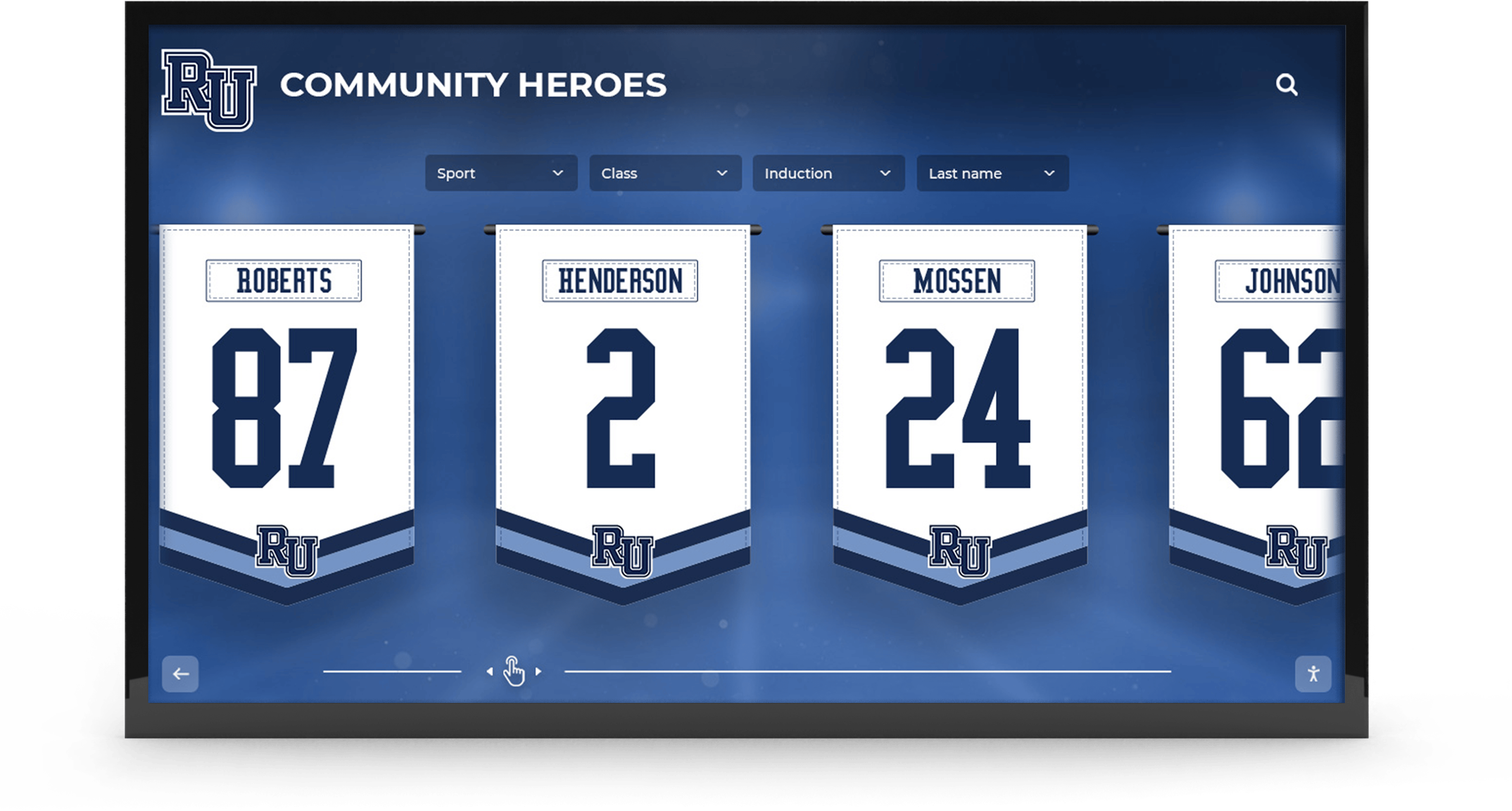
Championship banners in school lobbies and gymnasiums display sponsor marks, school crests, and decorative rules alongside the program's athletic history — any stroke below minimum line weight fails silently at the vendor and appears as a broken or missing element on the finished banner
Why Minimum Line Weight Matters for Championship Banner Production
Minimum line weight is the thinnest stroke a specific print process can reproduce as a solid, unbroken line. Below that threshold, fine strokes either vanish entirely, render as a dotted line where ink droplets fail to merge, or appear significantly lighter than intended — none of which match the approved proof.
Championship banners present a specific minimum-line-weight risk for three reasons. First, banners are large: a four-by-eight-foot banner surface magnifies every production defect that appears as a minor variation at print-head resolution. Second, banner artwork frequently contains sponsor logos, school crests, and decorative border rules with fine strokes that look acceptable on a monitor at reduced zoom but are dangerously thin at output scale. Third, designers often work at reduced scale — building a 48-by-96-inch banner in a document set to 12-by-24 inches — which compresses line weights on screen and obscures which strokes will fail when the vendor outputs at full size.
The PDF/X production standard that most commercial banner vendors require does not include a minimum line weight check in its preflight profile. A file can pass PDF/X-1a compliance with hairline strokes throughout — because the PDF/X specification governs color space, font embedding, and transparency, not stroke geometry. The championship banner PDF/X preflight checklist covers the full seven-category PDF/X verification; minimum line weight is a separate check the designer or reviewing administrator must run before that export step.
The Minimum Line Weight Answer With Vendor Caveats
The minimum reproducible line weight depends on the vendor’s printing technology and substrate. Before finalizing any championship banner file, confirm the specific minimum with the vendor in writing. The values below reflect published vendor specifications and industry practice for large-format banner production.
| Print Technology | Substrate | Vendor Minimum (typical) | Practical Safe Minimum |
|---|---|---|---|
| UV inkjet (standard resolution) | Vinyl banner | 0.5 pt (0.176 mm) | 1.0 pt (0.353 mm) |
| Solvent inkjet (high resolution) | Vinyl banner | 0.5 pt (0.176 mm) | 0.75 pt (0.265 mm) |
| Latex inkjet | Fabric / polyester banner | 0.75 pt (0.265 mm) | 1.0 pt (0.353 mm) |
| Dye-sublimation | Polyester fabric | 1.0 pt (0.353 mm) | 1.5 pt (0.530 mm) |
| Screen print | Vinyl or fabric | 1.5–2.0 pt (0.530–0.706 mm) | 2.0 pt (0.706 mm) |
The vendor caveat: these values represent what most vendors publish for standard equipment at standard substrate. Actual minimum line weight varies by substrate finish, ink type, resolution setting, and the specific RIP software in use. A 0.5-point stroke that reproduces cleanly on a gloss vinyl banner from one vendor may break on a matte fabric banner from another, even using nominally similar inkjet technology. Always request the vendor’s published file specification sheet and confirm minimum line weight before finalizing artwork.
A hairline stroke — a designer term typically referring to 0.25 point (0.088 mm) or less — is below the reproducible minimum of every large-format banner vendor. A hairline used as a decorative rule, border outline, or text stroke on a championship banner will either vanish entirely or render as a faint, inconsistent smudge. Every hairline in a championship banner file must be replaced with a minimum 0.5-point stroke, and preferably 1 point, before submission.
Minimum Line Weight and Design Scale: The Scale Table
Designers who build large-format banner artwork at reduced scale encounter a line weight problem that is easy to overlook. In Adobe Illustrator, when Scale Strokes & Effects is turned off — the default behavior for most large-format workflows — a 1-point stroke remains 1 point regardless of how the artwork is scaled or what document dimensions are used. This means a 1-point stroke in a document designed at 25% of final print size (a 12-by-24-inch document representing a 48-by-96-inch banner) outputs at 1 point when the vendor prints at full dimensions — not at 4 points. The scale factor does not enlarge the stroke weight.
This table shows what stroke weight a design file must carry — at each design scale and Scale Strokes state — for the output to meet the vendor’s minimum at final print size.
| Stroke in Design File | Scale Strokes OFF — Output at Final Size | Scale Strokes ON at 25% Design Scale — Output | Meets 0.5 pt Minimum? | Meets 1.0 pt Minimum? |
|---|---|---|---|---|
| 0.25 pt (hairline) | 0.25 pt | 1.0 pt | No (OFF) / Yes (ON) | No (OFF) / Yes (ON) |
| 0.5 pt | 0.5 pt | 2.0 pt | Borderline (OFF) / Yes (ON) | No (OFF) / Yes (ON) |
| 1.0 pt | 1.0 pt | 4.0 pt | Yes | Yes |
| 1.5 pt | 1.5 pt | 6.0 pt | Yes | Yes |
| 2.0 pt | 2.0 pt | 8.0 pt | Yes | Yes |
The practical rule: when submitting a championship banner file built at reduced scale with Scale Strokes & Effects turned off, every visible stroke in the design document must be at least 1 point in the document’s own units — because no scaling factor will increase it at print. Confirm the Scale Strokes & Effects state in Preferences > General in Illustrator before reviewing any line weights, so the table row above applies correctly.
Common Failure Elements in Championship Banner Artwork
Fine strokes fail minimum line weight requirements most often in specific design elements that appear repeatedly in championship banner artwork. Target these categories first in the 100% view inspection below.
Sponsor logos. Corporate and community sponsor logos are the most common source of sub-minimum line weight on championship banners. Logo files provided by sponsors — especially vector EPS or AI files — frequently contain 0.25-point or hairline outlines around wordmark text, thin rules separating the logo mark from the wordmark, and fine interior path details in illustrated marks. These stroke weights are designed for letterhead and web display; they rarely meet large-format print minimums without correction. Before placing any sponsor logo on a championship banner, open the vector source file and inspect every stroke weight individually.
Championship year numerals with decorative outlines. Designers often apply a stroke to large-scale year numerals as a decorative outline — for example, a 0.5-point outer stroke on a 144-point numeral. At the document’s reduced zoom that stroke looks proportionally thin but visible; near the vendor’s minimum, it may render inconsistently on the finished banner. For decorative outlines on large text, use at least 1.5 points to maintain consistent visibility at banner dimensions.
School crests and mascot fine-line details. School coat-of-arms illustrations and detailed mascot artwork contain fine-line cross-hatching, heraldic line work, and thin outlines drawn for embroidery or letterhead rather than large-format print. These elements require stroke weight review before placement on any championship banner.
Decorative border rules and dividing lines. Thin horizontal rules separating a banner’s championship list sections, decorative double-line borders, and hairline frame rules around trophy icons are frequently set at 0.25 point or less. They are invisible failure points: the rule appears to be a design choice for visual lightness, but the stroke weight reveals it is below the print minimum.
Background grid patterns and watermark-style graphics. Championship banners that use a semi-transparent school logo watermark or light geometric grid as a background element often combine very low opacity with hairline strokes. Transparency below 10% with strokes below 0.5 point produces output that is invisible — confirm whether that invisibility is intentional before submission.
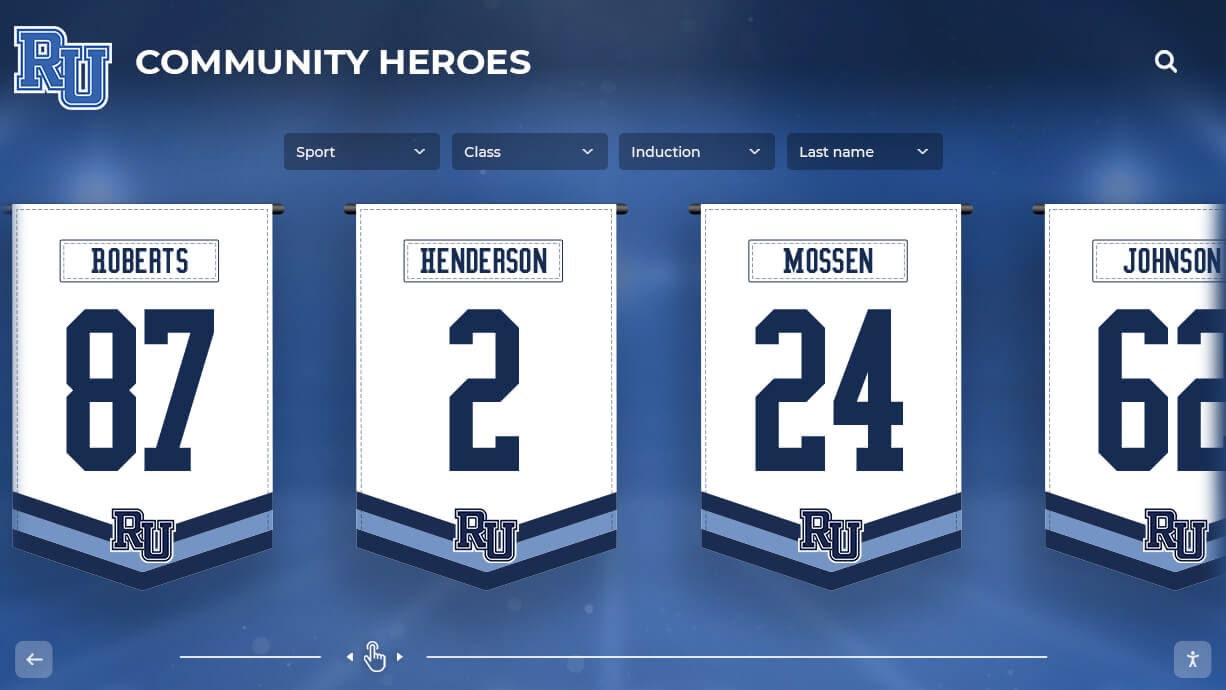
Hanging championship banners are examined at close range in high-traffic spaces — a broken border rule or vanished sponsor mark outline caused by a sub-minimum stroke weight is immediately visible to every student, family member, and administrator who passes through the space
The 100-Percent-View Inspection Checklist
The 100% view inspection is the fastest and most reliable way to identify sub-minimum line weights in a championship banner source file before export. Perform this check in the design application — not in the exported PDF — so that corrections can be made before export.
Setting Up the 100% View Correctly
- Open the championship banner source file in the design application (Illustrator, InDesign, CorelDRAW, or Affinity Publisher). (Required)
- In Adobe Illustrator: press Cmd+1 (Mac) or Ctrl+1 (Windows) to reach Actual Size view, which displays the document at 100% zoom. For a banner built at reduced design scale, 100% view shows the document at its working dimensions — not at final print scale. (Required)
- Confirm the zoom percentage displayed in the window title bar reads “100%.” (Required)
- In Illustrator, check Preferences > General and note whether Scale Strokes & Effects is checked or unchecked. This determines whether the scale table above applies with the OFF or ON column for this file. (Required)
- With Scale Strokes OFF, all stroke values visible at 100% view represent the exact stroke values that will output at final print size — regardless of the document’s design scale. (Required)
The Line Weight Inspection Pass
Work through the championship banner design systematically, inspecting each element category at 100% view.
| Element Category | Inspection Step | Pass Criteria | Priority |
|---|---|---|---|
| Sponsor logos | Select each logo group, expand all paths, check Stroke panel | All strokes ≥ 1 pt; hairlines removed or replaced | Required |
| Championship year outlines | Select year text outline or expanded path, check Stroke panel | Decorative outer stroke ≥ 1.5 pt | Required |
| School crest and mascot details | Expand all groups, inspect inner paths individually | All visible strokes ≥ 0.5 pt; hairlines replaced | Required |
| Border and frame rules | Select all decorative rule and frame line elements | All rules ≥ 1 pt | Required |
| Section divider lines | Inspect horizontal and vertical rule elements | All dividers ≥ 0.5 pt; recommended ≥ 1 pt | Required |
| Background grid or pattern | Check opacity and stroke weight on pattern elements | Visible pattern elements ≥ 0.5 pt; invisibility confirmed if below | Recommended |
| Text with applied strokes | Open Appearance panel for all text with strokes | Stroke on live text ≥ 1 pt | Required |
| Drop shadows and outer glows | Check whether effect combines with a hairline inner stroke | No hairline inner stroke combined with a glow or shadow effect | Recommended |
After the Inspection Pass
- Replace all hairline strokes (0.25 pt or below) with a minimum 0.5-point stroke. For elements intended to be thin — section divider rules, decorative frames — use 1 point as the replacement minimum. (Required)
- For sponsor logos where the original file cannot be modified without affecting the sponsor’s brand identity, contact the sponsor’s communications team and request a large-format-ready version with stroke weights adjusted for banner production. If no corrected file is available, expand all thin strokes in the vector source file and replace with 0.5-point or greater equivalents. (Required)
- After all corrections, re-export the championship banner to the delivery format. PDF/X-1a is the standard for commercial banner vendors — the championship banner crop marks preflight checklist and registration marks preflight checklist cover the full export and marks verification workflow. (Required)
- Open the exported PDF at 100% zoom in Adobe Acrobat and repeat the visual inspection for each corrected element to confirm that the stroke changes survived the export pipeline. (Required)
Minimum Line Weight Settings by Design Application
Adobe Illustrator
- View stroke weight: Select any path and open the Stroke panel (Window > Stroke) or check the Control Bar at the top of the workspace. The stroke weight field displays the exact point value for the selected path.
- Find thin strokes: Use Select > Same > Stroke Weight after selecting a known hairline element to locate all paths sharing that stroke weight across the document. Alternatively, check the Stroke panel after selecting all paths with Edit > Select All.
- Scale Strokes & Effects: Located in Edit > Preferences > General (Windows) or Illustrator > Preferences > General (Mac). Confirm the current state before reviewing any stroke weight in a reduced-scale banner document.
- Hairline preset: Illustrator does not have a dedicated Hairline preset for strokes — any value below 0.25 pt entered in the Stroke panel is the effective hairline for Illustrator files. CorelDRAW has a named Hairline preset that equals approximately 0.216 pt.
Adobe InDesign
- View stroke weight: Select any path or line element. The Stroke panel (Window > Stroke) displays the weight in the working unit. Confirm units are set to points via Edit > Preferences > Units & Increments.
- Placed artwork: InDesign cannot modify stroke weights inside placed vector artwork (EPS, AI, PDF). Sponsor logos and mascot files placed as vector require editing in the originating application. Run File > Package to identify all placed files before reviewing strokes in placed content.
- Font embedding interaction: Review the championship banner font embedding checklist alongside this checklist — files that require outline conversion for font safety also require stroke weight review after the outline conversion step, because text strokes become path strokes and may carry the same hairline risk.
CorelDRAW
- View stroke weight: Select any path and check the Outline Pen dialog (F12) for the stroke width value. Confirm units are set to points.
- Hairline stroke: CorelDRAW defines a named “Hairline” stroke preset equal to approximately 0.003 inch (0.216 pt). All paths set to the Hairline preset in a championship banner layout must be changed to a minimum 1 pt before vendor submission. Search using Edit > Find & Replace > Find by Properties and filter by outline width to locate all Hairline-weight objects in a complex layout.
Affinity Designer and Affinity Publisher
- View stroke weight: Select any path and check the Stroke panel or the context toolbar for the “Width” value.
- Minimum threshold: Affinity does not have a dedicated Hairline preset. Any stroke below 0.5 pt should be treated as a production risk and increased to a minimum of 1 pt for championship banner artwork before export.
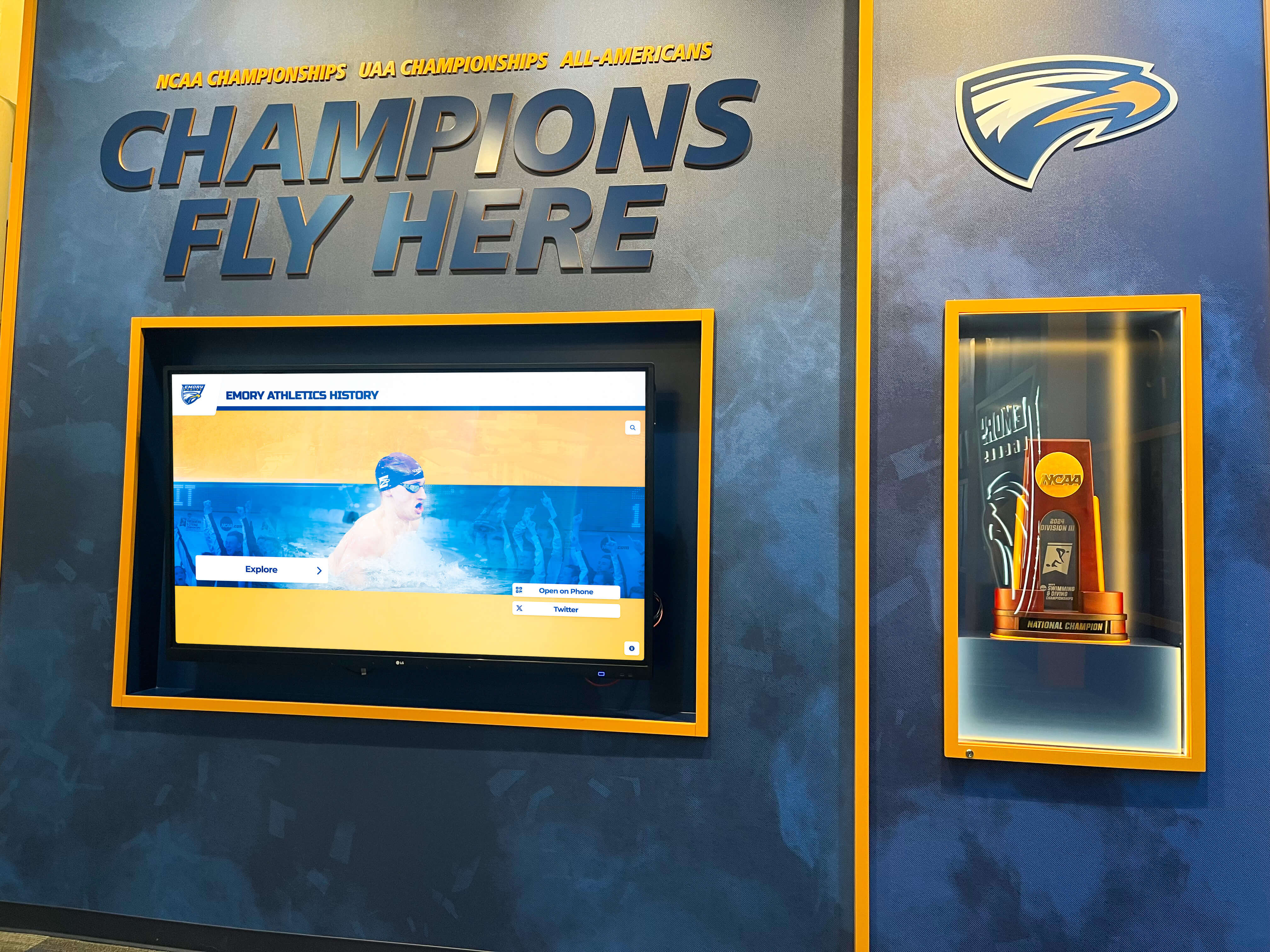
Championship recognition programs accumulate banners from multiple sports and seasons — a written minimum line weight standard applied to every banner submission ensures sponsor marks and fine details read correctly regardless of which designer produced the file
Quick-Reference Minimum Line Weight Preflight Table
Use this table as a one-page reference before any championship banner submission. Work through every row before approving the file for vendor delivery.
| Check Item | Method | Pass Criteria | Priority |
|---|---|---|---|
| Confirm vendor minimum line weight spec | Review vendor file specification sheet | Minimum documented in writing before artwork is finalized | Required |
| Scale Strokes & Effects state confirmed | Check Preferences > General in Illustrator | State noted; scale table row selected accordingly | Required |
| All strokes inspected at 100% view | Select elements, check Stroke panel | No stroke below vendor minimum (recommended: ≥ 1 pt) | Required |
| Sponsor logos reviewed for hairlines | Open each logo source file, expand all groups | All sponsor logo strokes ≥ 0.5 pt; recommended ≥ 1 pt | Required |
| Border and frame rules checked | Select all rule and frame line elements | All rules ≥ 1 pt | Required |
| Championship year outlines confirmed | Inspect outlined text or expanded path strokes | Decorative strokes ≥ 1.5 pt for consistent visibility | Required |
| School crest and mascot details reviewed | Expand all groups, inspect inner paths | No hairlines; minimum 0.5 pt for any visible path | Required |
| Text with applied strokes confirmed | Appearance panel review on all stroked text | Stroke on type ≥ 1 pt | Required |
| Background pattern visibility confirmed | 100% view inspection with opacity review | Pattern ≥ 0.5 pt and visible, or confirmed intentionally invisible | Recommended |
| Hairlines replaced and re-verified | Re-inspect at 100% view after all corrections | All corrected elements show ≥ minimum stroke at 100% view | Required |
| Delivery PDF inspected at 100% zoom in Acrobat | Open PDF in Acrobat, zoom to 100% | All corrected strokes appear solid and unbroken in exported file | Required |
| Overprint check for thin strokes | Acrobat Pro Output Preview, Separations mode | No thin strokes set to overprint on white or light backgrounds | Recommended |
The overprint check in the final row addresses a compound failure mode: a fine rule set to overprint on a white or light background becomes invisible because the ink is instructed to print on top of white rather than knock out the background color. A thin stroke combined with an incorrect overprint setting vanishes even when the stroke weight meets the vendor’s minimum. The championship banner overprint preview checklist covers the full overprint verification workflow.
Minimum Line Weight in School Athletic Recognition Programs
Championship banner production is a print production task, but the banners produced carry institutional significance that extends far beyond the vendor transaction. A banner that arrives from production with broken sponsor-mark outlines or missing decorative rules is a recognition failure — the sponsors whose community contributions funded the program are not represented as agreed, and the banner may require a reprint at program expense.
Schools that manage comprehensive athletic recognition programs that include physical banners, donor acknowledgment, and digital displays understand this interdependency: the sponsor mark that breaks at the vendor because of a hairline stroke is the same mark that must display correctly across every recognition medium. Print-ready championship banner files that pass minimum line weight verification are also better source assets for digital recognition content — sponsor logos corrected for banner production are similarly correct for touchscreen display systems, lobby screens, and social media graphics.
Athletic programs that document multi-sport championship histories benefit from well-organized recognition frameworks that treat each year’s banner as part of a cumulative institutional record rather than a standalone print order. A minimum line weight standard written into the production process ensures that every banner added to the gymnasium collection meets the same print quality regardless of which staff member or booster club volunteer coordinated the order.
Booster clubs and parent organizations that coordinate championship banner production often work with multiple design contributors — parents, students, local graphic designers — who may not know the vendor’s minimum line weight requirements. Including a one-page file delivery standard that specifies the minimum stroke weight, the design scale behavior, and the 100% view inspection step reduces production failures across all contributors without requiring design expertise at the administrative approval level. Schools connecting physical recognition programs to broader award and display frameworks benefit from resources on recognition display tools and workflows that align physical and digital recognition standards.
For end-of-season banquets and championship award nights where the new banner is unveiled, minimum line weight verification on a compressed timeline is especially important. A re-submission required after a vendor flags hairline strokes delays production by two to three business days — enough to push the banner past the event date. Running the 100% view inspection before export, rather than relying on the vendor’s preflight as the first check, eliminates that class of delay. Schools evaluating comprehensive recognition tools for athletics, donors, and academic programs will find that production-quality physical recognition assets complement digital recognition systems most effectively when both are maintained to consistent technical standards.
Digital recognition programs that display championship history alongside physical banners — interactive touchscreen kiosks, lobby screens, and digital hall-of-fame systems — benefit from the same source artwork that passes minimum line weight verification. Championship banner artwork corrected for print production contains sponsor logos and design elements at production-correct stroke weights, which makes those assets directly usable for digital display without additional artwork preparation. Schools building recognition displays that connect physical banner history to interactive digital hall-of-fame experiences find that a consistent print production standard is also a consistent digital content standard — the corrected artwork file serves both the gymnasium wall and the touchscreen kiosk.
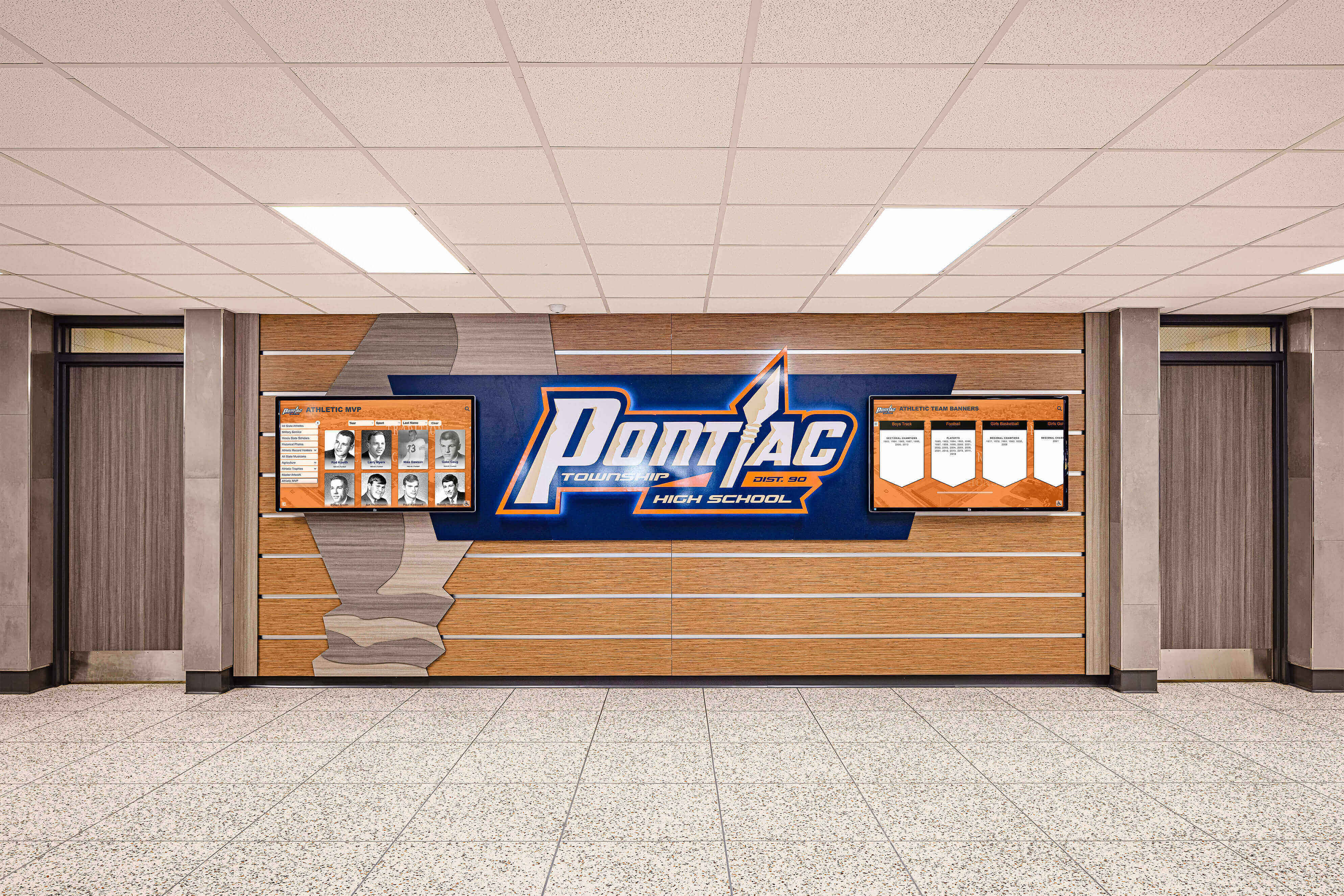
Athletic recognition programs span physical banners, honor boards, and hallway displays — a written minimum line weight standard keeps every printed piece consistent regardless of which designer or contributor produced the file
For AI-powered school graphics tools that help athletic programs produce recognition content quickly — social media graphics, event promotions, and digital signage — print-clean championship artwork provides a reliable design foundation. Championship banner source files that have been verified for minimum line weight and corrected for production contain the school’s visual identity at production-correct specifications: sponsor logos, mascot graphics, school colors, and decorative rules that are all safe to reuse across recognition media. Rocket Graphics uses those assets to produce AI-powered recognition graphics for schools, extending championship banner artwork into social and digital formats without recreating what the banner’s designer already built correctly. Get notified when Rocket Graphics opens.
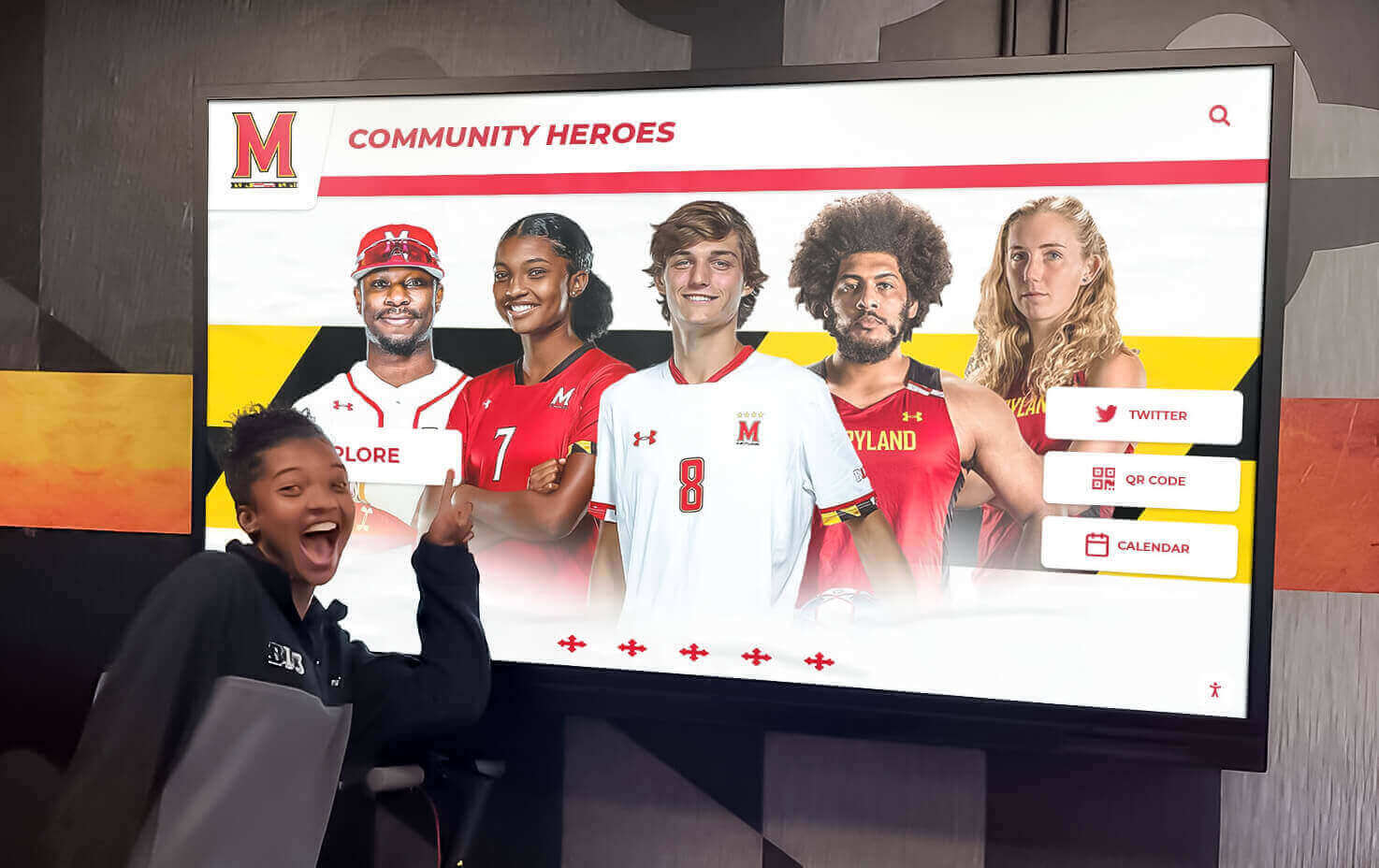
Recognition displays engage students, families, and visitors with the school's championship history — the fine details in physical banner artwork, from sponsor outlines to decorative rules, must meet minimum line weight requirements to display as intended across every recognition medium
Frequently Asked Questions: Championship Banner Minimum Line Weight
What is the minimum line weight for a championship banner?
The minimum reproducible line weight for most commercial large-format vinyl banner vendors using UV inkjet or solvent inkjet equipment is 0.5 point (0.176 mm) at final print size. The practical safe minimum for consistently solid output is 1 point (0.353 mm). Hairline strokes — typically 0.25 point or smaller — will not reproduce as visible lines at banner scale and must be replaced before vendor submission. Confirm the exact minimum with the specific vendor before finalizing artwork, as requirements vary by printing technology and substrate.
Why do sponsor logos fail minimum line weight on championship banners?
Sponsor logos are designed for letterhead, web display, and embroidery — contexts where 0.25-point or hairline outlines are visible and appropriate. The same stroke weights that look correct on a business card are below the reproducible minimum for large-format inkjet banner printing. Thin outlines around wordmark text, fine rules separating logo marks from wordmarks, and detailed interior path elements in illustrated marks are the most common sub-minimum elements in sponsor files. Request large-format-ready versions from the sponsor’s communications team, or expand and correct thin strokes in the vector source file before placing the logo on the banner.
How do I check minimum line weight in a championship banner at 100% view?
In Adobe Illustrator, press Cmd+1 (Mac) or Ctrl+1 (Windows) to switch to Actual Size at 100% zoom. Select any path and open the Stroke panel (Window > Stroke) to read the exact stroke weight in points. For banner files built at reduced design scale — a 12-by-24-inch document representing a 48-by-96-inch banner, for example — all stroke values at 100% view represent the actual output weight when Scale Strokes & Effects is off. Inspect every stroke category — sponsor logos, border rules, text outlines, mascot detail paths — and replace any stroke below 1 point with a minimum 1-point equivalent.
Does a stroke weight in a reduced-scale design document scale up when the banner is printed at full size?
It depends on the application setting. In Adobe Illustrator with Scale Strokes & Effects turned OFF — the default for most large-format workflows — a 1-point stroke in a reduced-scale document outputs at 1 point at final print size, regardless of the scale ratio. With Scale Strokes & Effects turned ON, a 0.25-point stroke in a document at 25% design scale becomes 1 point at final print size. Confirm the setting in Preferences > General before reviewing line weights, and use the scale table above to determine the correct minimum stroke for the file’s configuration.
What is a hairline stroke and why is it a problem on championship banners?
A hairline stroke is the thinnest stroke available in most design applications — typically 0.25 point (0.088 mm) or less, and defined as a named preset of approximately 0.216 point in CorelDRAW. Hairlines are appropriate for small print sizes where the print process resolution is high enough to reproduce very thin strokes. For championship banner printing on large-format inkjet equipment, hairlines are below the reproducible minimum and either vanish entirely or break into a dotted line in the output. Every hairline in a championship banner file must be replaced with a minimum 0.5-point stroke — and preferably 1 point or greater — before vendor submission.
Verify Line Weight Before the File Reaches the Vendor
A championship banner minimum line weight preflight checklist catches the silent failure that passes every automated check but produces a visible defect on the finished banner — a missing sponsor mark outline, a broken border rule, or a vanished decorative line that was part of the approved design proof. The 100% view inspection takes fewer than fifteen minutes on a typical banner file and catches every sub-minimum stroke before the vendor’s RIP encounters it. Replace every hairline with a minimum 1-point equivalent, confirm every sponsor logo against the vendor’s published minimum, and re-verify the corrected file in the exported PDF at 100% zoom in Adobe Acrobat before submission.
For athletic programs that produce a new championship banner each season, a written minimum line weight standard distributed to every design contributor — including booster club volunteers and students in graphic arts programs — ensures that each new banner added to the gymnasium’s collection meets the same production quality as every banner that preceded it.
Extend Championship Recognition Beyond the Gym Wall
When championship banner artwork is production-correct, Rocket Graphics helps athletic programs put that recognition into social media, digital signage, and touchscreen displays — in your school's colors, with AI-powered graphic creation built specifically for schools.
Get notified when Rocket Graphics opens.