A championship banner font embedding checklist is the most reliable way to prevent font substitution before print-ready artwork reaches a commercial vendor. The core answer: convert all text to outlines in Adobe Illustrator or CorelDRAW before saving the delivery file, or enable “Embed All Fonts” in your PDF export settings in InDesign. After export, open the file in Adobe Acrobat Reader, go to File > Properties > Fonts, and confirm every font listed shows “(Embedded)” or “(Embedded Subset).” Any font without that notation will be substituted by the vendor’s print system — changing letter widths, collapsing character spacing, and potentially reflowing text across the entire banner.
This checklist covers the most common design applications used for championship banner production, explains why each failure mode occurs, and provides export-time checks organized by file format and verification method. It is written for school administrators, athletic directors, facilities managers, and recognition program coordinators who approve banner artwork before it goes to a vendor.
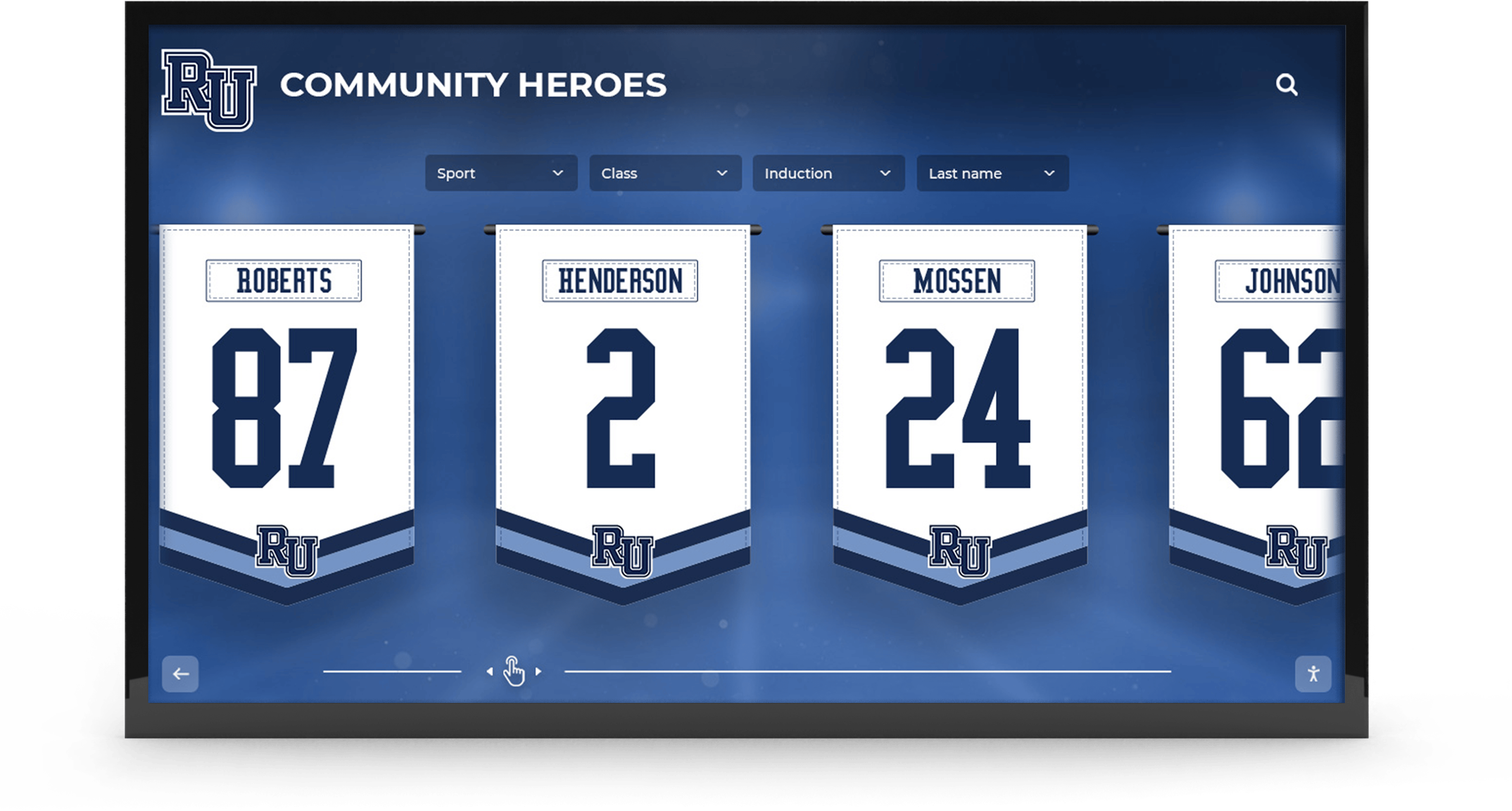
Bold typography on recognition banners must be embedded or outlined in the source file — a font that displays correctly on screen may not render at the vendor without the right export settings
Why Font Embedding Matters for Championship Banners
Font embedding determines whether a print file carries its typefaces with it or expects the vendor’s system to supply them. When a file arrives at a commercial print shop without embedded fonts, three failures are common:
Font substitution. The vendor’s RIP (Raster Image Processor) — the software that converts artwork files to physical output — cannot access an unembedded font and replaces it with a system default, typically Helvetica or Courier. A condensed athletic typeface chosen to match school brand guidelines becomes a wider, generic sans-serif. Text that fit a banner layout in two centered lines may reflow to three.
Layout shifts. Even a visually similar substitute font carries different character metrics — letter widths, kerning pairs, and line heights differ between typefaces. “VARSITY FOOTBALL STATE CHAMPIONS 2025” centered in a 4-inch text zone at a specific point size may overflow the banner’s trim area entirely when rendered in a substituted face.
Incorrect special characters. School names that include apostrophes, stylistic numeral alternates, or diacritics — “O’Brien Athletics,” a sport program using old-style figures for year numerals — may render as replacement boxes (□) or incorrect glyphs when the original font is absent from the vendor’s system.
None of these problems appear on the design workstation that created the file. They appear for the first time in the vendor’s preflight report, which pauses the order and requires a corrected file before print can begin — or, worse, on the delivered banner itself.
The PDF/X-1a standard — defined in ISO 15929 and enforced by most commercial print vendors as the baseline for production-ready artwork — requires that all fonts be fully embedded before a file can pass a compliant preflight check. A PDF/X-1a file cannot be technically valid with unembedded fonts, which is one reason requesting this format from design contractors provides a structural guarantee that font embedding was not overlooked during export.
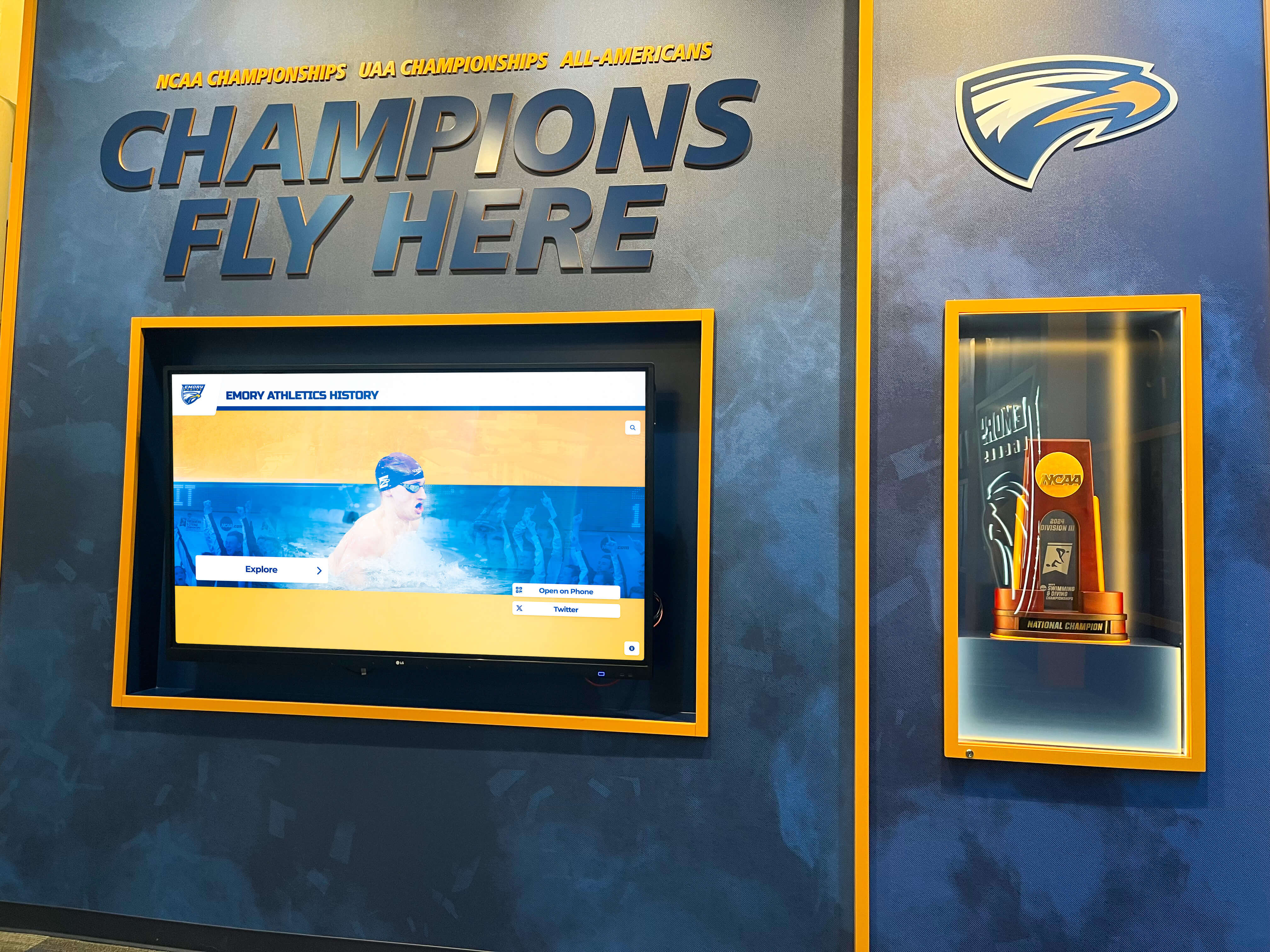
Championship recognition programs accumulate banner artwork from multiple designers and vendors over years — a written file delivery standard that requires font embedding prevents inconsistency from compounding across that history
The Championship Banner Font Embedding Checklist
Work through these steps before sending any banner artwork file to a vendor. Items marked (Required) will cause a failed preflight or visible print error if skipped; items marked (Recommended) prevent quality issues in edge cases.
Step 1: Identify Every Font in the File
- Open the artwork file and list every typeface used: headline text, sport designation, year numerals, school name, mascot callouts, and any decorative or accent type.
- Note any text layer using a system font — Arial, Times New Roman, Verdana, Calibri — rather than a licensed brand or athletic typeface. System fonts are not reliably embedded in all export workflows. (Required)
- Confirm that every variant used is present: regular, bold, italic, condensed, and any alternate stylistic sets. A missing variant triggers substitution even when the base family is installed. (Required)
- Identify any fonts sourced from a web font service (Google Fonts, Adobe Fonts via a Creative Cloud subscription). Web-only licenses typically do not permit embedding in commercial print files — verify the license or install a locally licensed version before export. (Recommended)
Step 2: Apply the Correct Pre-Export Method for Your Application
Different design applications require different steps to ensure fonts are embedded or replaced with vector paths. Apply the method specific to your software before exporting the delivery file.
Adobe Illustrator (.ai / PDF)
- Select all text objects in the document. Use Edit > Select All and filter to text layers, or use the Layers panel to target text objects individually. (Required)
- Convert all text to outlines: Type > Create Outlines (Windows: Ctrl+Shift+O; Mac: Cmd+Shift+O). (Required)
- Confirm that all text is now vector paths — the Type tool should no longer select any element as live text after outlining.
- Save the outlined version as a separate delivery file (e.g.,
championship-banner-PRINT.pdf). Keep the original file with live, editable text for future revisions. - Alternative if not outlining: Export via File > Save a Copy > Adobe PDF. Under Advanced > Fonts, set “Subset fonts when percent of characters used is less than” to 0% to force full embedding regardless of character count. (Required if not outlining)
Adobe InDesign (.indd / PDF)
- Run File > Package before export. The Package dialog displays a Fonts list — any font marked “No Embedding Permitted” reflects a licensing restriction that must be resolved before the file can go to print. (Required)
- Export via File > Export > Adobe PDF (Print). Under Advanced > Fonts, confirm the subset threshold is set to embed all fonts used in the document. (Required)
- If the vendor requests a native InDesign file rather than PDF, include the packaged fonts folder in the delivery archive alongside the INDD file. (Recommended)
CorelDRAW (.cdr / PDF)
- Select all text objects and run Text > Convert to Curves (Ctrl+Q) to transform all characters to vector outlines. (Required)
- In PDF export (File > Publish to PDF > Settings), set Export text as: Curves. (Required)
- Alternative: Under the Fonts panel in the PDF export dialog, enable Embed all fonts in the document and confirm all listed fonts show as embeddable.
Affinity Publisher / Affinity Designer
- Select all text frames and run Layer > Convert to Curves to outline all text. (Required)
- In PDF export (File > Export > PDF), confirm Embed Fonts is enabled under the More options panel. (Required if not converting to curves)
- Run Document > Preflight (if available in your version) to surface any missing fonts before export. (Recommended)
Canva (PDF Print Export)
- Export as PDF Print (high quality) — not PDF Standard or PNG. Canva embeds fonts from its own library automatically in PDF Print exports. (Required)
- Custom fonts uploaded to Canva may not embed reliably in the PDF output. If the banner uses an uploaded school-specific typeface, verify the exported file using the Fonts tab in Adobe Acrobat Reader after export. (Required for custom uploaded fonts)
Microsoft PowerPoint / Google Slides
These applications are not designed for print-ready output and should not be used for championship banner production. If artwork originated in either application:
- In PowerPoint: File > Options > Save > Embed fonts in the file embeds fonts in the PPTX document but does not guarantee font embedding in the PDF export. Always run a full Preflight check on any PDF exported from PowerPoint before vendor submission. (Required if using)
- In Google Slides: PDF export does not reliably embed all fonts. Where possible, transfer artwork to a dedicated design application before finalizing the print delivery file. (Required if using)
Step 3: Export at the Correct File Format
| File Format | Font Embedding Behavior | Banner Production Notes |
|---|---|---|
| PDF/X-1a | Full embedding required by ISO specification | Industry standard for commercial print; most reliable format for banner delivery |
| PDF/X-4 | Full embedding required by ISO specification | Supports transparency layers; accepted by modern large-format RIPs |
| PDF (generic) | Depends on export settings — not guaranteed | Always run Preflight after export to verify |
| EPS | Limited embedding support | Avoid for new banner artwork; convert text to outlines before any EPS export |
| AI (native Illustrator) | Embedded when “PDF Compatible File” is checked in export | Vendor must have Illustrator to open; prefer PDF delivery for all vendors |
| SVG | Fonts rarely embed reliably | Not a standard print format; convert all text to paths before SVG export |
| PNG / JPG / TIFF (rasterized) | No font embedding issue — text is baked into pixels | Minimum 150 dpi at final print size; 300 dpi preferred for text-heavy areas |
Export format recommendation: Request PDF/X-1a or PDF/X-4 from any design contractor or staff member producing championship banner artwork. These formats require full font embedding as part of their ISO specification — a file cannot be technically compliant in either format with unembedded fonts, which makes format compliance a structural guarantee rather than a setting to remember.
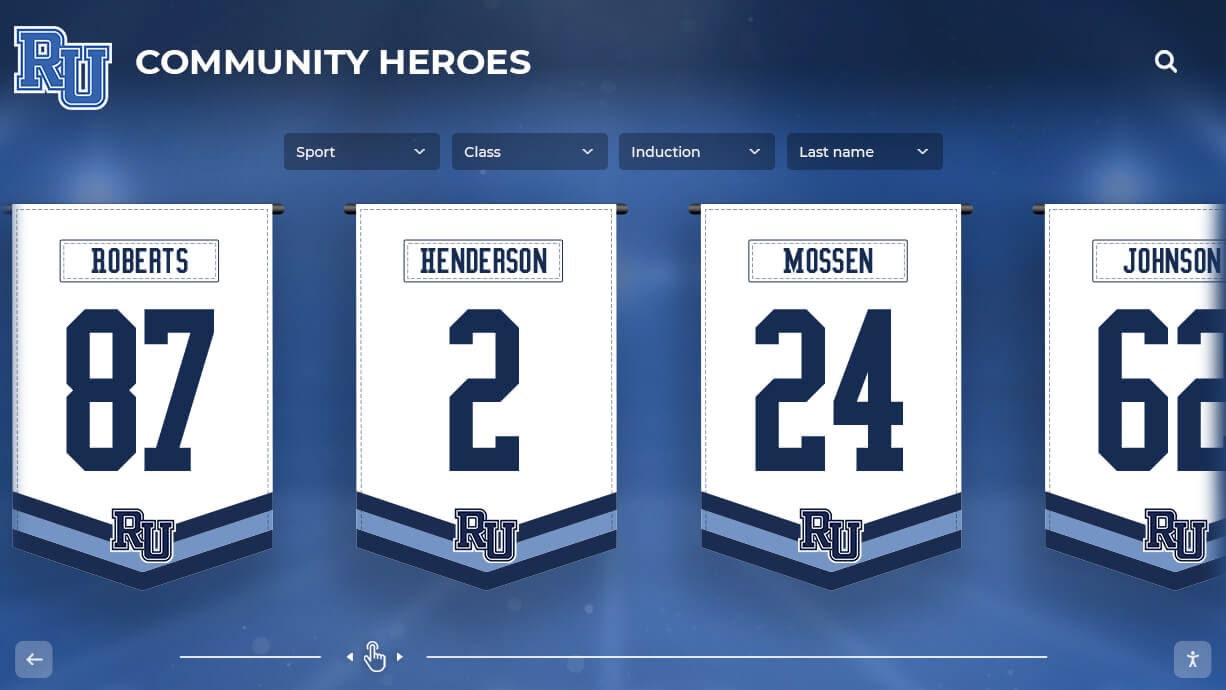
Physical recognition banners that hang in school lobbies and gymnasiums may be reprinted or updated over years — correctly archived, font-embedded source files make every reprint consistent with the original without rebuilding the artwork from scratch
Step 4: Verify Embedding in the Exported File
Exporting with the correct settings is necessary but not sufficient. Always verify the exported file independently before sending it to a vendor.
Using Adobe Acrobat Pro (most thorough):
- Open the exported PDF in Acrobat Pro.
- Go to Tools > Print Production > Preflight.
- Run the PDF/X-1a or PDF/X-4 compliance profile from the profile list.
- The Preflight report will list any unembedded fonts as errors, including the font name and page number. A passing report confirms all fonts are embedded and the file meets the selected standard.
Using Adobe Acrobat Reader (free):
- Open the exported PDF in Adobe Acrobat Reader (the free version).
- Go to File > Properties > Fonts tab.
- Review every font in the list. Each entry must show “(Embedded)” or “(Embedded Subset)” after the font name. Any font appearing without one of those notations is not embedded and must be corrected before vendor submission.
Using the vendor’s preflight tool:
Most commercial print vendors offer a free preflight upload on their website before order placement. Submit the file through the vendor’s preflight system as the final step before confirming the order. Vendor preflight tools catch format, resolution, and color profile issues in addition to font embedding — running the vendor’s check and Acrobat’s Preflight provides the most complete verification.
Step 5: Confirm Resolution for Rasterized Elements
Championship banners that combine vector text with rasterized graphic elements — team photos, mascot illustrations, textured backgrounds — require both correct font handling and adequate raster resolution.
- All rasterized elements must be at least 150 dpi at the final print size. For banners with text-heavy areas or fine detail (engraved name plates, fine-line mascot illustration), 300 dpi at print size is preferred. (Required)
- Text must remain vector throughout the export process. If the export workflow flattens transparency layers and converts type to raster, increase the flattening resolution setting to 300 dpi minimum in the export dialog. (Required)
- Confirm bleed margins with the vendor before finalizing artwork. Most commercial print vendors require a 0.125-inch (3 mm) bleed on all sides beyond the trim mark. Large-format banner vendors may require a 0.5-inch or greater bleed to accommodate hem and grommet allowances. Artwork submitted without adequate bleed will require revision before print approval. (Required)
Step 6: Archive Source Files and Font Assets
- Keep the original design file with live, unoutlined text as the permanent master. Only send the outlined or fully embedded export file to the vendor — never send the live-text master as the delivery file for a banner that cannot be proofed before print. (Required)
- Save the font files used in the design to a project folder alongside the source artwork file. Future edits — adding a championship year, correcting a coach name spelling, updating the school mascot — require access to the original fonts regardless of which staff member or contractor reopens the file. (Required)
- Record the font names, vendors, and any license restrictions in a brief design specification note stored with the project folder. This prevents future contributors from substituting a visually similar font that will fail the vendor’s preflight. (Recommended)
Font Embedding Quick-Reference by Design Source
| Design Source | Recommended Export | Font Handling Method | Verify With |
|---|---|---|---|
| Adobe Illustrator | PDF/X-1a | Convert to Outlines | Acrobat Preflight or Reader Fonts tab |
| Adobe InDesign | PDF/X-4 | Embed all fonts (Package first) | Acrobat Preflight |
| CorelDRAW | PDF/X-1a | Convert to Curves | Acrobat Preflight or Reader Fonts tab |
| Affinity Publisher | PDF (Print) | Embed Fonts or Convert to Curves | Acrobat Preflight |
| Canva | PDF Print | Auto-embedded from Canva library (verify custom fonts) | Acrobat Reader Fonts tab |
| Microsoft PowerPoint | PDF (not recommended for print) | Embed in PPTX + verify export independently | Acrobat Preflight required |
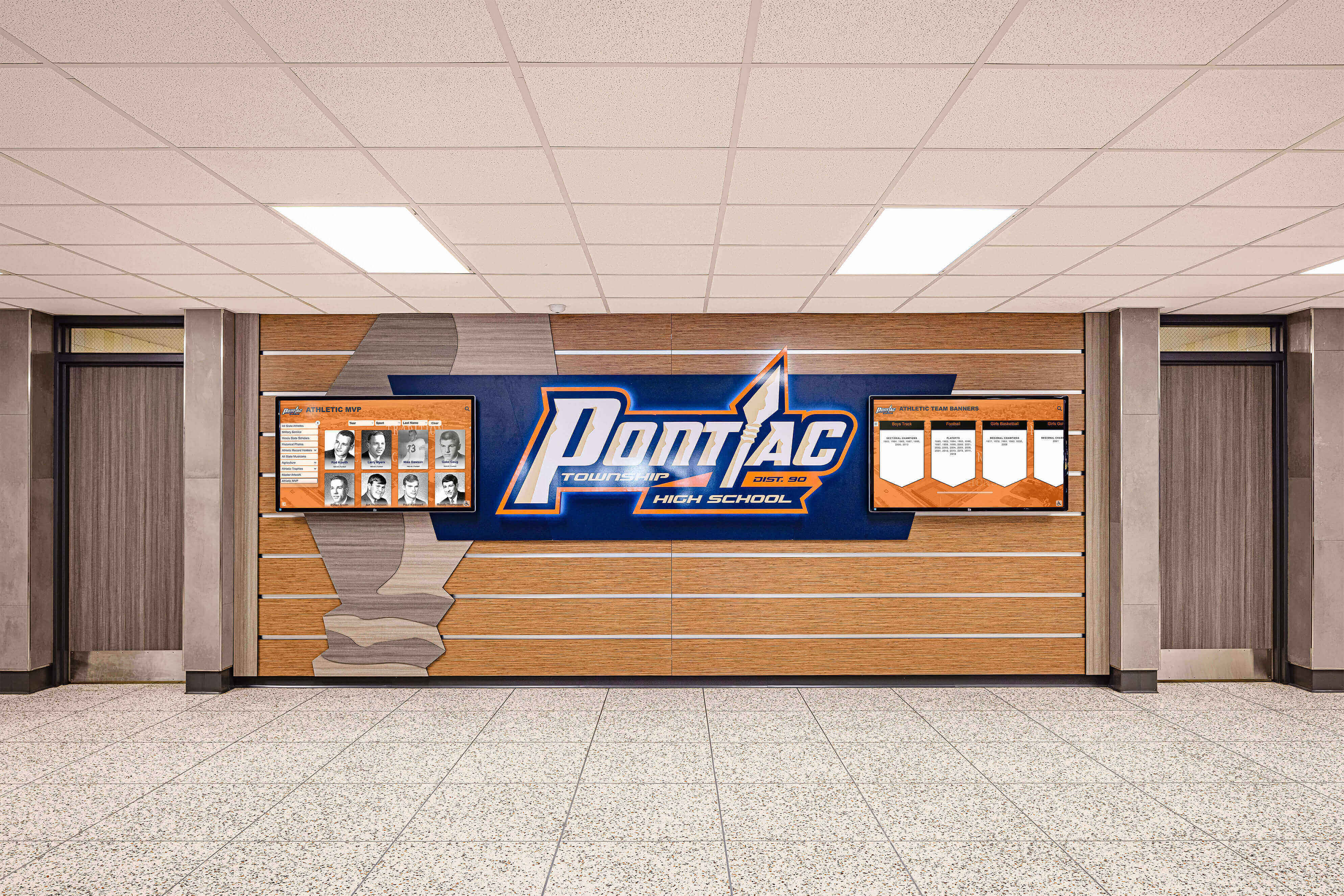
Athletic recognition programs span physical banners, honor boards, and hallway displays — a file delivery standard requiring font embedding keeps every printed piece consistent regardless of which designer or vendor produced it
Why Athletic Departments Need a Written File Delivery Standard
Most championship banner font problems trace directly to artwork produced by multiple contributors over time — a booster club parent who designed the football banner, a student in the graphic arts program who laid out the swimming banner, a freelance designer hired for one project — none of whom received a file delivery standard from the athletic department. Each contributor exported files according to their own workflow, and some export workflows do not embed fonts without an explicit setting change.
A one-page file delivery standard distributed to every design contributor and vendor before any banner project begins eliminates this problem at the source. The standard should specify:
- Required file format: PDF/X-1a for most commercial print vendors; confirm the vendor’s preferred format before production begins.
- Required font handling: Outline all text before export, or embed all fonts with the subset threshold set to 0% — confirm which method the vendor prefers.
- Required raster resolution: 150 dpi minimum at final print size for all rasterized elements; vector elements are resolution-independent.
- Required preflight step: Every file must be checked using Acrobat Reader’s Fonts tab or Acrobat Pro’s Preflight before submission. Files that do not pass this check are not ready for vendor submission.
For schools building comprehensive sports awards and championship recognition programs across multiple sports and decades, treating file delivery as part of the program’s recognition standards — not a task left to individual designer preference — means that championship banners ordered in any future year will be produced from the same reliable, preflight-ready workflow that the first banner used.
Athletic directors who manage recognition program operations alongside scheduling, compliance, and staff supervision benefit from a written file standard because it removes design-production decisions from the AD’s review responsibilities. The AD approves the artwork design; the file delivery standard handles the technical production requirements without requiring graphic production expertise at the administrative level. Schools evaluating how their athletic director role intersects with recognition program management will find that documenting vendor standards is one of the lower-effort, higher-payoff administrative steps available.
Connecting Font Embedding to Digital Recognition Workflows
Championship banner artwork increasingly serves two destinations at once: a printed banner for the gymnasium and a digital graphic for touchscreen hall of fame displays, lobby screens, and social media. Schools building digital recognition walls as part of broader school renovation projects need championship artwork that is both print-clean and adaptable — which requires keeping the live-text master alongside the outlined print delivery file.
The archive workflow that this checklist establishes preserves both: the master source file with live text and accessible fonts handles digital adaptation; the outlined or fully embedded PDF handles print production. This two-file approach ensures that neither version locks the athletic program into a format that cannot be updated or converted for a different output.
Schools operating interactive touchscreen recognition display systems alongside physical gymnasium banners update digital content more frequently than physical banners — adding a new championship year, updating a coach’s record, or adapting a banner layout for a portrait-orientation display. Live-text source files with accessible fonts make those updates straightforward; outlined print-delivery files do not, because outlined text cannot be edited or reflowed without recreating the type.
For schools planning award ceremonies that display athlete names, records, and recognition graphics digitally, the same font consistency that produces clean print banners also ensures that digital renditions of championship graphics display identically across different operating systems and display hardware — a consistency issue that becomes visible when banner-derived artwork is pushed to lobby screens from multiple hardware vendors that render type differently.
Schools using Rocket Alumni Solutions to connect printed championship recognition to interactive touchscreen experiences for athletic programs find that properly archived, font-intact source files adapt to touchscreen display formats significantly faster than reconstructed artwork that lost its original typefaces in a prior outlined export. Print-ready banner artwork integrates with interactive hall of fame systems the same way, and Rocket Graphics will put those championship graphics on social in your school’s colors. Get notified when it opens.
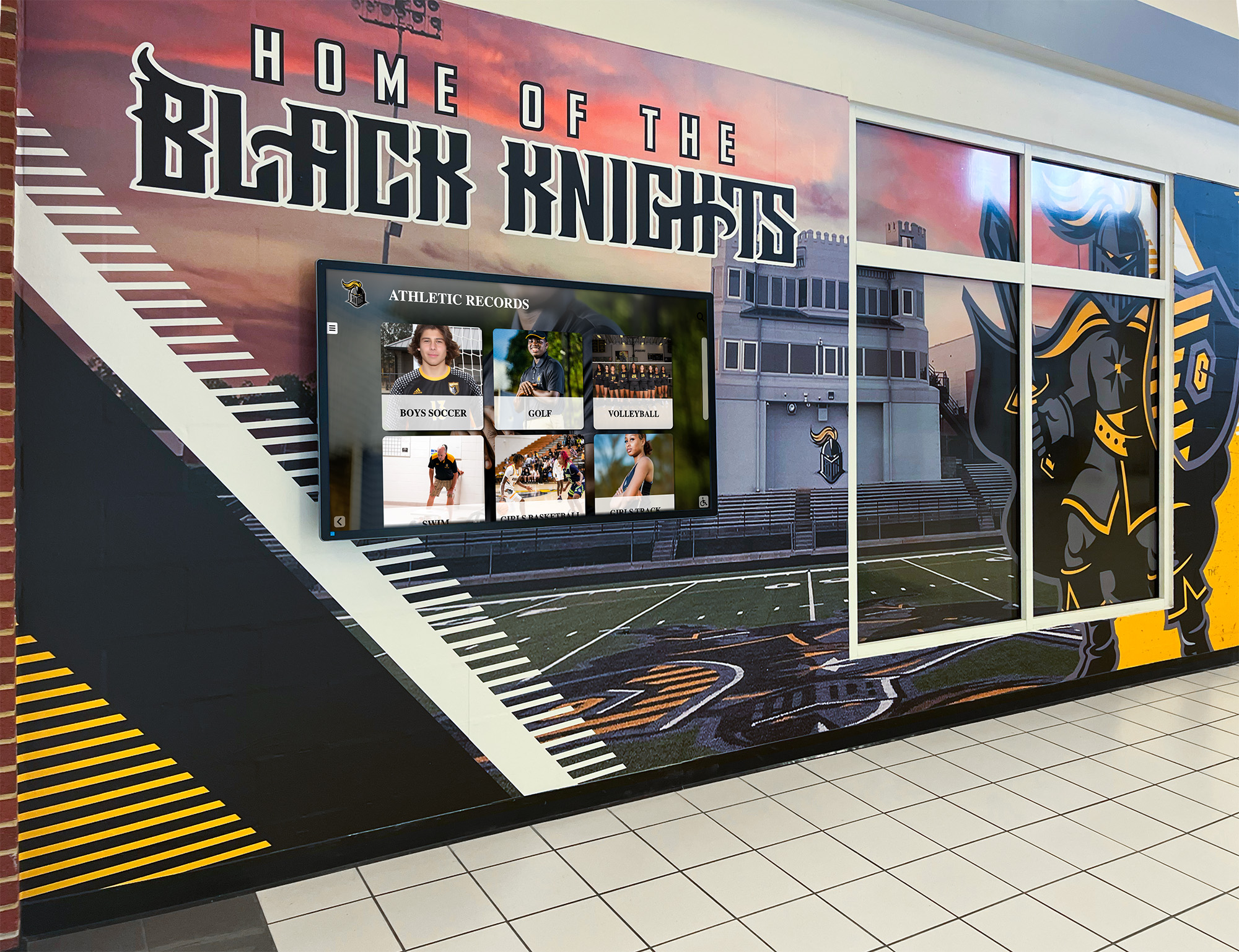
When championship banner artwork moves from the gym wall to a digital recognition system, properly embedded and archived source files make that transition a resize rather than a rebuild — an advantage that compounds across every new championship year added to the program
Common Font Embedding Problems and How to Prevent Them
The vendor reports missing fonts after file submission. This means fonts were neither embedded nor outlined before export. Reopen the original source file, apply the correct method for your application (Convert to Outlines in Illustrator; Embed all fonts in InDesign), re-export, and verify with the Acrobat Reader Fonts tab before resubmitting. Submitting without verification is the most common reason for the same file failing preflight twice.
The preflight passes but the banner prints with wrong letterforms. This indicates a font substitution happened at export before the file was checked — the check passed because the substitute was embedded, not the original. Open the PDF’s Fonts tab and read the embedded font names carefully. If you see “Helvetica,” “Arial,” or any font name that does not match the intended typeface, the substitution occurred during export and the file must be rebuilt from the source.
One specific character renders incorrectly. A single incorrect character typically indicates a missing glyph — the font was embedded but the specific character (a stylistic alternate, ligature, or special numeral) is absent from the embedded subset because the subset threshold was set too high. Set the subset threshold to 0% in the PDF export settings to embed the complete font rather than only the characters used in the document.
The vendor reports “No Embedding Permitted” for one font. This is a font license restriction, not an export setting error. The font’s license prohibits embedding in production files. Solutions: contact the font vendor for a print-compatible commercial license for the specific typeface; replace the font with a licensed alternative that permits print embedding (most open-source fonts from Google Fonts or Font Squirrel’s 100% Free category permit print embedding); or convert all instances of that font to outlines rather than embedding.
The banner text shifted between the approved proof and the final print. If the proof was generated on the design workstation using locally installed fonts and the final print was produced from a PDF with unembedded fonts, the substituted font at print time had different metrics than the original, causing text reflow. The fix for future orders: verify font embedding in the exported PDF before the proof is submitted, not after.
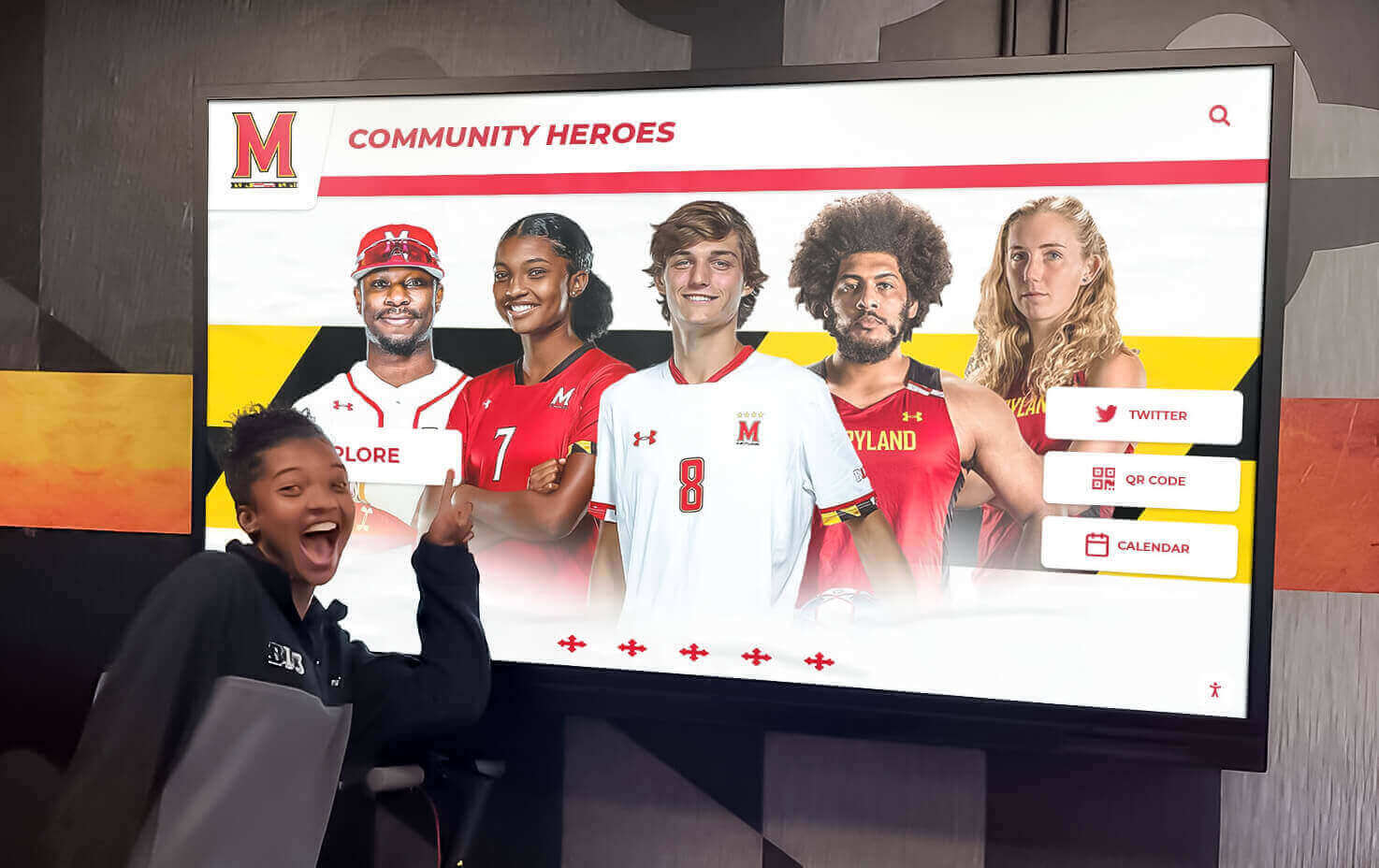
Recognition displays in school hallways present championship and athletic recognition content to athletes, families, and visitors — the typography on those displays should be exactly what was designed, which starts with correct font handling in the original artwork file
Frequently Asked Questions About Championship Banner Font Embedding
What does “font embedding” mean in a print file?
Font embedding means the font data — the mathematical instructions that define each character’s shape, spacing, and weight — is stored inside the print file itself rather than referenced from the design workstation’s installed fonts. When a print file is sent to a vendor, an embedded font travels with it and renders correctly on any system that processes the file. An unembedded font must exist on the vendor’s system independently; when it does not, the vendor’s production software substitutes a default typeface that changes how the text appears on the final banner.
Is converting text to outlines the same as embedding fonts?
Converting text to outlines and embedding fonts both prevent font substitution at the vendor, but they work differently. Converting to outlines transforms each character into a vector path — the shapes are stored as paths rather than as characters that depend on a font file. The text can no longer be edited, spell-checked, or reflowed. Embedding keeps text live and stores the font data inside the file so external font installation is not required at the vendor. For championship banner print delivery files, converting to outlines is the most reliable method because it eliminates font dependency entirely. Always save a separately archived copy with live text for future edits before converting.
Do all fonts permit embedding in commercial print files?
No. Font licenses vary by vendor and product tier. Most commercial fonts from major type foundries permit embedding in print production files, and most open-source fonts (Google Fonts, Font Squirrel’s 100% Free category) explicitly permit print embedding. Some restricted licenses — particularly fonts acquired from informal sources or web-only font subscriptions — prohibit embedding in commercial production files. Adobe Acrobat’s Preflight tool will flag these as “No Embedding Permitted” when encountered. The resolution is to obtain a print-compatible license from the font vendor, or to replace the restricted font with a licensed alternative.
Why does my championship banner look correct on screen but wrong when printed?
Screen rendering and print rendering use separate systems. On the design workstation, the operating system draws text from locally installed fonts regardless of whether the file is export-ready. The vendor’s production software draws text only from what is inside the file. If fonts are not embedded, the vendor’s RIP substitutes its system defaults, and the output reflects that substitution — not the original design. The design workstation shows the correct typeface; the vendor’s output shows the substitute. Running an Acrobat Reader Fonts tab check on the exported file before submission catches this discrepancy before the file reaches the vendor.
What resolution should championship banner artwork be at?
For large-format banner printing, rasterized elements — photographs, mascot illustrations, textured backgrounds — should be at least 150 dpi at the final print size. Text and logo elements that remain as vector objects are resolution-independent and do not have a dpi requirement. If a transparency flattening step during PDF export converts any text or vector elements to raster, those rasterized elements must also meet the 150 dpi minimum at final print size. Most large-format print vendors publish their minimum resolution requirements in their file submission guidelines — always request those specs before finalizing the artwork dimensions.
Print It Right the First Time
The championship banner font embedding checklist reduces an entire category of vendor-revision cycles to a five-step verification before any file leaves the school. Embedding fonts or converting text to outlines before vendor submission ensures that the school name, sport designation, championship year, and every typographic detail renders exactly as designed — on the first print run, without correction files, reprints, or delivery delays.
For athletic departments that manage championship recognition across physical banners, honor boards, and digital displays, consistent file production standards are what keep that recognition accurate and professionally presented across years and staff changes. The checklist requires no advanced technical knowledge — knowing which application produced the file and confirming two or three export settings is sufficient to produce a file that a vendor can take straight to print.
Bring Championship Recognition Into a Unified Display
Rocket Alumni Solutions builds championship recognition systems for schools — from print-ready graphic standards to interactive digital displays that carry banner history into a searchable, touchscreen-accessible format for athletes, families, and visitors.
Get notified when Rocket Graphics opens