A championship banner effective PPI preflight check catches the single most common cause of blurry, pixelated, or unacceptably soft output before a vendor processes the file — and before the banner is installed permanently in a gymnasium where every athlete, student, and visitor will see it at close range. The direct answer: effective PPI at the final print size must be at least 150 PPI for photographic elements and 100 PPI as an absolute floor for any rasterized element; a school logo supplied as a web export, a team photo downloaded from social media, or a sponsor graphic sized to fill a 4-by-8-foot banner field will nearly always fail this threshold even if the file appears sharp on a monitor at normal screen size.
This guide is written for school administrators, athletic directors, facilities managers, and recognition-program coordinators who review championship banner artwork before approving it for commercial production — not for professional prepress operators who run these checks daily.
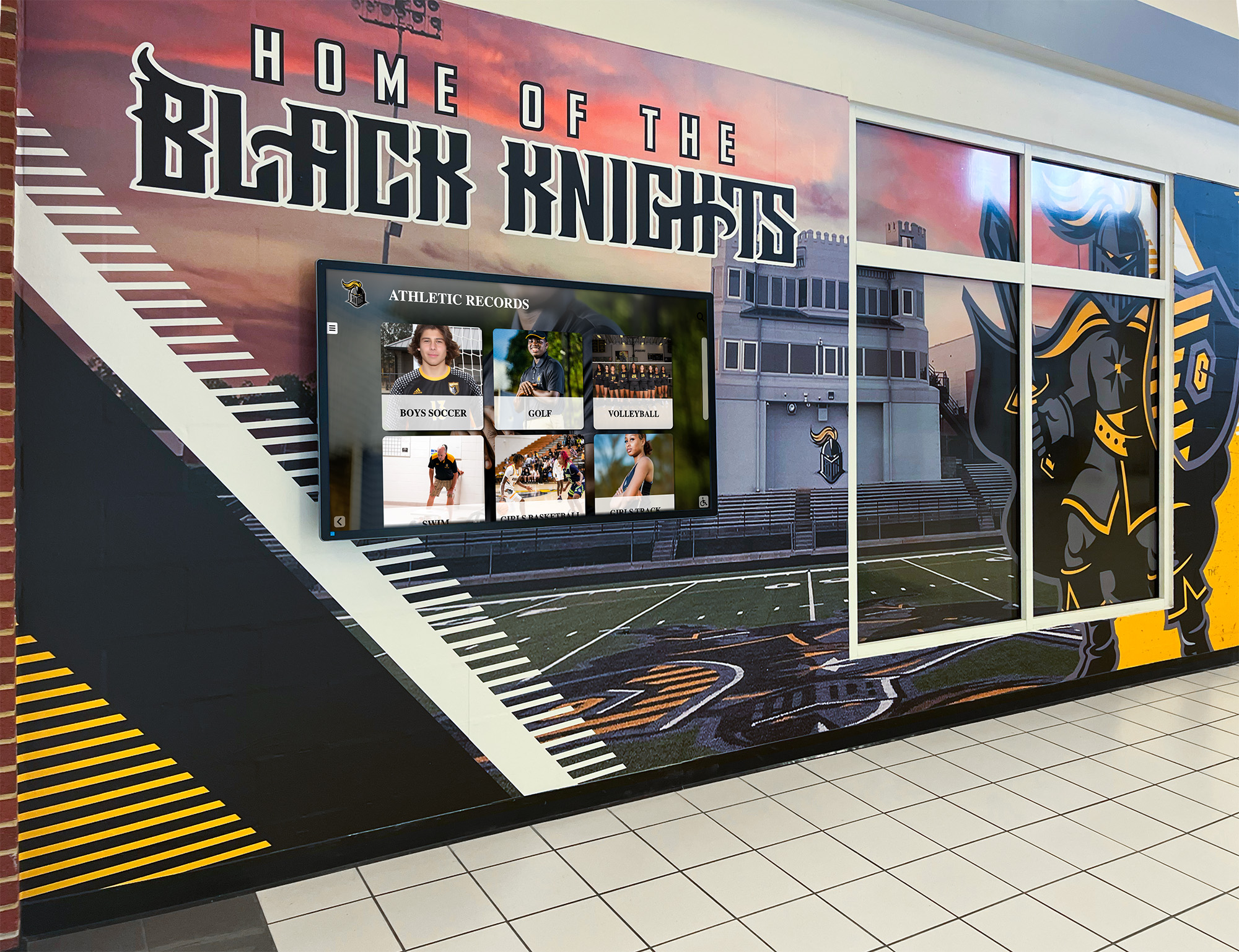
Championship recognition programs span gymnasiums, hallways, and digital displays — a banner that prints soft or pixelated because a source image failed effective PPI preflight represents a permanent quality failure visible to every student and visitor for decades
What Is Effective PPI and How It Differs from Actual PPI
Effective PPI is the resolution of a rasterized image recalculated at the size it is actually placed in a layout — not its native file resolution. This single number determines whether a championship banner prints sharp or soft, and it is the measurement that matters for preflight. Actual PPI and effective PPI are different values, and conflating them is the most common reason a file that looks correct in a design application produces a banner that is visibly blurry on the wall.
Actual PPI is the number of pixels per inch stored in the source image file. A photograph taken on a modern camera might be saved at 300 PPI natively — meaning 300 pixels occupy every linear inch of the image at its original print dimensions.
Effective PPI is what that resolution becomes once the image is scaled in a layout application. If a 300 PPI image is placed at twice its original linear size — stretched to 200% in Adobe Illustrator or InDesign — the effective PPI drops to 150 PPI. The pixel count does not change; the pixels are simply spread across a larger area, making them larger and more visible to the eye.
The formula is straightforward:
Effective PPI = Actual PPI ÷ Scale Factor
Or equivalently:
Effective PPI = Image Pixel Width ÷ Placed Width in Inches
A 1,200-pixel-wide logo placed at 8 inches wide in a banner layout has an effective PPI of 150. That same logo placed at 16 inches wide has an effective PPI of 75 — well below the minimum for acceptable large-format output. A digital soft proof on a monitor will not reveal this problem clearly, because monitors typically render all images at 72–144 PPI regardless of embedded resolution metadata, and the screen smooths over the pixelation that appears on a physical print at banner scale.
This distinction is why a design that looks crisp in a PDF preview can produce a noticeably blurry banner when printed at full scale. The championship banner effective PPI preflight check exists specifically to surface the gap between what a monitor shows and what a large-format printer will produce.
Why Large-Format Banners Create Effective PPI Problems
Championship banners are substantially larger than almost any other printed material an athletic program orders. A standard gymnasium championship banner might measure 3 feet by 5 feet, 4 feet by 8 feet, or larger. That scale creates effective PPI problems that never appear when the same images are used for flyers, programs, social media graphics, or printed programs — all of which are sized to a fraction of the banner’s output dimensions.
A school mascot image that is 900 pixels wide looks acceptable at 4 inches on a flyer (225 effective PPI). That same image placed at 36 inches wide on a championship banner produces an effective PPI of 25 — a result that will be visibly pixelated at any viewing distance, including from across a gymnasium.
The most common sources of below-threshold images in championship banner files:
- School logos exported from websites. Web-optimized logo exports are typically 72–96 PPI at a display size of 200–500 pixels wide. At banner scale, these files produce effective PPI values in the single digits. Any logo taken from a school’s website, a Facebook page header, or an email signature will fail an effective PPI check for large-format production.
- Team photos from social media. Photos downloaded from Instagram, Twitter, or Facebook are compressed and resized to platform-specific maximums — typically 1,080 to 2,048 pixels on the longest edge. At banner scale, a 1,080-pixel-wide photo fills fewer than 7 inches at 150 effective PPI before dropping below threshold.
- Sponsor logos submitted by community partners. Sponsors who supply logos for championship banners often provide whatever graphic file is readily available — frequently a website export, a small PNG, or a compressed JPEG. Sponsor logos submitted without explicit resolution guidance will fail effective PPI preflight for any placement larger than a few inches.
- Artwork created in presentation software. School graphics created in Google Slides, Canva, or PowerPoint for digital use and repurposed for banner production are rasterized at screen resolution — 72–96 PPI — and will not meet large-format minimums at any meaningful banner element size.
The effective PPI preflight check is the gateway that catches all of these sources before they reach a vendor who either holds the file for correction or — worse — prints the banner and delivers a product that cannot be corrected once it is installed.
Recognition banners installed in high-traffic lobbies and gymnasiums are viewed at close range for years — an effective PPI failure that produces a soft mascot graphic or blurry school logo is visible to every student and visitor who passes beneath them
Size-Scaling Table: Minimum Source Pixel Dimensions by Placed Width
Use this table to determine the minimum pixel width a source image must have before it can be placed at any given banner dimension and meet the 150 PPI standard. Values apply to the placed dimension of the element in the layout — not the overall banner size. If a mascot image occupies 24 inches of a 4-foot-wide banner, check the 24-inch row, not the 48-inch row.
| Placed Width | Placed Width (ft) | Min Pixel Width — 150 PPI | Min Pixel Width — 100 PPI |
|---|---|---|---|
| 6 in | 0.5 ft | 900 px | 600 px |
| 12 in | 1 ft | 1,800 px | 1,200 px |
| 18 in | 1.5 ft | 2,700 px | 1,800 px |
| 24 in | 2 ft | 3,600 px | 2,400 px |
| 36 in | 3 ft | 5,400 px | 3,600 px |
| 48 in | 4 ft | 7,200 px | 4,800 px |
| 60 in | 5 ft | 9,000 px | 6,000 px |
| 72 in | 6 ft | 10,800 px | 7,200 px |
| 96 in | 8 ft | 14,400 px | 9,600 px |
| 120 in | 10 ft | 18,000 px | 12,000 px |
How to use this table: Identify the planned placed width of each rasterized image in the banner layout — the team photo background, the mascot fill, the school logo field, the sponsor panel. Look up the minimum pixel width in the appropriate column. If the source image is narrower than the minimum, it will produce below-threshold effective PPI at that placement. Request a higher-resolution source, reduce the placed size, or replace the raster element with a vector version.
Vector graphics are exempt from this table. Logos, text, mascot silhouettes, and decorative graphics saved as vector artwork — SVG, EPS, or native paths in Adobe Illustrator or CorelDRAW — are resolution-independent. They scale to any banner size without an effective PPI concern. Converting problematic rasterized logos to vector format is the permanent fix for a recurring low-resolution source file.
Large-format printing associations document 100 PPI at final print size as the absolute floor for viewing-distance-appropriate output, with 150 PPI as the standard for photographic quality at normal banner-viewing distances of 5–10 feet. For banners installed in narrow corridors, trophy display cases, or lobby alcoves where viewing distances are shorter, 150 PPI or above is appropriate throughout.
How to Check Effective PPI Before File Submission
Effective PPI is not the resolution shown when opening an image file in a viewer or the metadata embedded in the file header — it must be measured at the placed dimension in the layout application. Three reliable methods exist for checking effective PPI before submitting a championship banner file for production.
Method 1: Adobe Acrobat Pro Preflight (Most Thorough)
- Export the banner artwork as a PDF.
- Open the PDF in Adobe Acrobat Pro.
- Go to Tools > Print Production > Preflight.
- Search for the Images profile, or select the PDF/X preflight profile — which includes image resolution checks as part of the complete championship banner PDF/X preflight workflow.
- Click Analyze. The report lists every rasterized image in the document and its effective resolution at the placed size. Any image below 150 PPI appears as an error or warning requiring action before vendor submission.
Method 2: Adobe InDesign Links Panel (Fastest Layout-Stage Check)
In Adobe InDesign: Open the Links panel (Window > Links). Select any placed image and expand its link information. InDesign reports Actual PPI and Effective PPI as separate data fields — the comparison is immediate and requires no export step. Scroll through the full Links panel list to audit every placed image in the banner layout at once; flag any Effective PPI value below 150 for correction before finalizing the layout.
Method 3: Adobe Illustrator Document Info (For Illustrator Files)
In Adobe Illustrator: Select any placed rasterized image. Open Window > Document Info and choose “Images” from the dropdown. The panel reports the effective PPI for the selected image at its current placed scale. Check each placed image individually.
Method 4: Manual Calculation (Before Starting the Layout)
For source images not yet placed in a layout, calculate expected effective PPI before beginning the design to catch problems before committing to a layout:
- Identify the source image’s pixel width.
- Determine the planned placed width in the banner layout in inches.
- Divide: Effective PPI = Pixel Width ÷ Placed Width in Inches.
If the result is below 150, the source image is insufficient for the planned placement. Obtain a higher-resolution source before building the layout around a file that will fail preflight.
Common Resolution Failure Scenarios and Their Fixes
Understanding where effective PPI problems originate allows an athletic department to address them at the source rather than discovering them at the preflight stage immediately before a production deadline.
School Logo Sourced from the Website
The problem: The school webmaster provided a 400 × 400 pixel PNG from the website homepage, sufficient for a 2-inch logo on a flyer (200 effective PPI) but producing 8.3 effective PPI when placed at 48 inches wide across a banner background field.
The fix: Request the logo as a vector file — SVG, EPS, or Adobe Illustrator native format — from the school’s graphic designer or communications office. A vector logo scales to any banner dimension without an effective PPI concern. If a vector version does not exist, Adobe Illustrator’s Image Trace function can convert a high-quality raster logo to vector in a single step — a one-time conversion that permanently resolves the resolution issue for all future banner orders.
Team Photo from Social Media or Email
The problem: The athletics department downloaded the team photo from the program’s Instagram account — 1,080 × 1,350 pixels. At 36 inches wide on a banner, the effective PPI is 30. At 48 inches wide, it is 22.5. Neither value is usable for large-format production.
The fix: Obtain the original camera export from the photographer. Modern digital cameras produce images of 20–50 megapixels with pixel dimensions of 5,000–8,000 pixels on the long axis — sufficient for large banner placements at or above 150 effective PPI. If the original file is unavailable, reduce the planned placed size of the photo to a dimension where effective PPI meets the minimum threshold, or contract a new photograph at adequate resolution.
Schools managing large athletic photo archives that include banner-worthy images benefit from a file management standard that retains original-resolution files. Resources on building searchable athletic photo archives and recognition boards describe how schools organize and retrieve original-resolution athletic recognition images — an archive that preserves source files prevents effective PPI failures when banner production requires artwork from past seasons.
Sponsor Logo Submitted in Low Resolution
The problem: A community sponsor submitted a 220 × 80 pixel JPEG of their business logo by email. At the planned sponsor panel size of 18 inches wide, effective PPI is 12.2 — far below the threshold for recognizable output.
The fix: Contact the sponsor and request a vector file or a PNG at minimum 2,700 pixels wide for a 150 effective PPI result at 18 inches. Include resolution requirements in the initial sponsor logo submission request — a brief requirements sheet distributed when sponsors are recruited prevents a last-minute scramble for corrected files immediately before production deadlines. Schools that recognize community volunteers and sponsor contributors alongside championship programs benefit from understanding how those relationships are maintained; resources on volunteer appreciation and recognition workflows in school programs reflect how schools approach community contributor recognition — a context in which banner graphics quality represents both the institution and the sponsor being recognized.
Large-format hanging banners are examined at close range in school corridors — an effective PPI failure that produces a blurry mascot or soft school logo is visible to every athlete and administrator who passes beneath them throughout the display's lifespan
The Effective PPI Preflight Workflow Step by Step
Follow these steps for every championship banner order before submitting files to a commercial vendor. Complete the effective PPI check as early in the production workflow as possible — at the design stage, before committing to a layout — rather than as a final submission gate when correction time is shortest.
Step 1: List All Rasterized Elements in the Banner Layout
- Open the banner artwork in the source application.
- Identify every element that is a rasterized image — placed photographs, PNG or JPEG logos, rasterized artwork exported from other applications. Vector objects and live text are excluded from the effective PPI check.
- List each rasterized element: source file name, source pixel width, and planned placed width in the layout.
Step 2: Calculate or Check Effective PPI for Each Element
For each rasterized element:
- Use the application’s Info or Links panel to read effective PPI directly, or calculate: Effective PPI = Pixel Width ÷ Placed Width in Inches.
- Record the effective PPI for each element.
- Flag any element below 150 PPI for action. (Required)
- Flag any element between 100 and 149 PPI for review — acceptable in some background or distant-viewing contexts; verify with the vendor. (Recommended)
- Any element below 100 PPI must be replaced or redesigned before vendor submission. (Required)
Step 3: Resolve All Flagged Elements Before Layout Finalization
For each flagged element:
- Replace with a vector version — request SVG, EPS, or AI from the source. (Preferred for logos and mascots)
- Replace with a higher-resolution raster source — obtain the original camera export or a high-resolution application export. (Required for photographs)
- Reduce placed size — reduce the element’s placed dimensions until effective PPI meets or exceeds 150. (Use only where the layout allows; verify visual result)
Step 4: Export and Verify in Adobe Acrobat Pro
- Export the finalized layout as a PDF/X file following the championship banner PDF/X preflight checklist.
- Open the PDF in Adobe Acrobat Pro and run the Preflight tool with an image-resolution check profile.
- Confirm no rasterized element in the exported file reports effective PPI below the minimum threshold.
- Resolve any remaining flags before submitting to the vendor. (Required)
Effective PPI in the Context of School Recognition Programs
A championship banner effective PPI preflight check is one step in the larger workflow of producing athletic recognition materials that represent a school’s history accurately and durably. The care applied to verifying resolution at production scale reflects the same commitment to quality that governs every format in which a school displays its championship history — from printed banners in gymnasiums to digital recognition systems in hallways and lobby kiosks.
Schools building comprehensive athletic recognition programs maintain physical and digital recognition formats side by side. The resolution discipline applied during banner preflight is equally relevant in digital contexts: schools building digital hall-of-fame filter and browsing experiences for touchscreen recognition displays need source images that meet display resolution requirements at screen dimensions, just as banner production requires source images that meet effective PPI thresholds at print dimensions. In both contexts, the quality standard is set by the output medium — not by what looks acceptable on a desktop monitor.
Athletic programs that manage touchscreen recognition display decommissioning and technology transition planning conduct systematic asset reviews similar to an effective PPI audit before a print production run. Both processes involve inventorying recognition assets, identifying those that do not meet the quality standard for the target output medium, and resolving failures before the next display generation is installed.
Effective PPI preflight also connects to athletic awards data management. Schools building data-driven recognition programs — tracking records, awards, and championship history across multiple sports — benefit from the same accuracy discipline that drives athletic award outlier detection and data integrity reviews. Both processes catch errors at the source: effective PPI preflight catches image resolution failures before print production; award data integrity review catches record errors before they are published to a digital hall-of-fame display. The goal is the same — recognition that accurately represents what the athlete or team achieved.
Championship recognition programs extend beyond athletics to music, academic honors, and student leadership. Music honor societies that commission recognition graphics for hallway displays and ceremony programs benefit from the same effective PPI standards applied to athletic championship banners; resources on Tri-M Music Honor Society recognition programs describe how schools approach recognition across multiple program types — each of which benefits from print-quality source files. Athletic awards programs that recognize individual achievement — including sport-specific recognition events — benefit from applying effective PPI discipline to player portrait photography and award graphics; resources on tennis awards ideas and athletic recognition design reflect the range of athletic recognition formats that share these production standards.
Schools building interactive digital recognition alongside physical banner programs benefit from understanding how recognition display platforms handle image data. Resources on digital hall-of-fame interaction and usability auditing reflect how schools evaluate the quality and usability of recognition display systems — an evaluation that, at its root, depends on source image quality at every display resolution and scale.
Catch Resolution Errors Before They Reach the Print Floor
Rocket Alumni Solutions helps school athletic programs produce championship recognition materials that meet production standards — from effective PPI preflight guidance to digital display systems that carry banner history into searchable, interactive formats for athletes, families, and alumni.
Get notified when Rocket Graphics opens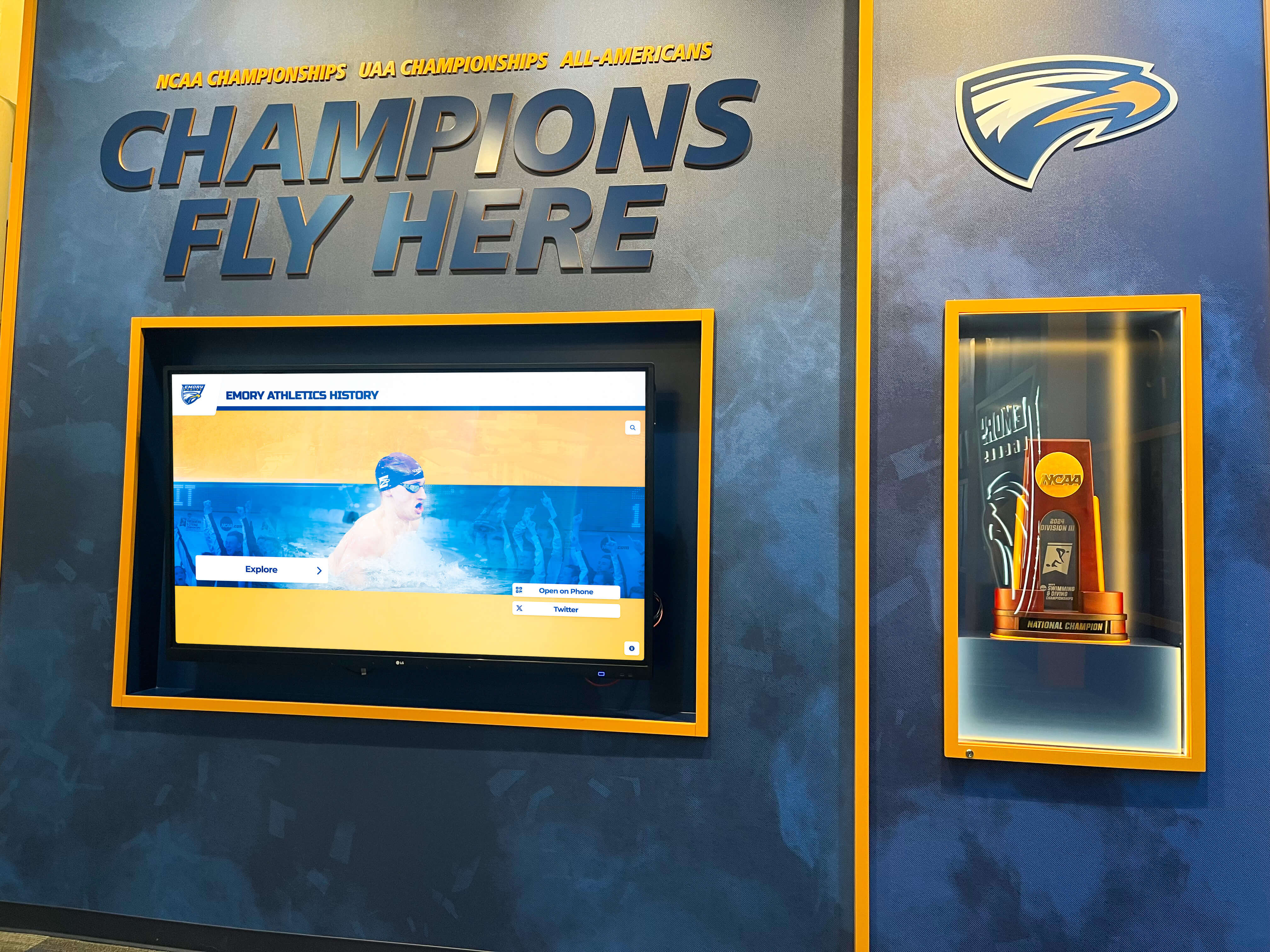
Championship recognition programs accumulate banners from multiple sports and seasons — applying a consistent effective PPI standard to every banner submission ensures the newest addition is as sharp as the installation produced a decade earlier
Quick-Reference Effective PPI Preflight Table
Use this table as a one-pass reference before approving any championship banner artwork for vendor submission. Work through every row before signing off on a production order.
| Check Item | Application or Method | Pass Criteria | Priority |
|---|---|---|---|
| All rasterized images identified and listed | Source application layer or links panel | Complete inventory of every placed raster element | Required |
| Effective PPI checked at placed dimensions | InDesign Links panel, Illustrator Document Info, or manual calculation | Every element documented with effective PPI value | Required |
| No element below 100 PPI | Any check method | Zero raster elements below 100 effective PPI | Required |
| Photographic elements at 150 PPI or above | Any check method | All photos and detail-heavy artwork at or above 150 effective PPI | Required |
| School logos in vector format | Source file layer or file type inspection | SVG, EPS, or native vector paths — no rasterized logos at banner scale | Required |
| Team photos from original camera export | File metadata or photographer confirmation | Original-resolution camera files, not social media downloads | Required |
| Sponsor logos confirmed at resolution | Sponsor file specification or calculation | Effective PPI at planned sponsor panel size meets minimum | Required |
| Adobe Acrobat Preflight run on exported PDF | Acrobat Pro Preflight tool, Images category | No images flagged below resolution threshold in Preflight report | Required |
| All flagged elements corrected before submission | Source file correction and re-export | Zero open resolution flags in final Preflight report | Required |
| Vendor resolution requirements confirmed | Vendor submission guidelines | Minimum resolution matches or exceeds the vendor’s specified threshold | Recommended |
Frequently Asked Questions: Championship Banner Effective PPI Preflight
What is effective PPI for a championship banner and why does it matter?
Effective PPI is the resolution of a rasterized image recalculated at the size it is actually placed in the banner layout — not the native resolution of the source file. A 300 PPI image scaled to four times its original linear size has an effective PPI of 75, which will print visibly soft or pixelated at banner scale. Actual PPI describes the file in isolation; effective PPI determines whether the image is sharp at its final output dimensions.
What is the minimum effective PPI for a championship banner?
The industry standard minimum effective PPI for large-format championship banner output is 150 PPI at the final print size for photographic elements and detailed imagery. 100 PPI is the absolute floor — images below this threshold produce visible pixelation at normal banner-viewing distances of 5–10 feet. For banners in narrow corridors or trophy cases where viewing distances are shorter, 150 PPI or above is appropriate throughout. Vector logos and text are resolution-independent and exempt.
How do I calculate effective PPI for an image in a banner layout?
Divide the image’s pixel width by the placed width in inches: Effective PPI = Pixel Width ÷ Placed Width in Inches. A 3,600-pixel-wide image placed at 24 inches has an effective PPI of 150. Adobe InDesign’s Links panel reports Effective PPI directly alongside Actual PPI. Adobe Acrobat Pro’s Preflight tool reports effective resolution for every rasterized element in an exported PDF. Adobe Illustrator’s Document Info panel reports effective PPI for a selected placed image.
Why do school logos from websites fail effective PPI preflight for championship banners?
Website logos are typically 72–96 PPI at 200–500 pixels wide — sufficient for screen use but producing single-digit effective PPI at banner scale. A 400-pixel-wide logo placed at 48 inches produces an effective PPI of 8.3. The permanent fix is a vector version of the logo — SVG, EPS, or Adobe Illustrator native format — which is resolution-independent and scales to any banner dimension without an effective PPI concern.
What tool is best for checking effective PPI in a championship banner file?
Adobe InDesign’s Links panel is the fastest layout-stage check — it shows Actual PPI and Effective PPI side by side for every placed image without requiring a PDF export. Adobe Acrobat Pro’s Preflight tool is the most thorough post-export check — it analyzes every rasterized element in an exported PDF and flags any image below a configurable resolution threshold. In Adobe Illustrator, the Document Info panel reports effective PPI for the currently selected placed image.
Check Resolution Early, Not After the Proof Arrives
A championship banner effective PPI preflight check performed at the layout stage — before the file is exported and submitted — gives the athletic department time to obtain corrected source files, convert rasterized logos to vector format, or adjust placed dimensions without delaying the production timeline. A resolution error discovered after a vendor submits a proof, or after a banner arrives from the printer, has no satisfying resolution: reprints are costly, recognition events cannot wait, and a banner installed with soft or pixelated artwork represents the athletic program’s achievement with less precision than it deserves.
The effective PPI check belongs to a complete preflight standard applied consistently to every championship banner order. Combined with the championship banner font embedding checklist, a minimum line weight review, and a color profile checklist, the effective PPI preflight is one step in a complete pre-submission workflow that protects every banner in an athletic program’s collection — from the first championship banner ordered to the one being produced for this season’s title.
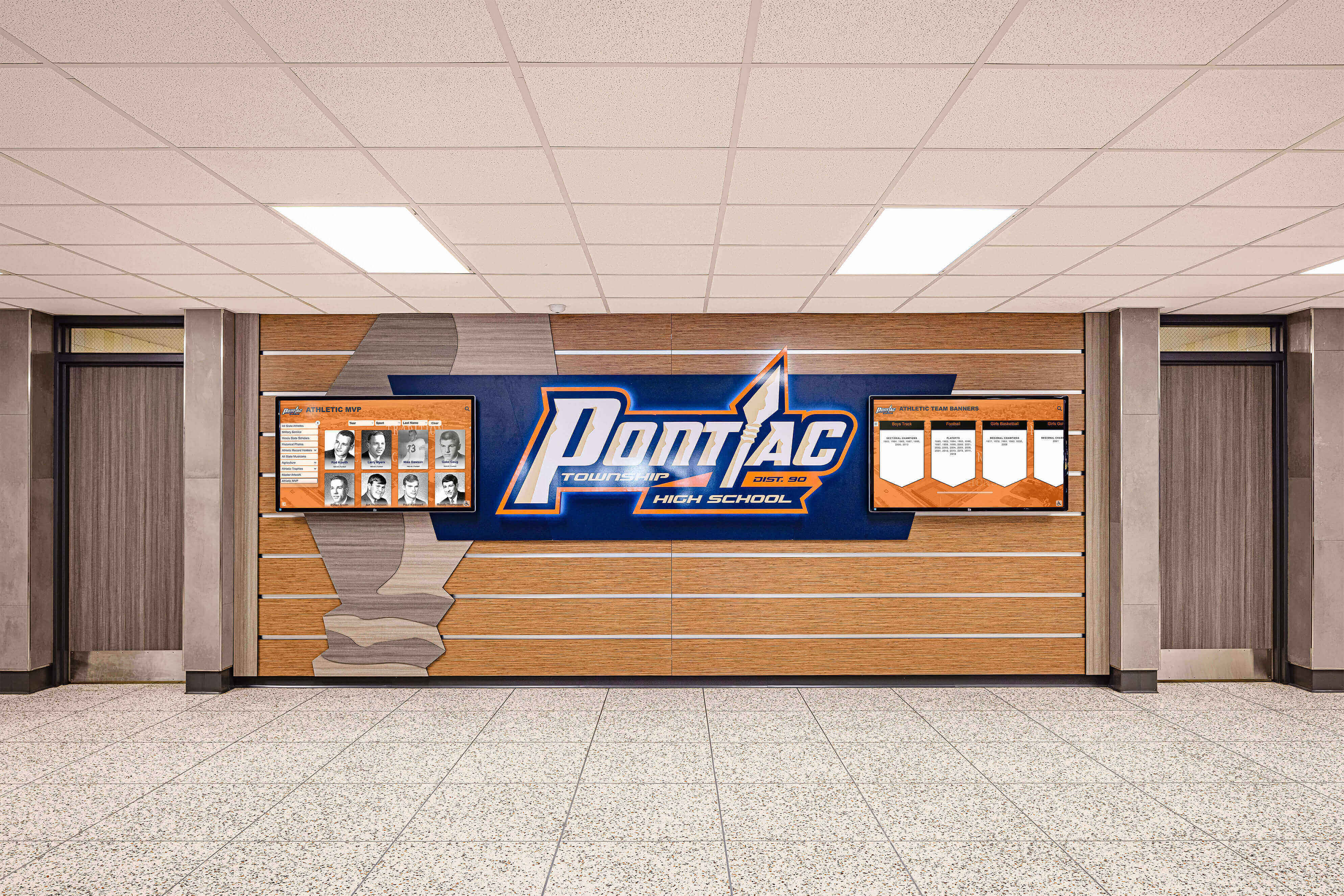
When championship banner artwork passes effective PPI preflight and is archived in high-resolution source format, that same artwork adapts to digital recognition displays, lobby touchscreens, and school websites without requiring complete recreation
Championship Recognition That Looks Right at Banner Scale
Rocket Alumni Solutions helps school athletic programs build championship recognition systems — from print-ready graphic standards and digital display networks to interactive hall-of-fame kiosks that connect banner history to the athletes and alumni who earned it. When your recognition program needs both print and digital to meet the same quality standard, we help ensure they do.
Get notified when Rocket Graphics opens