A championship banner DeviceLink profile preflight confirms that the ICC DeviceLink profile governing the source-to-output color transform in the banner production workflow specifies the correct input color space, output color space, black-channel preservation settings, and total area coverage limit for the substrate — before the file is submitted for production. The direct answer: a DeviceLink profile creates a fixed, direct mapping between two device color spaces without routing the conversion through an intermediate profile connection space, which means the same DeviceLink applied to the same artwork file produces identical CMYK output values every time it is used. For championship banners that represent a school’s athletic history across decades of repeat production runs, that repeatability is what prevents the maroon from shifting rust-orange, the navy from drifting purple, or the gold from printing as a different tone than the banner produced three seasons earlier.
This guide is written for school administrators, athletic directors, print-program coordinators, and recognition staff who review championship banner artwork and vendor specifications before authorizing production — not for ICC profile engineers who author DeviceLink transforms daily.
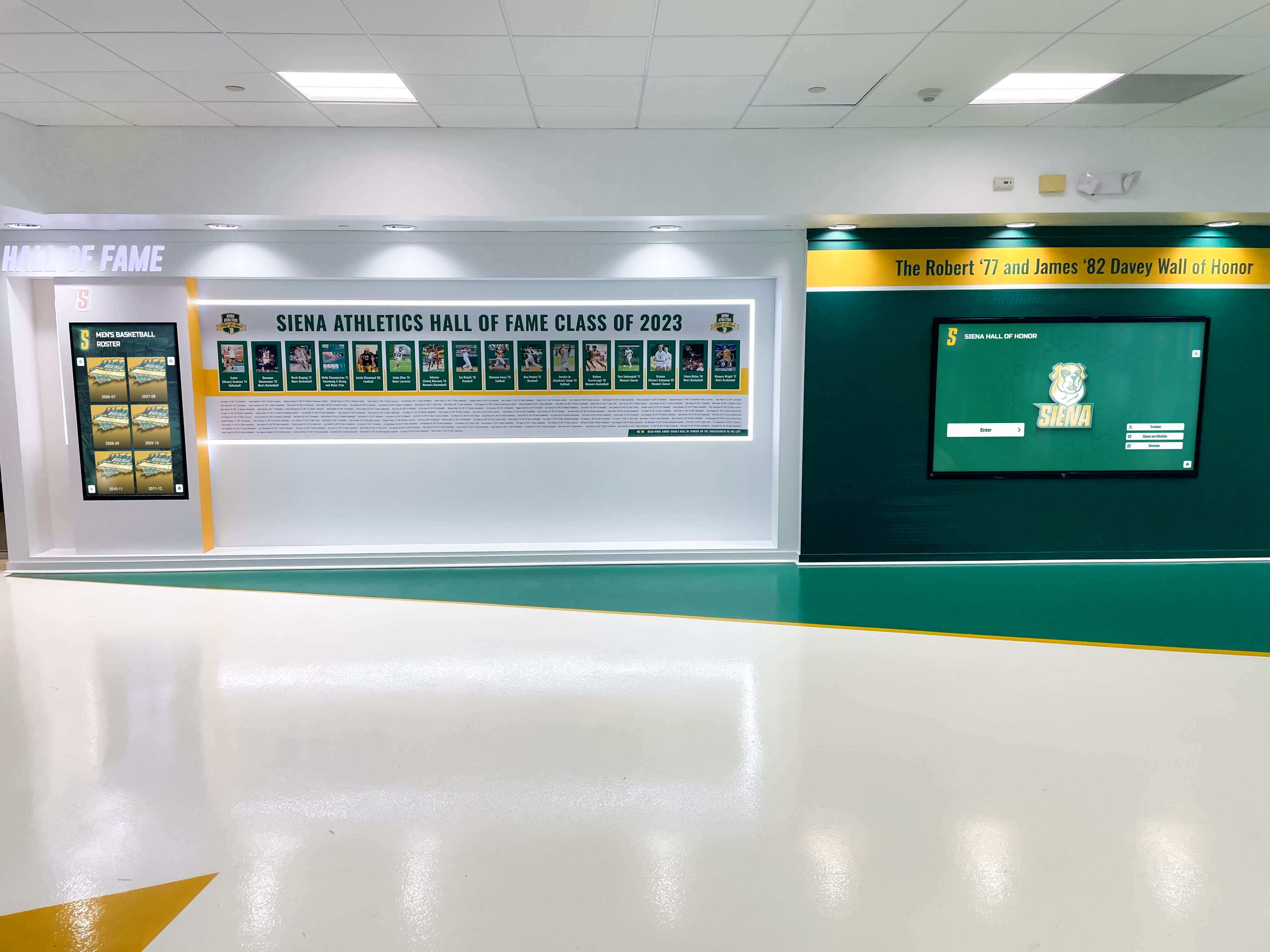
Championship banner recognition walls accumulate materials across many production runs and multiple years — a DeviceLink profile preflight at the artwork-submission stage ensures that the fixed source-to-output color transform produces the same CMYK output values as every prior run, keeping school colors consistent across the full installation
What a DeviceLink Profile Does in a Championship Banner Workflow
A standard ICC color profile conversion routes color values through a profile connection space — a device-independent reference color model, either CIE XYZ or CIELAB — before mapping those values to the destination device’s color space. Two profiles are involved: the source profile defines how the source device’s values map to the PCS, and the destination profile defines how the PCS values map to the output device. Color values pass through the PCS in both directions, and the round-trip introduces rounding, gamut-mapping decisions, and computational variation at each step.
A DeviceLink ICC profile eliminates the intermediate step entirely. It stores a single, direct lookup table that maps source device values — for example, the CMYK percentages in a banner artwork file built against a GRACoL-referenced CMYK working space — directly to the output device values the large-format printer will lay down. No PCS round-trip occurs. The transform is fixed, deterministic, and produces the same output every time the same input values are presented.
For championship banner production, that difference matters most at repeat orders. A school that orders a new championship banner every one to three years — adding a title to a gymnasium wall of banners spanning twenty or thirty years — needs each new banner to match the color of the previous ones. If the production workflow uses a standard two-profile ICC conversion, the output depends on the specific conversion engine, rendering intent settings, black-point compensation state, and the vendor’s current device characterization — any of which may have changed since the previous order. If the workflow uses a DeviceLink profile that has been explicitly approved against the vendor’s characterization data, the transform is fixed: the same input values always produce the same output values, regardless of which operator submitted the file or which software version ran the conversion.
According to the ICC (International Color Consortium), the DeviceLink profile type (mlinkD in the ICC specification) was designed specifically for device-to-device transforms in production workflows where a fixed, repeatable color path is more important than gamut-optimized round-trip fidelity. Large-format print production shops and prepress service bureaus use DeviceLink profiles in their RIP workflows to standardize output across different file submissions from different clients — the DeviceLink converts incoming artwork to the device’s native CMYK without relying on whoever built the artwork file to configure their conversion settings correctly.
A championship banner DeviceLink profile preflight is the check that confirms the DeviceLink being applied in your vendor’s workflow — or applied at the file-preparation stage by the artwork coordinator — is the right profile for the current banner substrate and device, and that its configuration settings match the ink limits and color-stability requirements your school’s recognition program needs.
The Seven-Step Championship Banner DeviceLink Preflight
The following workflow applies when a large-format print vendor uses a DeviceLink profile in their RIP, or when artwork is pre-converted to production CMYK using a DeviceLink profile before submission. Complete each step before sending the file to production.
Step 1: Confirm whether the vendor uses a DeviceLink profile in their production workflow.
Contact the vendor and ask specifically whether their RIP applies a DeviceLink profile to submitted CMYK or RGB artwork files. Some large-format vendors use standard two-profile ICC conversions; others apply a DeviceLink to standardize output across different client file formats. If the vendor uses a DeviceLink, request its profile name, version date, and the input/output color space pairing it covers. Document the response in the order file for the banner production record. If the vendor does not use a DeviceLink, this preflight step confirms the production workflow uses standard ICC conversions — proceed to the championship banner rendering-intent preflight and championship banner gray component replacement preflight instead.
Step 2: Verify the DeviceLink’s input color space matches the artwork file’s color space.
A DeviceLink profile is built for a specific input color space. A DeviceLink designed to accept CMYK source values — for example, GRACoL 2013 Coated 1 CMYK — will produce incorrect output if applied to a file prepared in a different CMYK working space, such as SWOP 2006 Coated 3, or to an RGB source file. Open the banner artwork file and confirm the embedded working space or output intent declared in the PDF’s OutputIntent dictionary. In Adobe Acrobat Pro, select File > Properties > Description and check the Color tab, or use Tools > Print Production > Output Preview to read the document’s color space. Confirm that the declared input color space matches what the DeviceLink profile expects. A mismatch at this step is the most common source of school color shift in DeviceLink-based workflows — the profile applies the correct transform to the wrong source values.
Step 3: Verify the DeviceLink’s output color space matches the vendor’s current device characterization.
A DeviceLink profile maps input color values to specific output device values based on a characterization measurement of the output device taken at the time the DeviceLink was created. If the vendor has recharacterized the device — replaced inks, changed substrate stocks, or recalibrated the RIP — since the DeviceLink was authored, the output values the DeviceLink produces may no longer correspond to the intended visual result. Ask the vendor when their current DeviceLink was authored and when the device characterization that underlies it was measured. Compare that date against the date of the previous championship banner production run. If the DeviceLink was authored after the last run, confirm with the vendor that school colors were verified against reference measurements before the new DeviceLink was placed in the production workflow.
Step 4: Check K-channel preservation settings in the DeviceLink.
DeviceLink profiles for CMYK-to-CMYK conversions can be configured to preserve or rebuild the black channel depending on the production requirement. A DeviceLink with K-channel preservation keeps the black ink percentages from the source file intact during the transform, changing only the chromatic channels to compensate for differences between the source and destination color conditions. This is the preferred setting for championship banner artwork that contains native CMYK type, rules, and mascot vector artwork built with a specific K channel — K preservation ensures that text remains clean and sharp at the output device’s ink density, and that shadow areas built on K-dominant separations do not become CMY-dominated at output.
A DeviceLink without K-channel preservation rebuilds the entire CMYK separation from scratch at output, which can produce darker K values in text areas or lighter K values in shadow areas compared to what the artwork specified. In Adobe Acrobat Pro’s Tools > Print Production > Convert Colors dialog, look for a K-channel handling option when the conversion is configured to use a DeviceLink. If you are using Chromix ColorThink Pro or a similar ICC profile inspection tool, open the DeviceLink profile and confirm whether a K-preservation tag is present. Request this information in writing from the vendor if profile inspection tools are not available.
Step 5: Confirm total area coverage output falls within the substrate limit.
DeviceLink profiles for large-format production typically include a built-in total area coverage reduction that caps the sum of all CMYK ink channels at or below the substrate’s absorption limit — commonly 280–300% for vinyl and 240–280% for fabric banner substrates. This TAC limit is built into the DeviceLink’s output table and operates regardless of the source file’s ink percentages.
To confirm the TAC limit is correctly set, apply the DeviceLink as a soft proof or convert a copy of the artwork file using the DeviceLink, then inspect the converted CMYK values in Acrobat Pro > Tools > Print Production > Output Preview with the Total Area Coverage warning enabled at the vendor’s specified limit. Dark school colors — navy, maroon, forest green, dark purple — are the most likely areas to carry high source ink values. After DeviceLink conversion, those areas should show reduced total ink percentages that comply with the substrate limit. If any areas still exceed the limit after DeviceLink conversion, report this to the vendor before submission — the DeviceLink’s TAC ceiling may be incorrectly configured for the current substrate.
Step 6: Apply the DeviceLink as a soft proof and compare against a reference.
Before submitting the banner file for production, apply the DeviceLink profile as a simulation proof in the design application. In Adobe Photoshop, use View > Proof Setup > Custom and load the DeviceLink profile as the device to simulate. In Acrobat Pro, use Output Preview > Simulation Profile and select the DeviceLink profile. Examine critical school color areas — primary color fields, team color fills, and the school’s dark accent colors — at 100% zoom.
Compare the soft-proofed result against the approved color reference from the previous championship banner production run. The approved reference may be a physical press proof, an approved PDF soft-proof output, or a spectrophotometer reading from the previous banner. If the current DeviceLink soft proof shows school colors that match the reference, the profile is correctly configured for this substrate and ink condition. If colors differ visibly, identify whether the difference is in the chromatic colors, the neutral balance, or the shadow depth, and report specific areas to the vendor before production authorization.
Step 7: Document the DeviceLink profile name and version in the banner production record.
Championship banners are long-lived recognition materials. A gymnasium wall may carry banners produced across thirty years, and the school may reorder replacement banners or add matching elements years after the original was produced. Recording the name, version date, and vendor-provided characterization data for the DeviceLink profile applied at each production run creates a color-management audit trail: if a color discrepancy is detected on a future run, the production coordinator can compare the current DeviceLink against the archived version to determine whether a profile change caused the shift.
Store the DeviceLink profile name and version alongside the approved artwork source files and press proofs in the school’s asset archive. Digital asset management practices for schools — including how print specifications and approved color references should be stored alongside source artwork — are addressed in resources on school digital asset management, which apply equally to championship print programs and digital recognition displays.
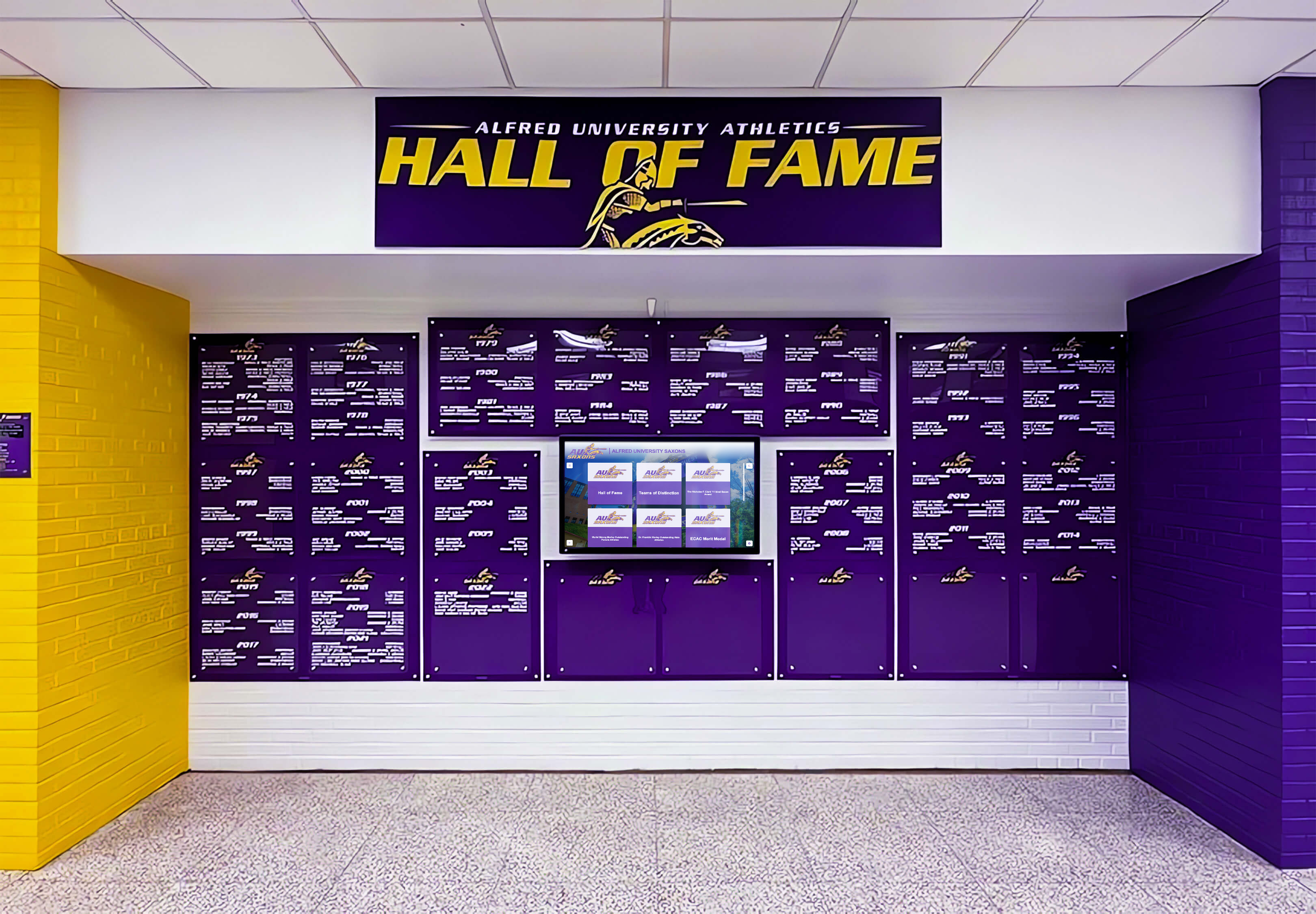
Deep purple and yellow school colors in a multi-year championship banner program require the same CMYK output values at every production run — a DeviceLink profile preflight fixes and verifies that transform before each new banner goes to the large-format vendor
DeviceLink Profile Configuration Reference for Large-Format Banner Production
| Configuration Parameter | Standard Setting for Banner Vinyl | Standard Setting for Banner Fabric | Why It Matters for School Colors |
|---|---|---|---|
| Input color space | CMYK (GRACoL 2013 Coated 1 or vendor-specified CMYK working space) | Same as vinyl | Source values must match what the DeviceLink was calibrated against |
| Output color space | Vendor’s device CMYK profile (current characterization) | Same as vinyl | Output table maps to device ink values; outdated characterization produces color drift |
| K-channel preservation | On — preserve source K channel | On — preserve source K channel | Preserves black-channel ink build in type and shadow areas; prevents K rebuild |
| Total area coverage limit | 280–300% (confirm with vendor) | 240–280% (confirm with vendor) | Caps ink load at substrate absorption limit; dark school colors most affected |
| Rendering intent (built into DeviceLink) | Relative colorimetric or custom gamut mapping | Relative colorimetric or custom gamut mapping | Governs how out-of-gamut source colors map to destination; affects vivid school colors |
| Smoothing / interpolation | Enabled (reduces contouring in smooth gradients) | Enabled | Prevents banding in neutral gradient transitions in banner backgrounds |
| Gray balance correction | Included if DeviceLink was built against G7 gray balance | Included if built against G7 | Aligns neutral gray reproduction to G7 standard; reduces neutral color cast |
Request this configuration information from the vendor in writing before the first championship banner production run and update the documentation record whenever the vendor indicates the DeviceLink has been revised.
How the DeviceLink Interacts with School Color Accuracy
The fixed-transform nature of a DeviceLink profile is a direct benefit for school color accuracy, but it depends on the DeviceLink having been authored correctly in the first place. A DeviceLink that encodes the wrong output characterization — or that was built for a substrate or ink set that has since changed — will produce incorrect school colors just as reliably as a correctly built DeviceLink produces accurate ones.
Saturated school colors and the DeviceLink gamut mapping. School colors that fall within the output device’s gamut — such as bright gold, royal blue, or kelly green — should survive DeviceLink conversion with minimal change if the DeviceLink uses relative colorimetric gamut mapping. The DeviceLink’s lookup table maps in-gamut source values to their closest output equivalents without compressing the surrounding gamut. The soft proof comparison in Step 6 of the preflight confirms whether the DeviceLink is mapping these school colors accurately. If the school’s official color shows a visible hue shift in the soft proof, the DeviceLink’s gamut mapping may be using perceptual compression that shifts in-gamut colors — a configuration error the vendor should correct before production.
Dark, desaturated school colors and K-channel effects. Dark navy, dark maroon, dark forest green, and dark burgundy carry high ink loads and fall in shadow zones where the DeviceLink’s K-channel handling is most consequential. With K-channel preservation on, the K percentage in the source file’s dark color definitions is carried forward to the output without rebuilding — the dark navy defined as, for example, 100% K plus CMY chromatic component in the source stays K-dominant at output. Without K-channel preservation, the DeviceLink rebuilds the full separation from its output characterization data, which may produce more or less K than the source specified. Dark school colors should always be inspected in the soft proof after DeviceLink conversion to confirm that their visual character — the specific richness of a deep navy that distinguishes it from flat black — is preserved.
Neutrals, grays, and white areas. Championship banner layouts often include gray gradient transitions, white areas behind typography, and charcoal metallic-look border elements. A DeviceLink built against G7-calibrated characterization data incorporates a gray balance correction that aligns neutral areas to the G7 gray balance target — a known, documented neutral reproduction standard. When the DeviceLink includes G7 gray balance, neutral areas in the artwork convert to CMYK values that produce a visually neutral result on the production device without requiring a separate neutral check. The championship banner gray balance preflight addresses neutral accuracy verification in detail; when a DeviceLink built on G7 characterization is in the workflow, that preflight can confirm the DeviceLink’s gray balance result rather than checking for neutral bias from scratch.
School Colors That Match Every Season
Rocket Graphics is an AI-powered graphics platform built for school athletic departments — your official school colors, logo, and fonts are applied automatically to every championship announcement, recognition post, and social graphic. Free for K-12 schools and athletic programs.
Get notified when Rocket Graphics opens.DeviceLink Preflight in the Championship Banner Production Standard
A DeviceLink profile preflight functions as the color-management foundation for the complete championship banner preflight sequence: it defines the source-to-output color transform that all downstream checks then verify.
The championship banner gray component replacement preflight confirms that CMYK separations in the artwork file carry GCR settings compatible with the substrate’s ink limit. When a DeviceLink is in the workflow, the DeviceLink’s output table may already apply GCR internally — a configuration the vendor controls. The GCR preflight should confirm what the DeviceLink does to the black channel, not assume the source file’s GCR settings will pass through unchanged.
The championship banner total ink coverage preflight confirms that dark school colors do not exceed the substrate’s absorption limit after conversion. When a DeviceLink with a built-in TAC limit is applied at the RIP, this check verifies that the DeviceLink’s TAC ceiling is correctly set rather than checking the source file’s values — the DeviceLink’s output, not the source artwork, is what reaches the substrate.
The championship banner spectrophotometer calibration check confirms that the measurement device used to characterize the production press is properly calibrated — a prerequisite for the characterization data that underlies any DeviceLink profile. A DeviceLink is only as accurate as the device measurement data it was built from.
When evaluating print vendor capabilities for school recognition programs, digital signage and display vendor services share a common requirement: the production partner must be able to document their color management workflow and provide specifics about how transformations are applied. A vendor who can provide the DeviceLink profile name, input and output characterization dates, and K-channel configuration documentation is demonstrably more capable of producing consistent school colors across repeat banner runs than one who cannot.
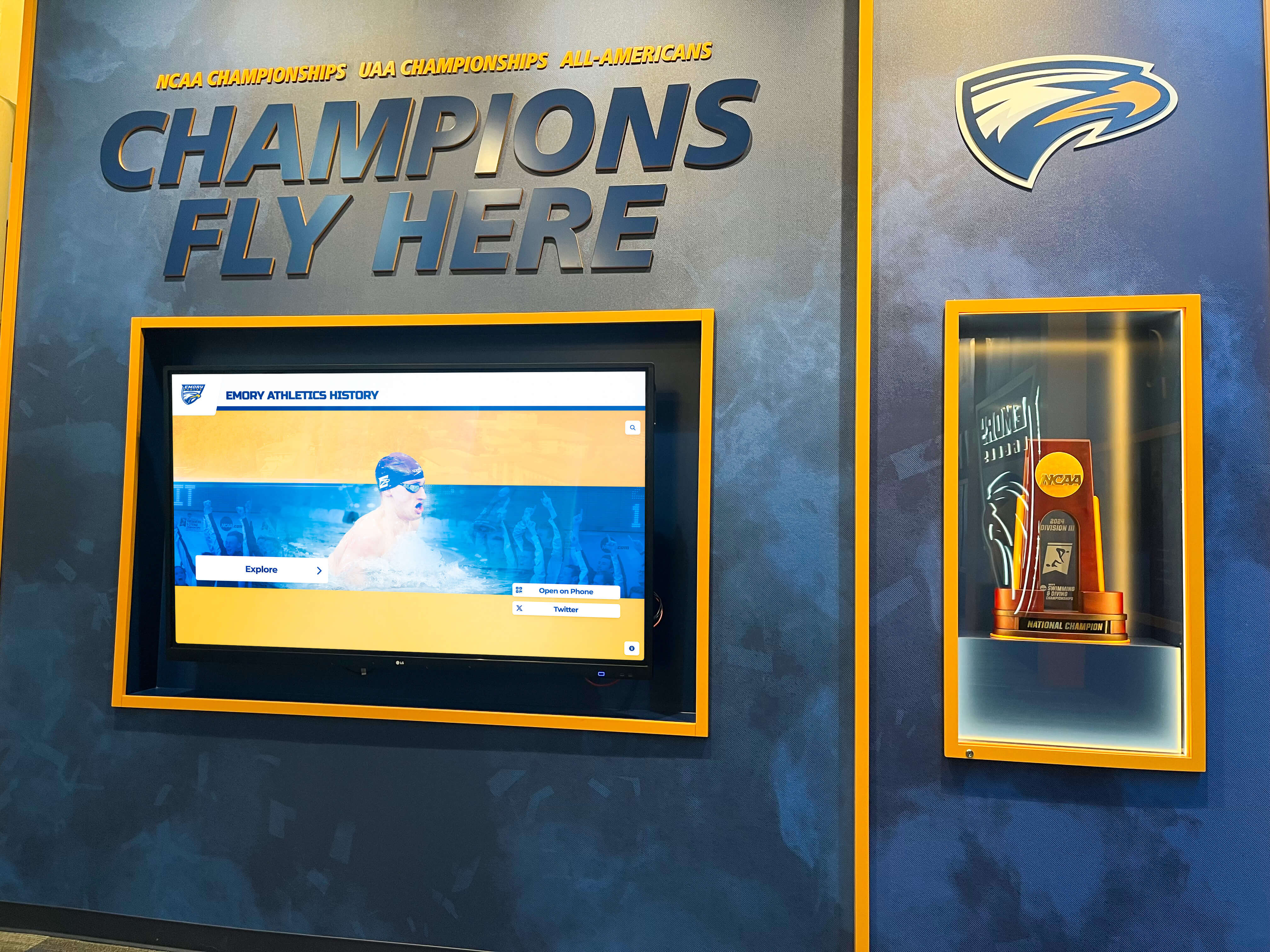
Multi-sport championship programs produce banner and recognition materials across decades — a DeviceLink profile used consistently across those runs is what maintains color identity between the oldest and newest element on the wall, provided the profile has been verified at each production cycle
School Recognition Programs and the Case for Documented Color Transforms
Championship banners exist in a larger recognition ecosystem. The banners hanging in a gymnasium lobby are viewed alongside digital recognition displays, trophy cases, athletic murals, and framed photographs that all carry the school’s official colors. Maintaining color consistency across that ecosystem — where some elements are produced on fabric substrates with solvent ink, some on vinyl with UV-cure ink, and others appear on calibrated LED displays — requires documented color transforms at every production stage.
For printed materials, a DeviceLink profile is the most direct form of documented, repeatable color transform available in commercial large-format production. When an athletic department maintains a production record that includes the DeviceLink profile used for each championship banner, comparing that record against the current vendor’s DeviceLink version takes minutes — and confirms immediately whether the color transform has changed since the last production run.
Schools that manage recognition programs across multiple award types — championship banners, academic honor boards, staff recognition murals, and display cases — benefit from consistent documentation practices across all printed materials. Digital award display programs that manage recognition graphics alongside print programs often surface how consistent color standards across media types require the same documentation discipline for print transforms that digital programs require for display profiles.
Recognition programs that extend into the digital sphere — school hallway touchscreen kiosks, digital hall of fame installations, and interactive lobby displays — require color consistency between the digital screen and the adjacent printed championship banner. Maintaining that consistency requires knowing the specific CMYK values the DeviceLink produces for each school color, translating those values to the display’s sRGB or P3 color space, and verifying the digital representation against the printed reference at the same wall location.
For school programs that maintain digital yearbooks or historical archives of athletic achievement, the source files underlying championship banner production — high-resolution artwork files with approved color references and documented DeviceLink profiles — represent a permanent visual record of the athletic program. Yearbook digitization and archival programs reflect the importance of preserving source-quality materials alongside their display versions. Championship banner source files, archived with their approved DeviceLink profiles and press-proof references, are the print equivalent of those archival originals.
Dance teams, spirit squads, and other co-curricular programs that display recognition materials alongside athletic championships benefit from the same color production standard. Recognition wall programs that incorporate spirit-squad and dance team history alongside athletic banners require consistent school colors across all installed elements — a requirement that begins at the file-production stage with verified color transforms.
Schools that host field day events, activities fairs, or multi-sport recognition ceremonies often produce supporting printed materials — banners, signs, and award boards — alongside championship banners. School event recognition materials produced in the same color standard as championship banners create a consistent visual identity across all school-branded printed output, from the gymnasium wall to the field event signage.
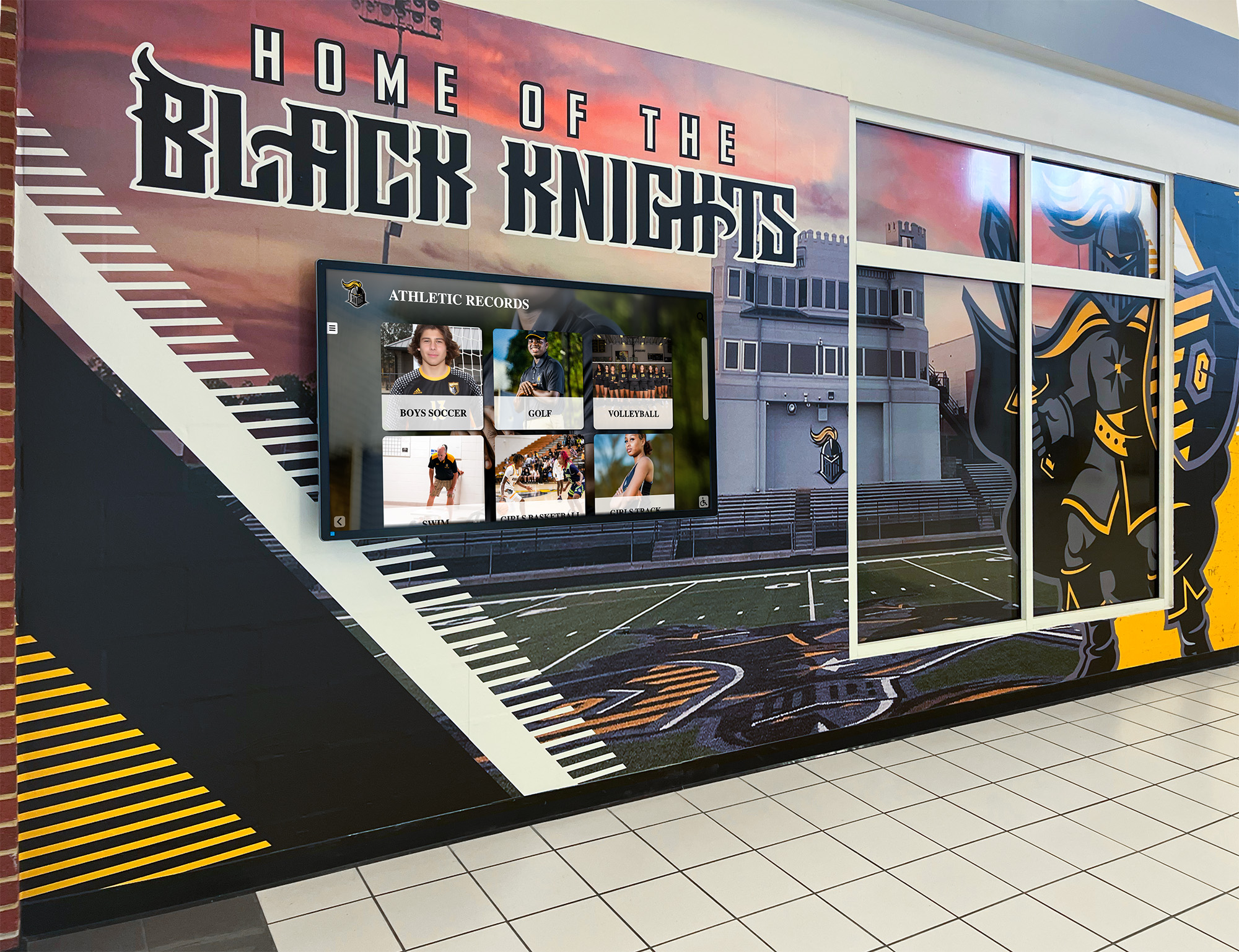
When printed championship murals and digital recognition screens share the same hallway, school color consistency across both formats depends on documented, verified transforms at each production stage — the DeviceLink profile preflight is the print side of that verification
Quick-Reference DeviceLink Preflight Checklist
| Preflight Check | Method | Pass Criteria | Priority |
|---|---|---|---|
| Vendor uses DeviceLink profile confirmed | Written communication with vendor | Vendor confirms DeviceLink used and provides profile name, version date | Required |
| Input color space match confirmed | Acrobat Pro File Properties or Output Preview color space | Artwork color space matches DeviceLink input specification | Required |
| Output color space matches current device characterization | Written vendor documentation | DeviceLink output characterization date is current; matches active substrate and ink set | Required |
| K-channel preservation setting confirmed | Vendor documentation or ColorThink profile inspection | K-preservation is on for artwork with native CMYK black-channel elements | Required |
| TAC output limit verified | Acrobat Pro Output Preview — Total Area Coverage warning after DeviceLink conversion | All areas at or below vendor’s substrate TAC limit (typically 280–300% for vinyl) | Required |
| Soft proof comparison against reference performed | Photoshop or Acrobat Pro — DeviceLink as simulation profile | School colors in soft proof match approved reference from previous production run | Required |
| DeviceLink profile name and version documented | Written production record | Profile name, version, and characterization date recorded alongside source artwork files | Required |
| K-channel and shadow zones inspected post-conversion | Acrobat Pro Output Preview — K channel at shadow and dark school color areas | K coverage appropriate for substrate; dark school colors within TAC limit | Required |
Frequently Asked Questions: Championship Banner DeviceLink Profile Preflight
What is a DeviceLink profile and why does it matter for championship banner production?
A DeviceLink ICC profile creates a fixed, direct mapping between two device color spaces — for example, from a CMYK working space to a large-format printer’s CMYK color space — without routing the conversion through an intermediate profile connection space. For championship banner production, this means the same DeviceLink applied to the same artwork file produces identical CMYK output values every time. That repeatability is what keeps school colors consistent across repeat banner production runs over many years, preventing the color drift that accumulates when different conversion settings are applied at each order.
How is a DeviceLink profile different from a standard ICC profile conversion?
A standard ICC color conversion uses two profiles and an intermediate Profile Connection Space (PCS): the source profile maps source values to the PCS, and the destination profile maps PCS values to the output device. A DeviceLink profile eliminates the PCS entirely, storing a single lookup table that maps source device values directly to output device values. The result is a fixed, deterministic transform with no rounding or gamut-mapping accumulation from the PCS round-trip. DeviceLink profiles also allow fine control over K-channel handling and total area coverage in ways that standard two-profile conversions do not.
What should I ask my print vendor about their DeviceLink profile before submitting a championship banner?
Ask the vendor to provide: (1) confirmation that a DeviceLink profile is used in their RIP for submitted CMYK artwork; (2) the profile name and version date; (3) the input and output color space specifications; (4) whether K-channel preservation is enabled; (5) the built-in total area coverage limit; and (6) the date of the device characterization the profile was built from. If the DeviceLink was authored before a substrate or ink change, it may not accurately represent current device behavior — the characterization date is the key indicator.
How do I soft-proof a DeviceLink profile to verify school colors before banner production?
In Adobe Photoshop, go to View > Proof Setup > Custom and load the DeviceLink profile as the simulation profile. Examine critical school color areas at 100% zoom and compare the result against an approved color reference from a previous production run. In Acrobat Pro, use Tools > Print Production > Output Preview and select the DeviceLink as the simulation profile. Any visible hue or lightness differences from the reference indicate a DeviceLink configuration issue to resolve with the vendor before submission.
Does a DeviceLink profile affect dark school colors differently than bright ones?
Yes. Bright, saturated school colors within the output gamut are typically preserved with minimal change under relative colorimetric gamut mapping. Dark, desaturated colors — navy, maroon, dark forest green, dark purple — carry high ink loads that interact with the DeviceLink’s TAC limit and K-channel handling. These colors require specific inspection after DeviceLink conversion to confirm their visual character is preserved and their ink totals fall within the substrate’s absorption limit.
A Fixed Transform Is the Foundation of a Consistent Championship Banner Program
A championship banner DeviceLink profile preflight is a targeted verification of a single, critical variable: whether the source-to-output color transform applied at production is correctly configured for the current substrate, ink set, and school color requirements. Confirming the input color space match, output characterization currency, K-channel preservation setting, and TAC output ceiling in writing — before the file is submitted — takes far less time than investigating a color discrepancy discovered when a new banner is installed next to twenty years of prior production.
The DeviceLink preflight integrates with the complete championship banner production standard: gray balance verification of neutral areas, gray component replacement verification of CMYK separations, spectrophotometer calibration confirmation at the production device, and G7-calibrated press output that anchors the device to a documented neutral standard. When those checks are performed against the output of a correctly verified DeviceLink, the production standard is both fixed and traceable — and the championship banner produced this season will match the color of every banner your school has ever produced and every banner it will produce in the years ahead.
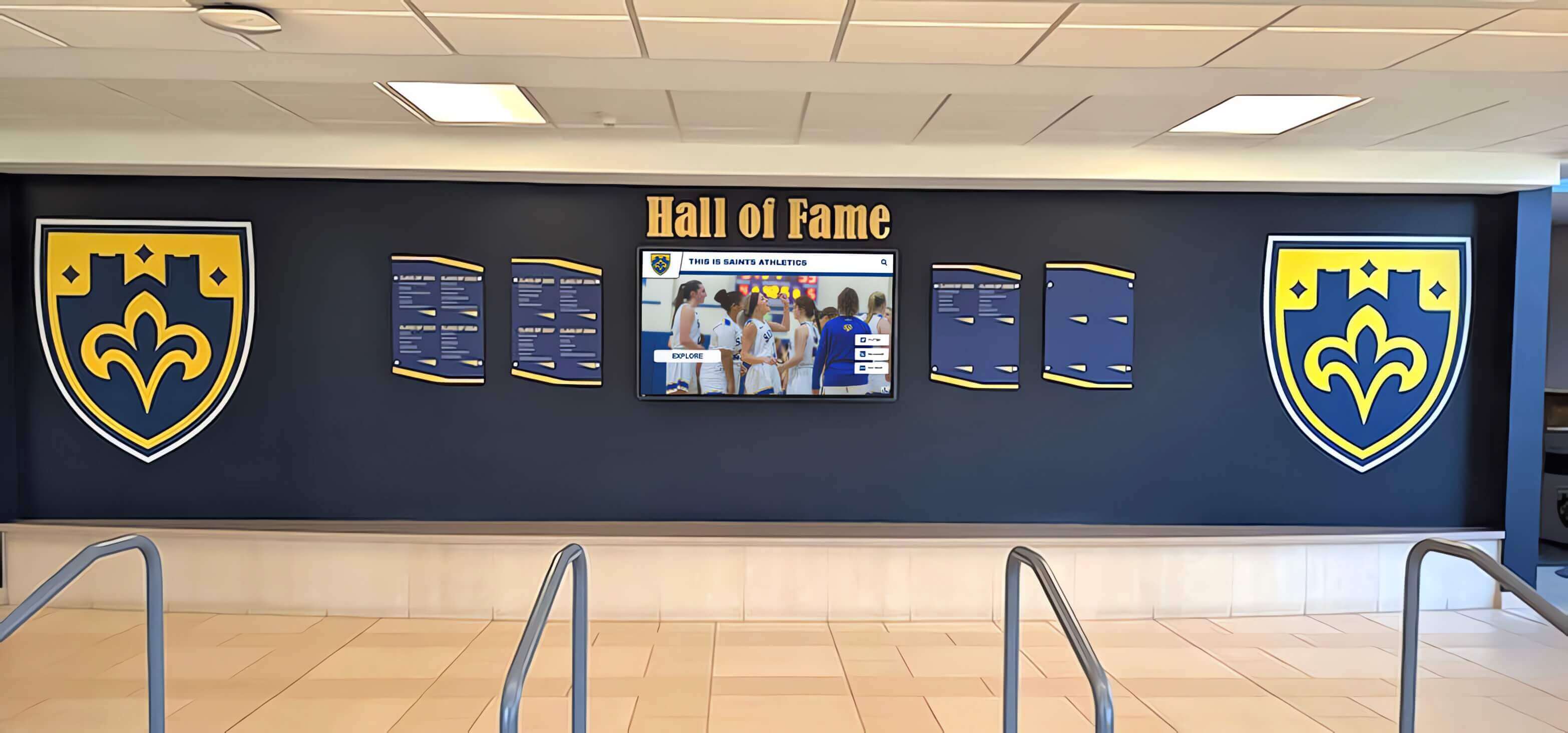
Recognition environments where championship banners and digital displays share the same space require consistent color production at both the print and digital levels — the DeviceLink profile preflight is the file-workflow step that protects the printed championship banner color accuracy from order to order across a program's full history
Championship Recognition That Honors Consistent Colors
Rocket Graphics is an AI-powered graphics platform built for schools — your official school colors, logo, and fonts are applied automatically to every championship announcement, award post, and recognition graphic, so every graphic you create matches your school's brand from the first run to the last. Free for K-12 schools and athletic departments.
Get notified when Rocket Graphics opens.